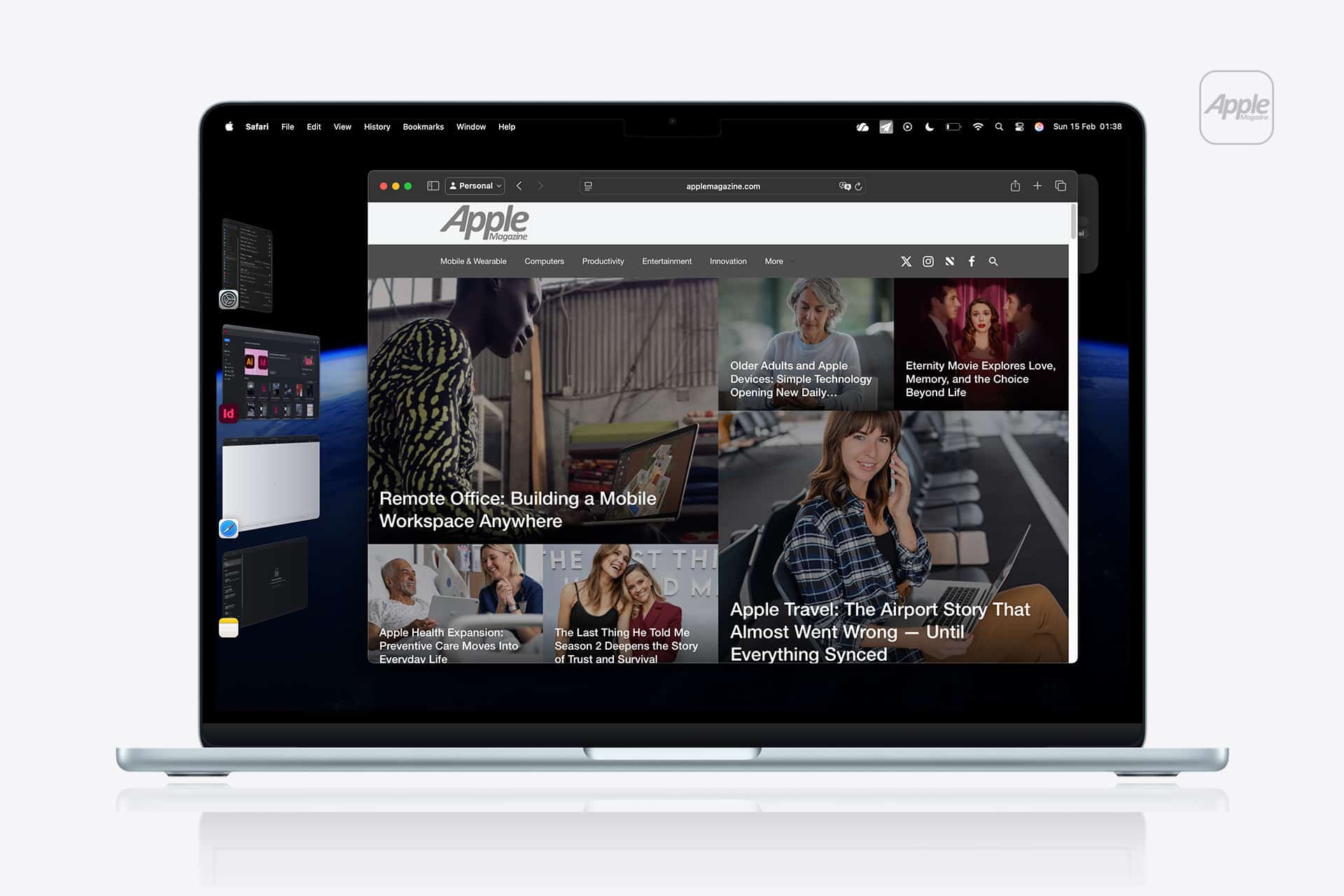
Stage Manager transforms the Mac desktop into a structured workspace where windows organize themselves automatically, leaving the current task centered while other apps remain accessible at the side. For users handling multiple documents, editing environments, research tabs, and communication apps simultaneously, mastering a few advanced techniques can significantly reduce visual clutter and improve workflow continuity.
Create Task-Based Workspaces
Instead of opening apps randomly throughout the day, organize them into task-focused clusters. For example, a writing workspace might include Notes, Safari, and a PDF reader grouped together, while a design workspace could combine Photoshop, Finder, and reference folders.
Switching between groups becomes faster and mentally clearer because each workspace represents a specific type of activity.
To activate Stage Manager:
System Settings > Desktop & Dock > Stage Manager > Turn On
Once enabled, drag windows together in the active area to create logical task groups. These groups remain available on the left sidebar, allowing instant switching between projects without manually rearranging windows each time.


Use External Displays Strategically
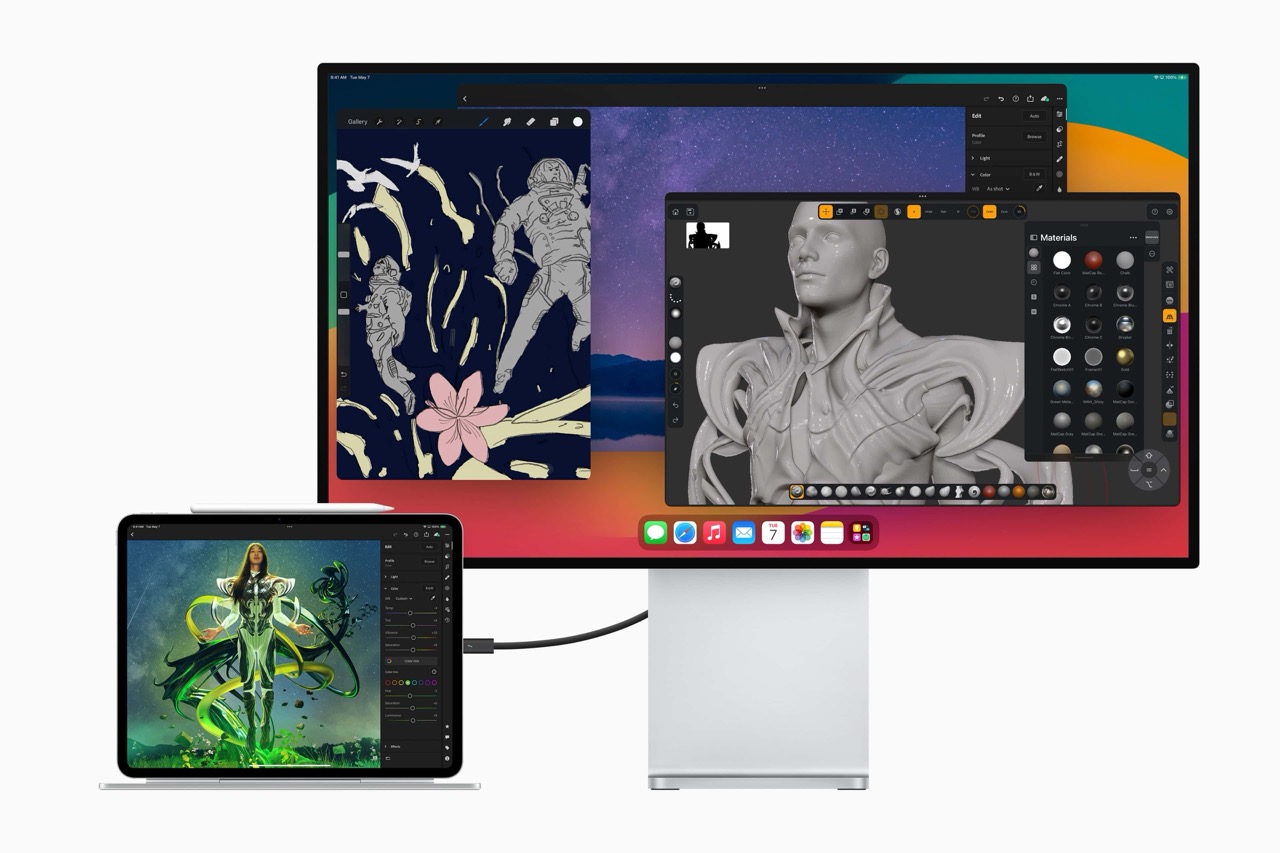
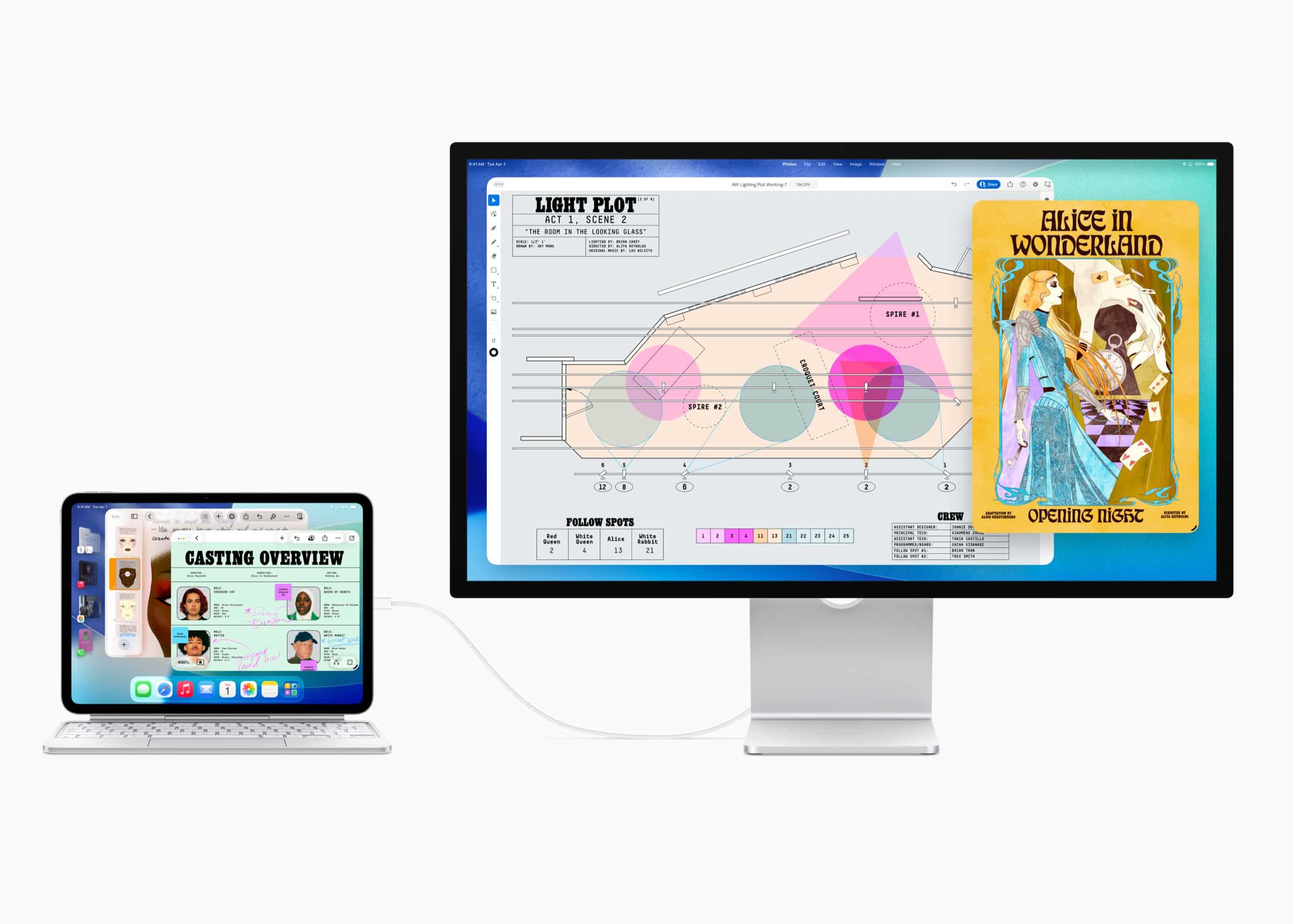
Stage Manager becomes even more powerful when combined with an external monitor. Each display can maintain its own Stage Manager workspace, effectively doubling your multitasking capacity. Many users dedicate the primary display to the current task while placing communication tools such as Messages, Slack, or Mail on the secondary display, keeping interruptions visible without interrupting the main workflow.
When connecting a monitor:
System Settings > Displays > Arrangement > Position displays to match desk layout
This ensures cursor transitions between screens feel natural, especially when dragging windows into different Stage Manager groups.

Quick Window Reorganization Techniques
Dragging a window from the sidebar into the active workspace instantly merges it into the current group. This is useful when temporarily referencing another application without permanently changing your layout. Once the task is complete, removing the window returns the workspace to its original configuration.
Another helpful method is resizing windows intentionally. Instead of maximizing everything, keep key reference apps partially visible behind the main window. This approach allows quick switching without searching through minimized apps.
Keyboard Shortcuts That Speed Up Navigation
Stage Manager pairs well with classic macOS shortcuts. Using Command + Tab to jump between apps and Mission Control gestures to view open windows allows fast navigation without relying solely on the sidebar. Power users often combine keyboard shortcuts with Stage Manager grouping, creating a hybrid system that feels faster than traditional desktop switching.
Organizing Long Research Sessions
Research-heavy workflows benefit greatly from Stage Manager grouping. One workspace can hold multiple Safari windows, PDFs, and note-taking apps, while another workspace contains editing software and project files. Switching between “Research” and “Production” environments becomes instantaneous, preventing the desktop from filling with dozens of unrelated windows.
Over time, this method builds a habit of assigning purpose to each workspace. Instead of thinking in terms of open apps, users begin thinking in terms of active tasks, making transitions between projects smoother.

Reduce Visual Overload With Minimal Sidebar Groups
Keeping too many Stage Manager groups visible at once can reduce its effectiveness. Periodically close unused apps or consolidate similar tasks into shared groups. This keeps the sidebar clean and allows faster switching between the most important workflows.
Stage Manager works best when the sidebar represents only current priorities rather than every application opened throughout the day.
Stage Manager As A Long-Term Workflow Habit
Once Stage Manager becomes part of daily routines, the Mac desktop begins to feel less chaotic. Projects remain organized, windows stay grouped logically, and switching between tasks takes seconds instead of minutes. Over time, this structured environment reduces the mental friction of multitasking, especially during long editing sessions, research work, or creative production that involves multiple applications running simultaneously.