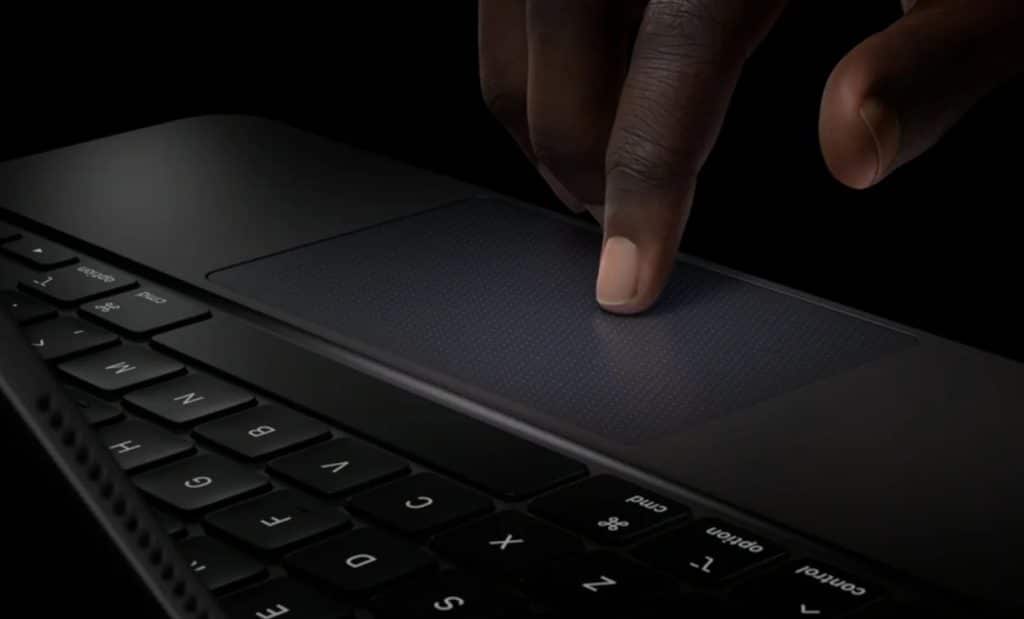
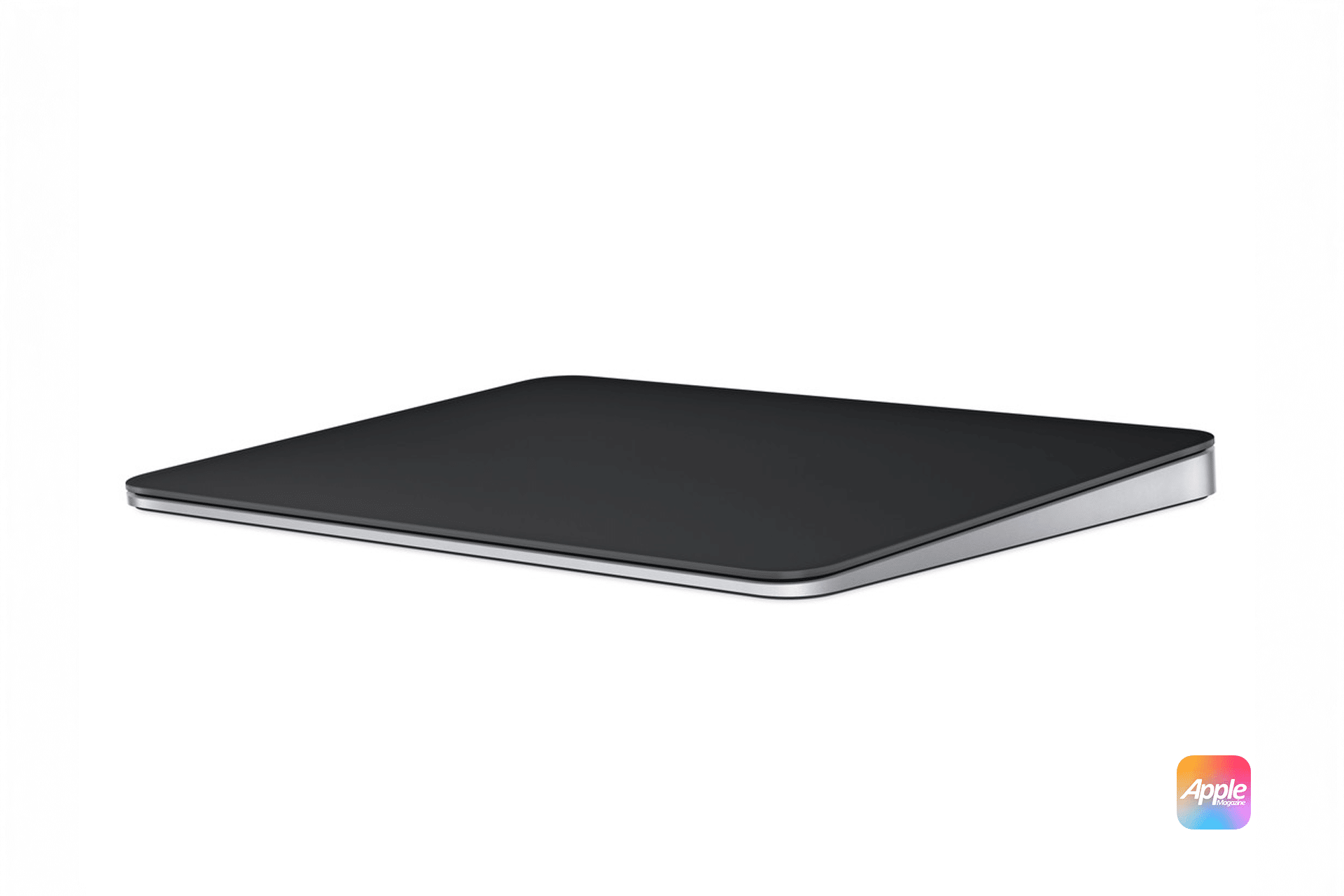
Apple’s built-in MacBook trackpad and the external Magic Trackpad both support Multi-Touch gesture control throughout macOS. These gestures are natively supported and recognized by the system whenever either device is connected. To view, enable or disable available gestures, open System Settings and navigate to the trackpad preferences, where gesture behavior and sensitivity can be customized for your workflow.
Settings > Apple menu > System Settings > Trackpad
Basic Gestures for Everyday Use
To interact with macOS content efficiently using the trackpad:
A tap with one finger functions as the primary click to select items, open files or interact with interface elements. A click or tap with two fingers activates the secondary click (similar to a right-click) for context menus. Two-finger scrolling lets you move up and down web pages, documents, lists and more. Pinch-to-zoom with two fingers allows zooming in and out in compatible content like images, maps and PDFs. These gestures provide the foundation for everyday navigation whether you’re on a MacBook trackpad or a Magic Trackpad.
- One-finger tap (click)
- Two-finger tap (secondary click)
- Two-finger scroll vertically or horizontally
- Pinch to zoom in/out
System Navigation and Desktop Controls
Trackpad gestures extend into broader macOS navigation. A four-finger swipe up opens Mission Control to show all open windows and desktops, while a four-finger swipe down displays App Exposé, presenting all windows for the active application. Swiping left or right with four fingers moves between full-screen apps and desktop spaces without keyboard shortcuts. You can also spread your thumb and three fingers apart to show the desktop instantly, or pinch your thumb and three fingers together to open Launchpad for quick app access. These navigation gestures help make system navigation smoother and faster across tasks.
- Four-finger swipe up — Mission Control
- Four-finger swipe down — App Exposé
- Four-finger swipe left/right — Switch desktops or full-screen apps
- Thumb + three fingers spread — Show desktop
- Thumb + three fingers pinch — Launchpad
Advanced Context Actions
macOS also supports look up and data detectors when you tap with three fingers on a word in text, offering quick definitions or actions like creating calendar events or finding addresses. On trackpads with Force Touch support (common on recent MacBook models and later Magic Trackpads), pressing deeper with a click triggers contextual responses and haptic feedback, enhancing the precision and responsiveness of advanced gestures.
Three-finger tap — Look up & data detectors
Deep press (Force Touch) — Contextual feedback
Personalizing Trackpad Behavior
You can fine-tune how gestures work across your system:
Settings > Apple menu > System Settings > Trackpad
Settings > Trackpad > Point & Click
Settings > Trackpad > Scroll & Zoom
Settings > Trackpad > More Gestures
The Trackpad settings panel shows animated previews of each gesture, lets you turn specific gestures on or off, and supports adjusting features like Tap to click and scroll direction. These personalization options ensure that both built-in and external trackpads match your preferred interaction style.
Tips for a Better Gesture Experience
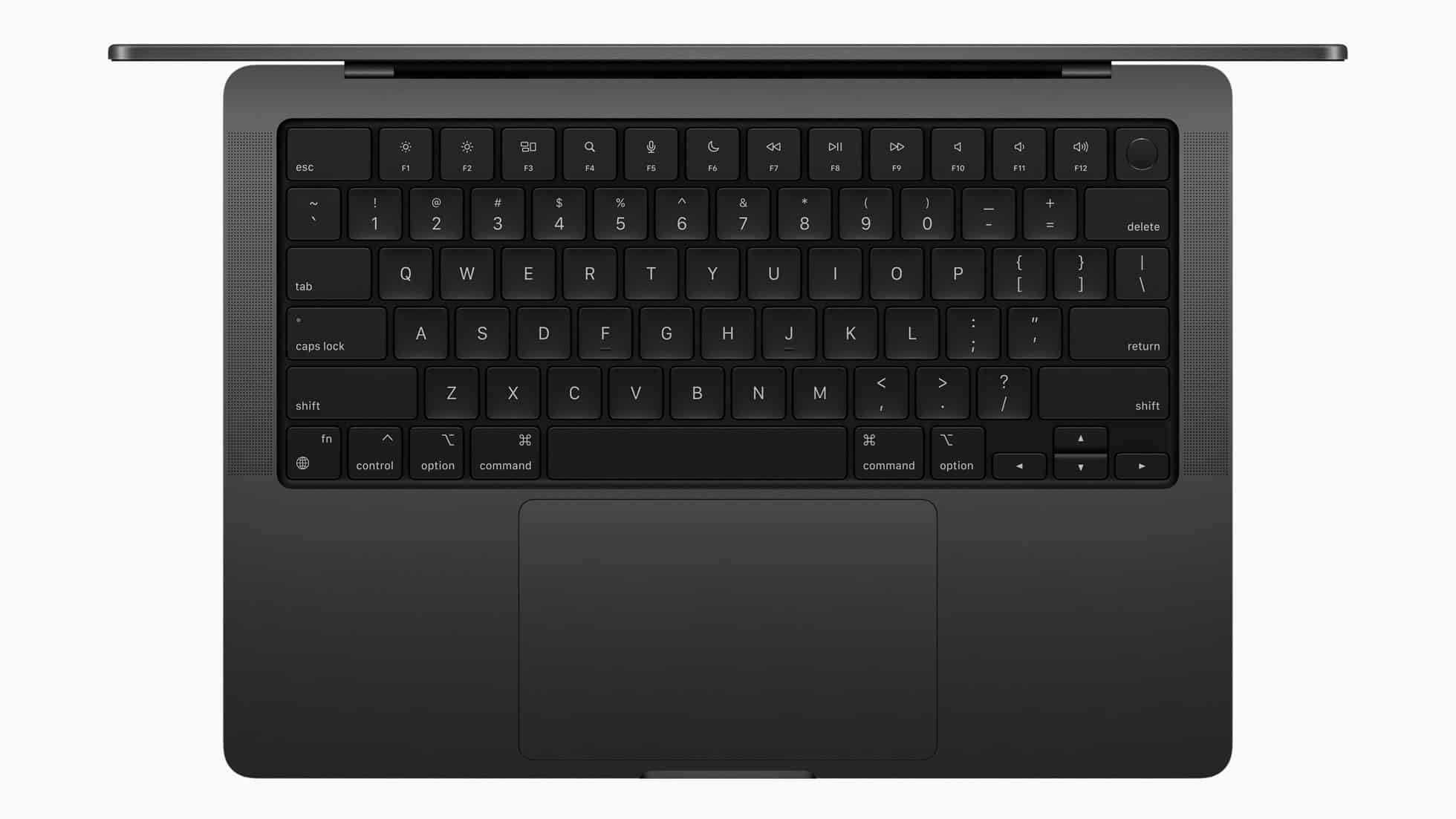
To maintain smooth gesture control, keep your trackpad surface free of grease, dust and moisture. Responsiveness can be affected by buildup on the trackpad surface. Also keep macOS up to date:
Settings > Apple menu > System Settings > General > Software Update
Updates may refine gesture behavior and support new Multi-Touch features, improving the experience on MacBook trackpads and Magic Trackpads alike.
Understanding and mastering these gestures not only speeds up navigation but also creates a more intuitive, efficient workflow on macOS. Whether switching workspaces, browsing content or managing windows, these built-in trackpad gestures reduce reliance on keyboard or mouse clicks.