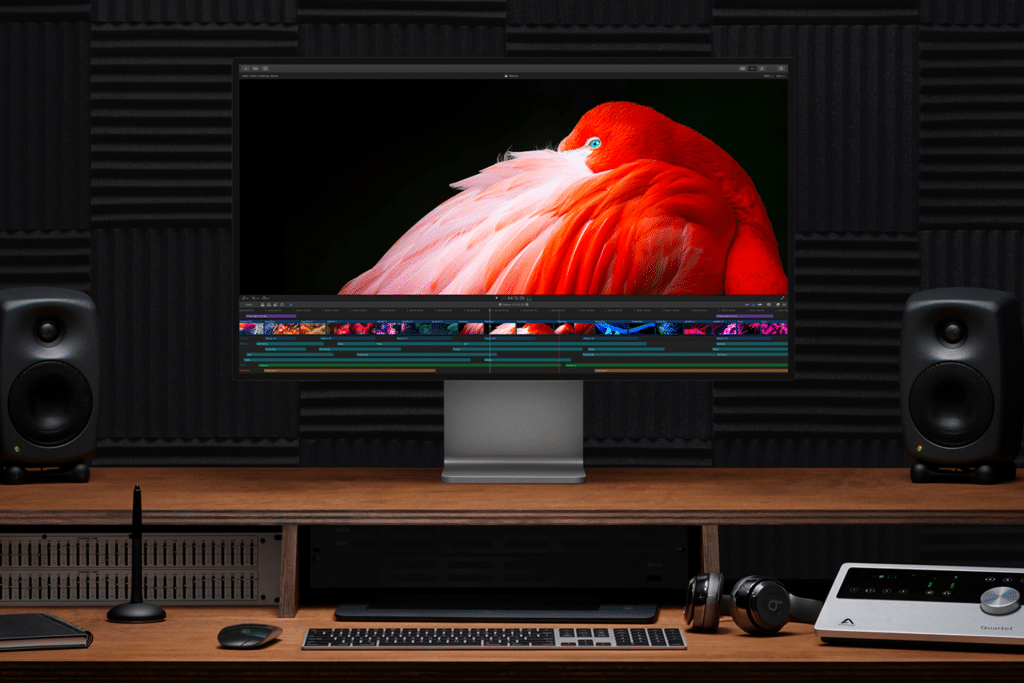
A MacBook workstation represents one of the most flexible approaches to modern computing. Instead of choosing between a desktop or a laptop, Apple’s notebook lineup allows you to have both in a single machine. With the right arrangement, a MacBook becomes the brain of a full desktop setup during work hours and instantly transforms back into a portable computer when it’s time to leave.
This dual nature is not an afterthought. macOS is designed to treat external displays, keyboards, and pointing devices as first-class citizens. Whether you connect a Studio Display, a Pro Display XDR, or a third-party monitor, the system adapts immediately. Windows rearrange themselves, performance scales naturally, and the MacBook keeps running at full capacity even when the lid is closed.
For many professionals, this approach solves a long-standing tension between power and mobility. You no longer need separate machines for desk work and travel. One MacBook handles both roles, switching contexts as easily as unplugging a cable.
Designing a Desktop Workspace Around a MacBook
Building a MacBook workstation starts with understanding how the laptop fits into your desk, not how it dominates it. Some users prefer placing the MacBook beside the monitor, open, acting as a secondary screen for communication apps, timelines, or reference material. Others keep it behind the display or in a vertical stand, running in closed-lid mode while everything happens on the external screen.
macOS supports both approaches seamlessly. When the MacBook is closed and connected to power, keyboard, mouse, and display, it continues running without interruption. This setup keeps the desk visually clean and shifts focus entirely to the larger screen. When opened, the built-in display becomes a compact second workspace, adding flexibility without additional hardware.
External displays play a central role here. Apple’s Studio Display integrates tightly with macOS, offering sharp resolution, accurate color, and built-in camera and speakers that reduce desk clutter. Pro Display XDR targets high-end workflows like video grading and photography, but even quality third-party displays dramatically expand usable space. More pixels mean fewer window switches, better timelines, and a calmer working rhythm.
What matters most is consistency. Once your MacBook connects to its workstation, everything should feel predictable. Apps reopen where you expect them, peripherals respond instantly, and the system feels like a desktop that happens to unplug.


Productivity Gains From Larger Displays and Proper Input Devices
The productivity impact of a MacBook workstation is immediate. Larger displays reduce cognitive load by keeping more information visible at once. Instead of stacking windows or constantly switching apps, you see context continuously. This is especially valuable for creative work, coding, writing, data analysis, and design.
Input devices complete the experience. Magic Keyboard, Magic Mouse, and Magic Trackpad are designed to work together, letting users choose how they interact with content. Some prefer the precision of a mouse for editing and navigation. Others rely on trackpad gestures for window management, Mission Control, and quick app switching. macOS supports mixed use naturally, allowing both devices to remain active simultaneously.
When the MacBook is opened as part of the workstation, its built-in keyboard and trackpad become additional tools rather than primary ones. This setup is surprisingly effective. The laptop can act as a control surface, a quick input area, or a navigation hub while the main display handles heavy visual work.
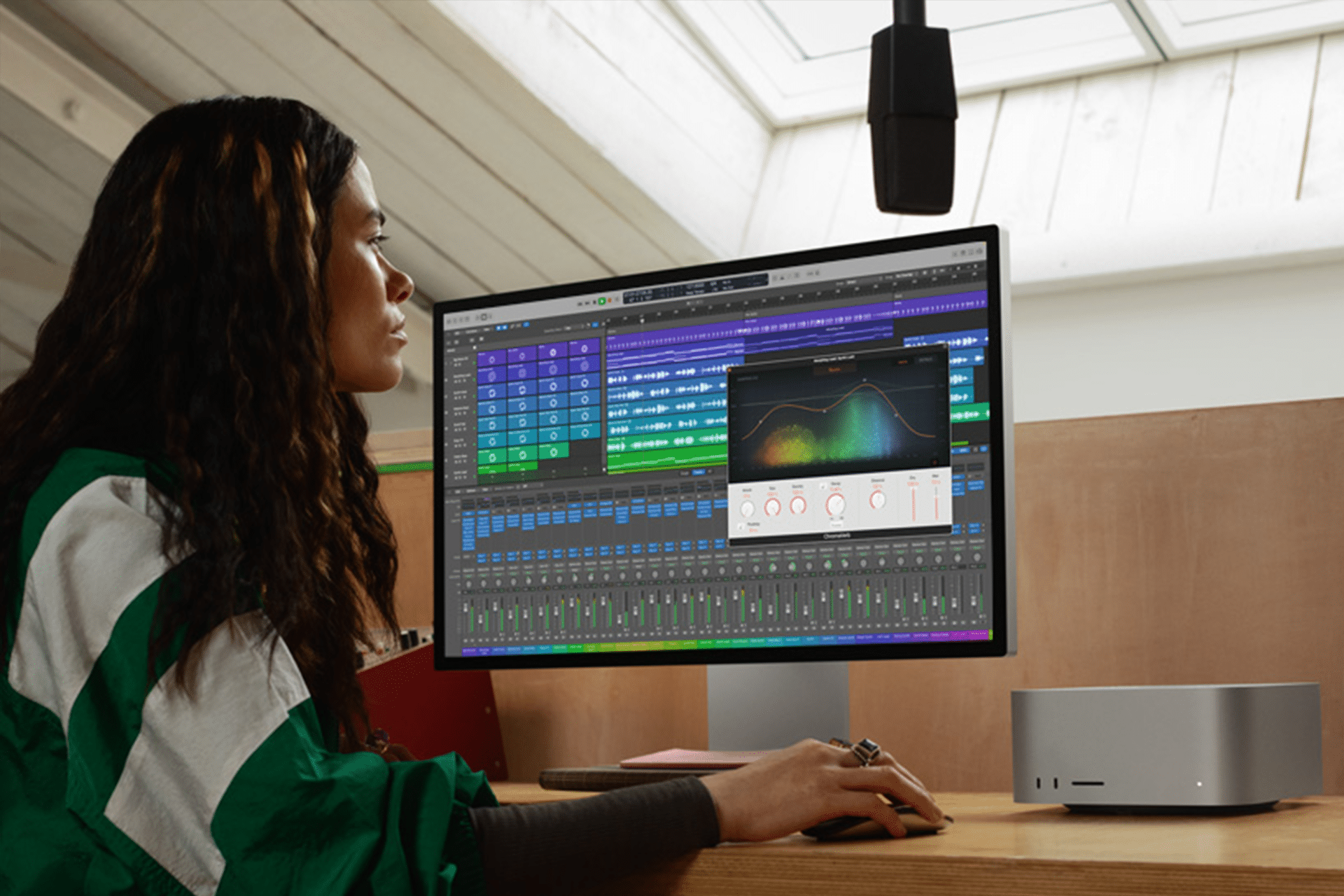
Performance is rarely a limitation. Modern MacBooks, especially models with Apple silicon, are capable of sustained professional workloads. Video editing, 3D work, music production, and large datasets run comfortably, even when driving high-resolution external displays. Memory efficiency and thermal design allow these machines to operate quietly and reliably at a desk.
Mobility Without Compromise
The defining advantage of a MacBook workstation is that nothing is permanent. When it’s time to move, you disconnect a single cable and the entire setup collapses back into a laptop. Files, apps, and sessions move with you. There’s no syncing, no exporting, no mental reset between machines.
This mobility changes how people structure their day. Work can happen at a desk in the morning, on the couch in the afternoon, and on the road later without switching devices. The MacBook adapts to each environment while maintaining continuity.
macOS reinforces this flexibility through features like window memory, display profiles, and seamless peripheral reconnection. When you return to your desk, the workstation reassembles itself almost instantly. This consistency is what turns a collection of accessories into a true workstation rather than a temporary dock.
Sharing Your MacBook Workstation
MacBook workstations are highly personal. Some prioritize minimalism, others maximize screen real estate. Some focus on creative tools, others on productivity and organization. That variety is part of what makes these setups inspiring.
We’d love to see how you’ve built yours. Share your MacBook workstation on our social media channels and show how you’ve arranged your displays, accessories, and desk to fit your workflow. Every setup tells a story about how technology adapts to real work, not the other way around.