


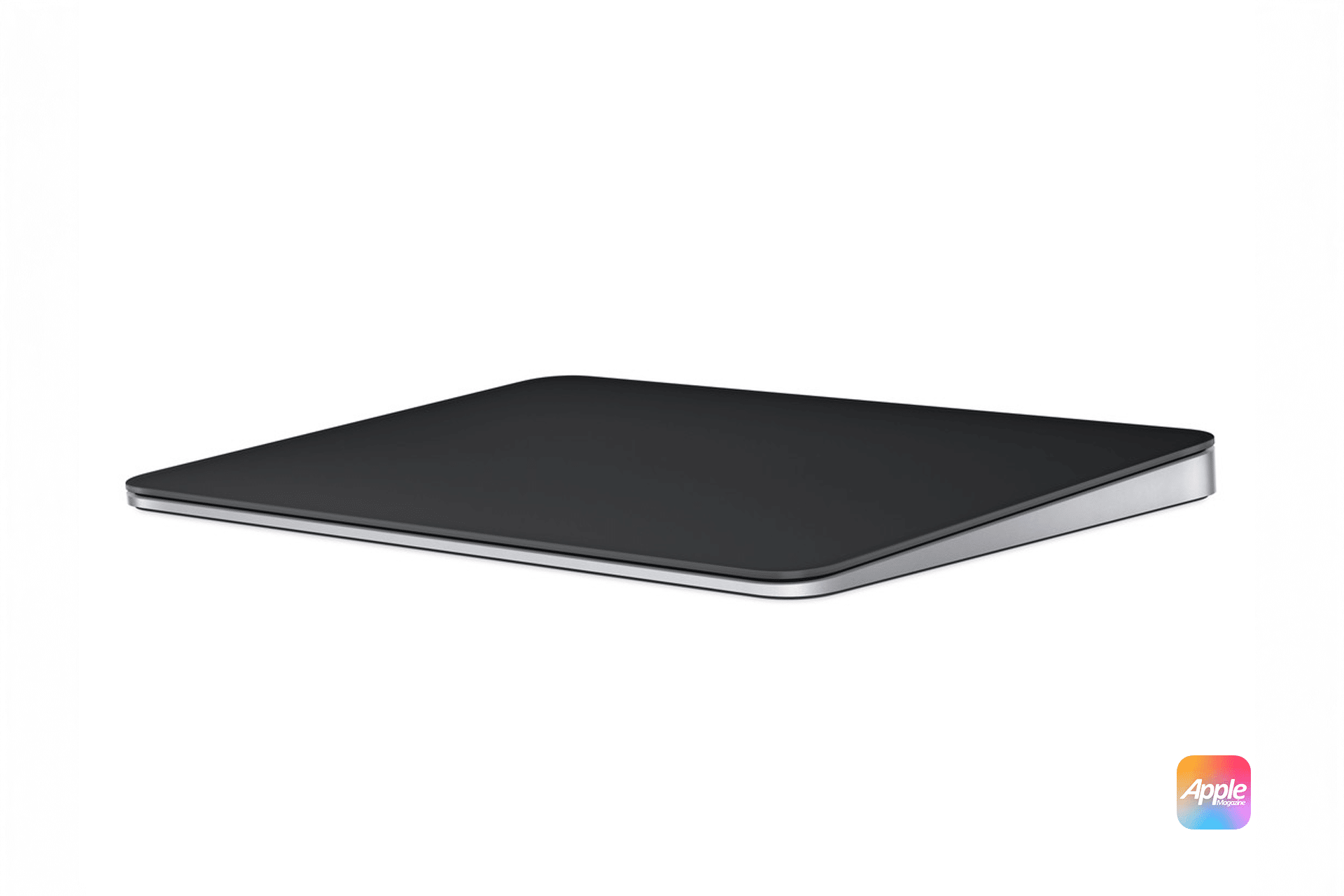
Magic Trackpad gestures are one of the easiest ways to make a Mac feel faster without adding another app, shortcut tool, or complicated automation. The trackpad already handles scrolling, zooming, swiping, dragging, and navigation, but Force Click adds another layer that many users never fully use. On Magic Trackpad models with Force Touch, a normal click can become a deeper press that triggers previews, definitions, file details, and extra controls across macOS.
That deeper press is what makes Force Click different from a regular click. Apple explains that trackpads with Force Touch technology support Force Click and haptic feedback. Instead of a traditional mechanical click, the trackpad uses pressure sensing and haptic response to make it feel like the surface clicked more deeply. Rechargeable Magic Trackpad models support this feature, along with many modern Mac notebook trackpads.
Force Click is useful because it does not ask users to learn a long keyboard shortcut or open a menu. It works directly under the finger. Press once, then press deeper. The Mac responds based on what is under the pointer. A word can show a definition. A file can open a preview. An address can show more information. A date or tracking number can reveal useful details without leaving the current window.
That small motion fits the way many people already use a trackpad. The gesture is not about replacing the keyboard. It is about reducing the number of small interruptions that happen while reading, editing, browsing, or managing files.
How Force Click Works on Magic Trackpad
Force Click is enabled through Trackpad settings. Apple says the Force Click and haptic feedback option appears only when a Force Touch trackpad is connected. Older Apple trackpads without Force Touch use a mechanical click and do not provide the same pressure-sensitive feedback.
The setup path is simple:
System Settings > Trackpad > Point & Click > Force Click and haptic feedback
From the same settings area, users can also adjust click pressure. That setting matters because some people naturally press harder than others. A lighter setting makes Force Click easier to trigger. A firmer setting helps avoid accidental deeper clicks.
The adjustment path is:
System Settings > Trackpad > Point & Click > Click pressure
Once enabled, the gesture itself is straightforward:
Click item > Press deeper until haptic feedback
That deeper click is the Force Click. The trackpad gives a small tactile response, confirming that the second layer of pressure was recognized.
Apple’s own Magic Trackpad guide describes Force Click as clicking and then pressing deeper. It notes that users can Force Click a word to see its definition or an address to see a preview that can open in Maps. That makes Force Click especially useful in Safari, Mail, Notes, Messages, Finder, and document-based workflows.
For people who work with files all day, one of the best uses is Quick Look. A normal click selects a file. A deeper press can preview it without opening the full app.
Finder > Select file > Force Click
That can be useful for PDFs, images, videos, documents, and folders. Instead of opening several files just to confirm what they are, a user can preview quickly and keep moving.
The same idea applies in Safari. Force Click can bring up previews and information without breaking the reading flow. On text, it can trigger Look Up. On links, it can preview the destination in supported contexts. On addresses, it can bring up map-related information.
Safari > Place pointer over word, link, or address > Force Click
These gestures feel small at first, but they can remove dozens of interruptions during a normal workday.

The Best Force Click Uses Across macOS
The strongest Force Click gestures are the ones that turn search or preview tasks into a single motion. Look Up is the clearest example. Instead of copying a word, opening a search tab, or asking another app, a user can press deeper and get a definition, encyclopedia entry, or contextual information.
Text > Force Click word
That is useful for writers, students, editors, researchers, and anyone reading long articles or technical documents. It keeps attention inside the current window.
Another practical use is previewing file contents in Finder. This is especially helpful for users with large folders, downloads, screenshots, PDFs, or project assets.
Finder > File > Force Click
The file opens in a preview layer, reducing the need to launch full apps just to confirm what something contains. For people cleaning up a desktop or sorting project files, that can save real time.
Force Click also helps with addresses and contact-related information. Apple’s Magic Trackpad guide specifically notes that an address can show a preview that can open in Maps.
Address > Force Click > Open in Maps
That is useful in Mail, Messages, Calendar notes, documents, and webpages. The address becomes actionable without a copy-and-paste step.
Dates and event-style information can also become easier to manage in supported apps. macOS often recognizes dates, times, locations, and structured data, making Force Click another way to surface related actions quickly.
There is also a creative-app layer. Apple’s iMovie guide says Force Touch trackpads can provide additional functions based on pressure, including fast-forwarding or rewinding clips by pressing harder, and giving tactile feedback when dragging crop rectangles, titles, or timeline elements into alignment. That shows how Force Click is not only a system gesture. In some apps, pressure sensitivity becomes part of editing precision.
iMovie > Click and hold Next or Previous > Press harder to change speed
That type of interaction is where Force Touch becomes more than a hidden shortcut. It allows the same physical gesture to carry more information. A soft press and a firm press do different things.
How to Tune Magic Trackpad for Better Daily Use
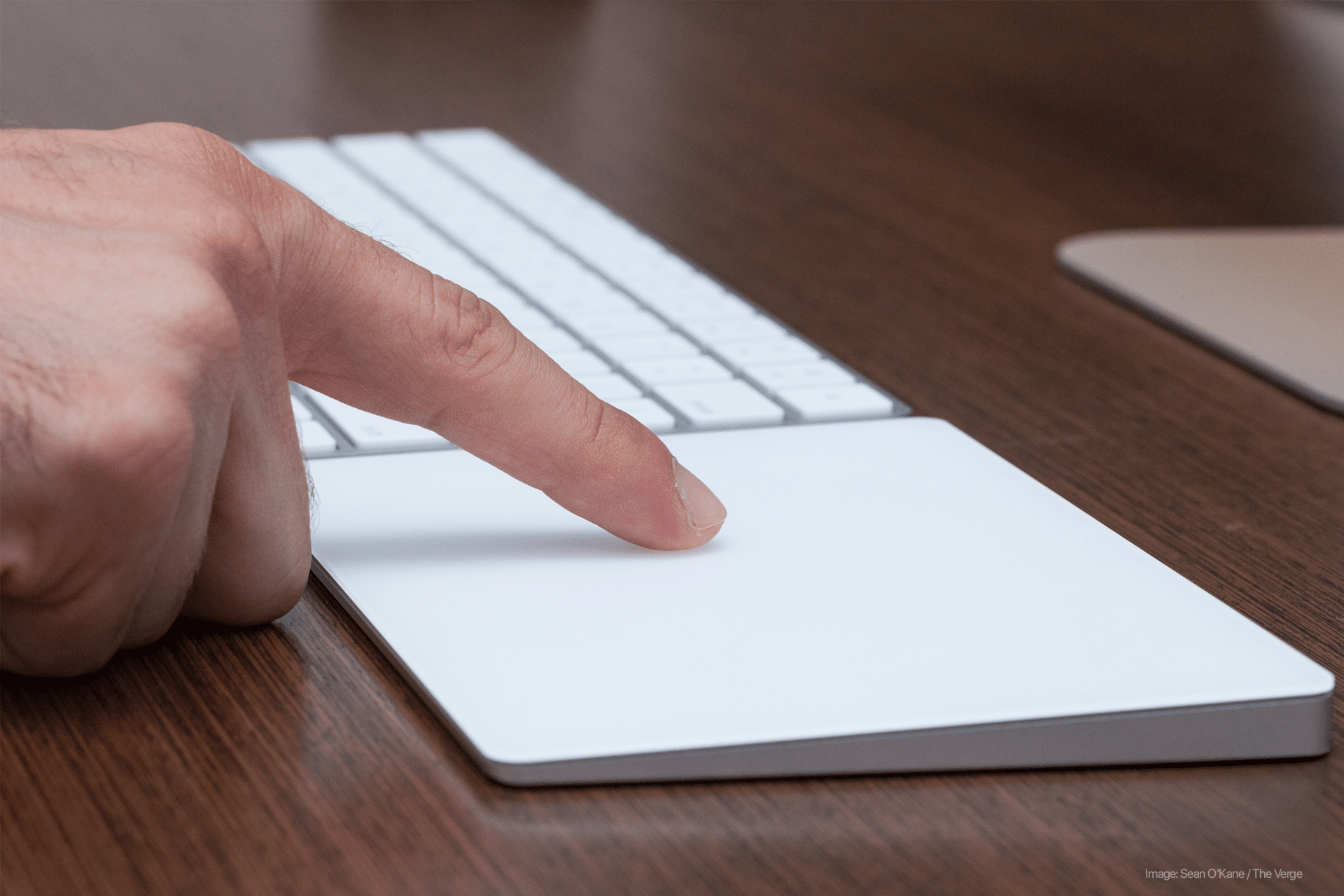
Magic Trackpad becomes more useful when the main gestures are adjusted to fit the user instead of left at defaults that may not feel right. Apple’s trackpad settings let users turn gestures on or off, change gesture behavior, and review which gestures are available.
The main control path is:
System Settings > Trackpad
From there, the settings are divided into areas such as Point & Click, Scroll & Zoom, and More Gestures. This is where users can control tap to click, secondary click, tracking speed, natural scrolling, zoom gestures, swipe gestures, Mission Control gestures, App Exposé, Launchpad, and desktop reveal behavior.
For users who prefer tapping instead of pressing:
System Settings > Trackpad > Point & Click > Tap to click
For users who want right-click behavior with two fingers:
System Settings > Trackpad > Point & Click > Secondary click > Click or tap with two fingers
For people who move windows and files often, three-finger drag can be one of the most useful accessibility settings. Apple says three-finger drag is available for trackpads that support Force Touch, and the setting is found through Accessibility rather than the regular Trackpad panel.
System Settings > Accessibility > Pointer Control > Trackpad Options > Use trackpad for dragging > Three Finger Drag
Three-finger drag changes the way moving items feels. Instead of pressing down while dragging, users can move windows, select text, and drag objects with three fingers. It can reduce strain and make longer sessions more comfortable.
Force Click should also be tested after changing click pressure. Some users turn it off because they trigger it accidentally. Others miss it because the pressure setting is too firm.
A good starting setup looks like this:
System Settings > Trackpad > Point & Click > Force Click and haptic feedback > On
Then:
System Settings > Trackpad > Point & Click > Click pressure > Light or Medium
After that, test the gesture in Finder, Safari, and Notes. If it triggers too easily, move the pressure setting firmer. If it feels hard to activate, move it lighter.
Magic Trackpad works best when these settings match the user’s hand rather than Apple’s default assumptions.
Why Force Click Still Deserves Attention
Force Click is easy to overlook because it does not announce itself loudly. There is no separate app icon, no menu bar item, and no obvious button showing what it can do. It is simply built into the surface. That is also why many Mac users never build the habit.
Once it becomes familiar, though, Force Click turns the trackpad into more than a pointer. It becomes a quick information layer. Words, files, addresses, links, and media controls can respond to pressure. The Mac becomes less dependent on menus and more responsive to small physical intent.
That is the real value of Magic Trackpad gestures. They let the user stay closer to the work. Scroll with two fingers. Swipe between spaces. Pinch to zoom. Use three-finger drag for movement. Press deeper for information. Each gesture removes a small step, and those small steps add up across a day.
Force Click is not essential for every Mac user, but it is one of the most underused features of Magic Trackpad. It rewards the kind of user who spends time in documents, browsers, Finder windows, mail, notes, and creative apps. Once the gesture becomes natural, the Mac feels more direct, more tactile, and more efficient without needing a single extra accessory.