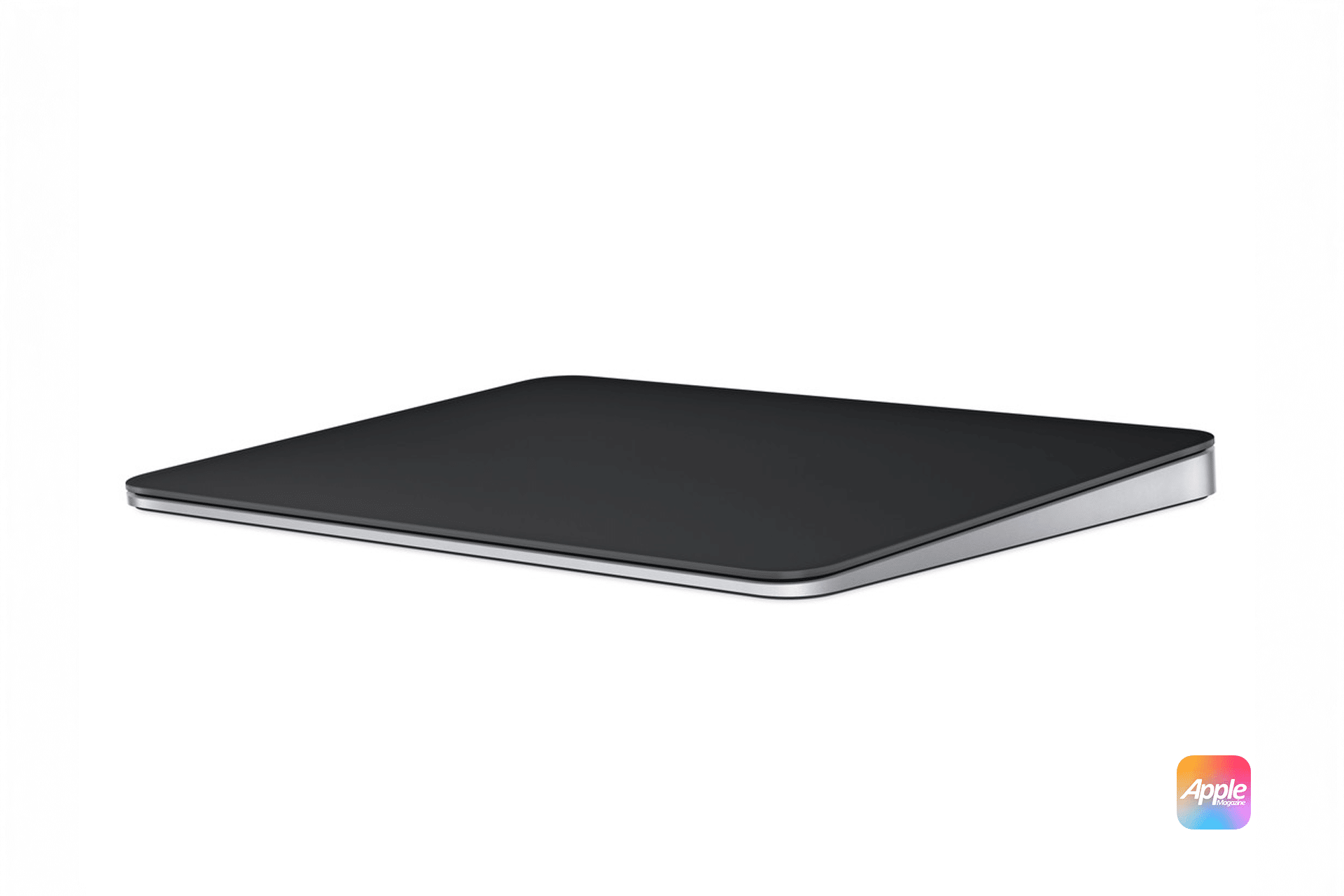
The Magic Trackpad is one of those Apple accessories that feels familiar the moment you touch it. If you’ve ever used a MacBook, you already know how it works. What changes is scale, comfort, and how deeply gestures can transform daily workflows when you’re no longer limited to a laptop surface.
For many Mac users, the Magic Trackpad quietly becomes the most important productivity upgrade on the desk.
System Settings > Trackpad > Enable Gestures
Bluetooth > Magic Trackpad > Connect
Why The Magic Trackpad Feels Instantly Natural
Apple designed the Magic Trackpad to behave exactly like the MacBook trackpad. The same glass surface, the same haptic click, and the same gesture logic carry over. That means there’s no relearning phase.
Scrolling, swiping, zooming, and switching apps all feel identical, just with more room to move your fingers. For users coming from a mouse, the transition is easier than expected because gestures replace multiple clicks with fluid movements.
The low learning curve is one of its strongest advantages.

Gestures That Change How You Work
The real power of the Magic Trackpad comes from gestures. Simple actions quickly stack into advanced workflows.
- Swipe with three fingers up to open Mission Control and see every window at once.
- Swipe left or right with three fingers to move between full-screen apps and Spaces.
- Pinch with thumb and three fingers to instantly show the desktop.
- Double-tap with three fingers to look up words, previews, or system information.
- Pinch with two fingers to zoom images, maps, PDFs, and timelines with precision.
Trackpad > More Gestures > Customize
Once these gestures become muscle memory, switching apps, organizing windows, and managing multitasking becomes significantly faster than using a traditional mouse.
Productivity Across Apps And Workflows
The Magic Trackpad shines in creative and professional apps. In photo and video editors, gestures make zooming, scrubbing timelines, and navigating canvases far more intuitive. In browsers, spreadsheets, and writing apps, smooth scrolling and quick navigation reduce friction during long sessions.
For developers and power users, gestures combined with keyboard shortcuts create a workflow where hands rarely leave the desk surface. The trackpad becomes an extension of thought rather than a tool you consciously operate.
macOS Trackpad Customization
macOS offers deep customization for the Magic Trackpad, allowing you to tune sensitivity and gestures to your style.
System Settings > Trackpad > Point & Click
System Settings > Trackpad > Scroll & Zoom
System Settings > Trackpad > More Gestures
You can adjust click pressure, tracking speed, scroll direction, and even disable gestures you don’t use. This flexibility helps tailor the experience whether you prefer light touches or firm presses.


Battery Life And Desk Setup
The Magic Trackpad uses a built-in rechargeable battery that lasts weeks on a single charge. Charging is done via USB-C, and the device can be used while charging, unlike some older Apple accessories.
Battery life is rarely something users think about, which is exactly how Apple intends it.
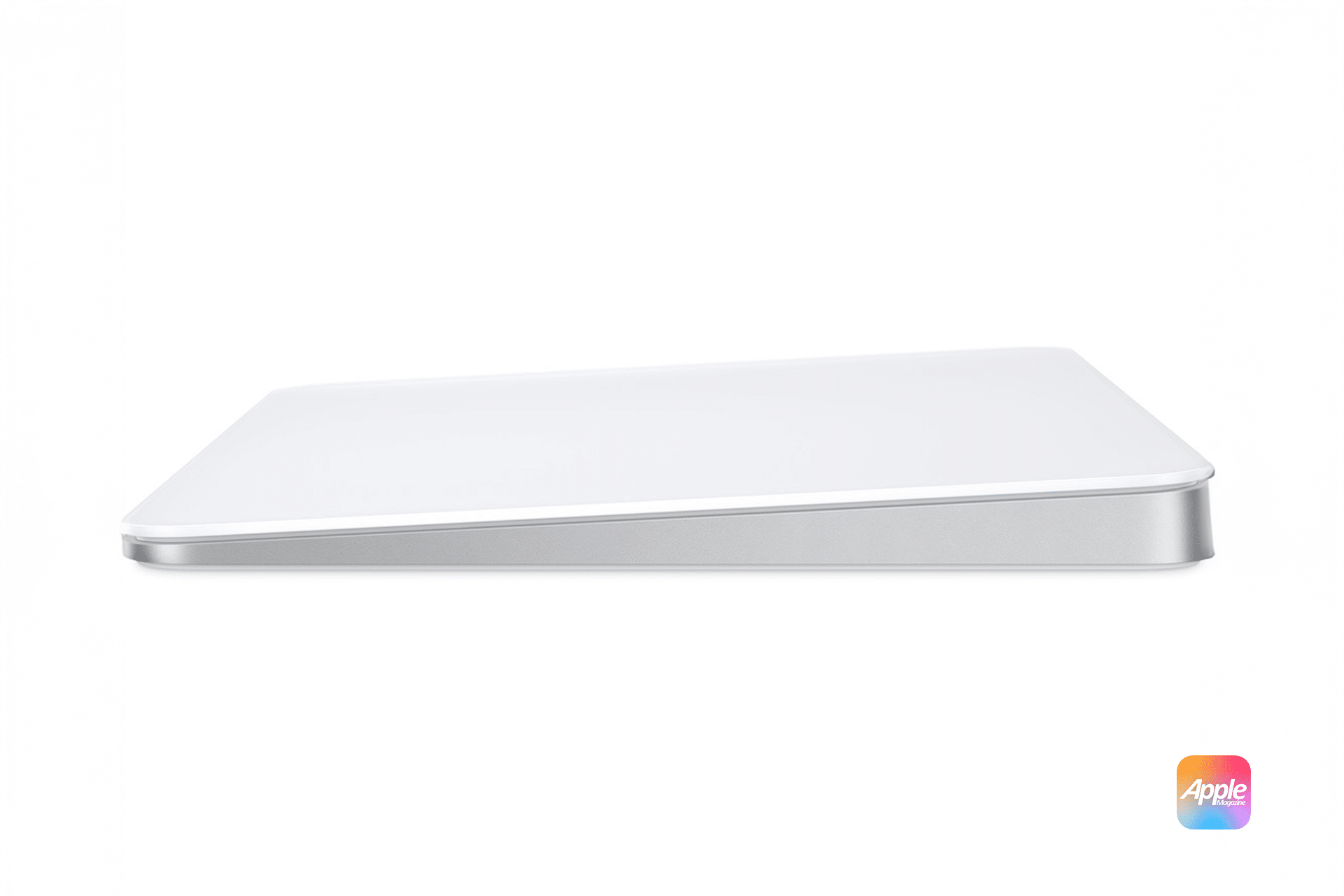
Available in white and black finishes, the Magic Trackpad matches both light and dark desktop setups, pairing naturally with Studio Display, iMac, or MacBook-based workstations.
Compatibility Across Macs
The Magic Trackpad works with Macs running recent versions of macOS and supports the full gesture set on Apple silicon Macs. It pairs easily over Bluetooth and remembers its settings across reboots.
For users running a MacBook in clamshell mode or pairing a laptop with an external display, the Magic Trackpad effectively turns the desk into a MacBook-like experience, without sacrificing ergonomics or screen size.
A Trackpad That Replaces The Mouse
For many users, the Magic Trackpad eventually replaces the mouse entirely. Its precision, gesture depth, and comfort make it better suited for multitasking, creative work, and extended sessions.
It’s not designed for gaming or button-heavy workflows, but for everything else, it offers a level of fluidity that feels uniquely Apple.
The Magic Trackpad doesn’t just control your Mac. It reshapes how you interact with it.