

The Apple TV remote is intentionally simple, but that simplicity hides a surprisingly deep control system. Every button, gesture, and press duration is designed to reduce friction once you understand how it works. Mastering the Apple TV remote control is less about memorizing features and more about learning efficient workflows that turn common actions into muscle memory.
For many users, Apple TV feels slower than it needs to be simply because these workflows are not obvious. With a few adjustments and habits, navigation becomes fluid and the remote almost disappears from conscious use.
Understanding the Core Buttons and Touch Surface
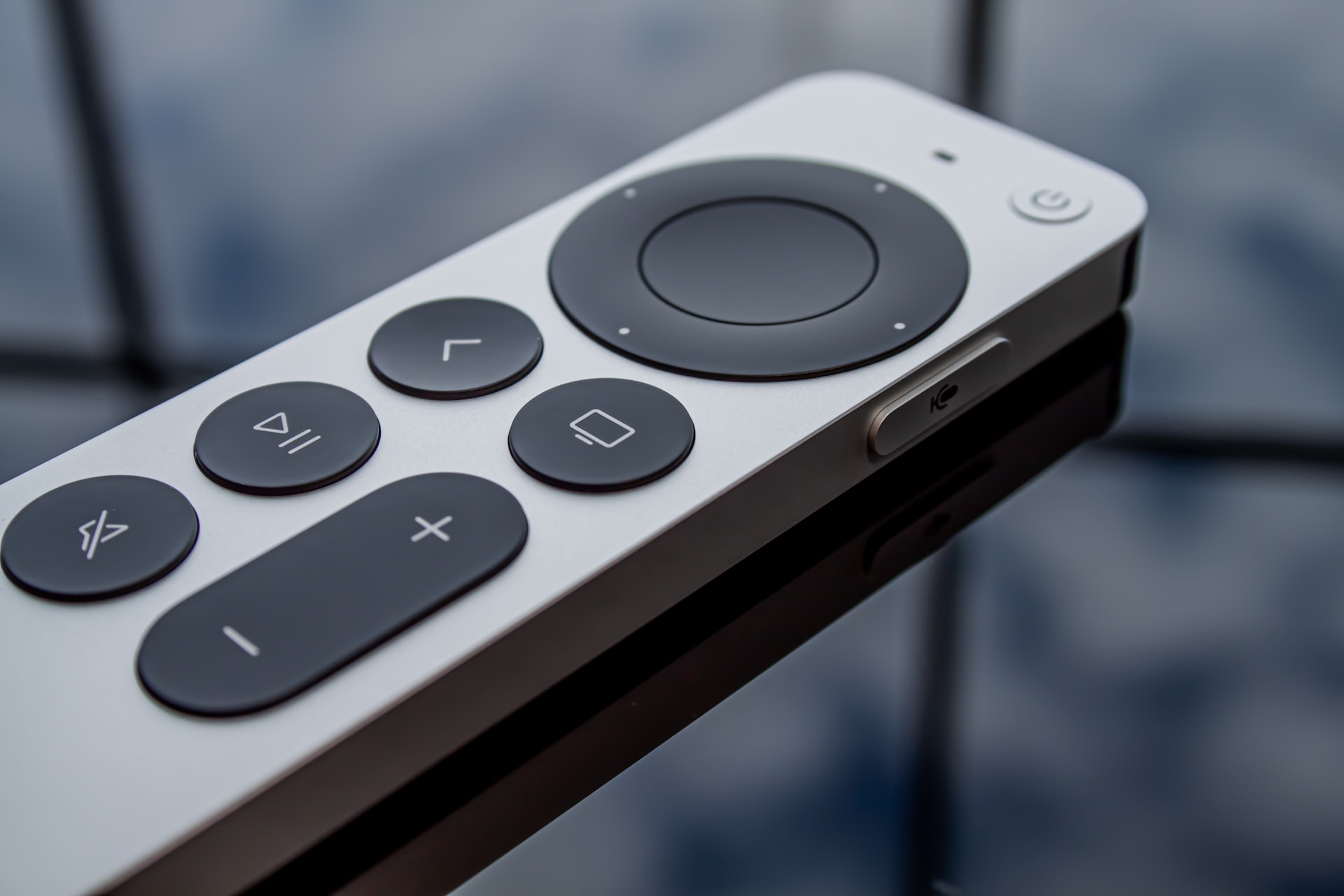
At the center of the Apple TV remote is the touch-enabled click surface. It supports swipes for navigation and clicks for selection, combining directional control and confirmation into a single interface. This design minimizes button clutter while enabling precise movement through apps, menus, and timelines.
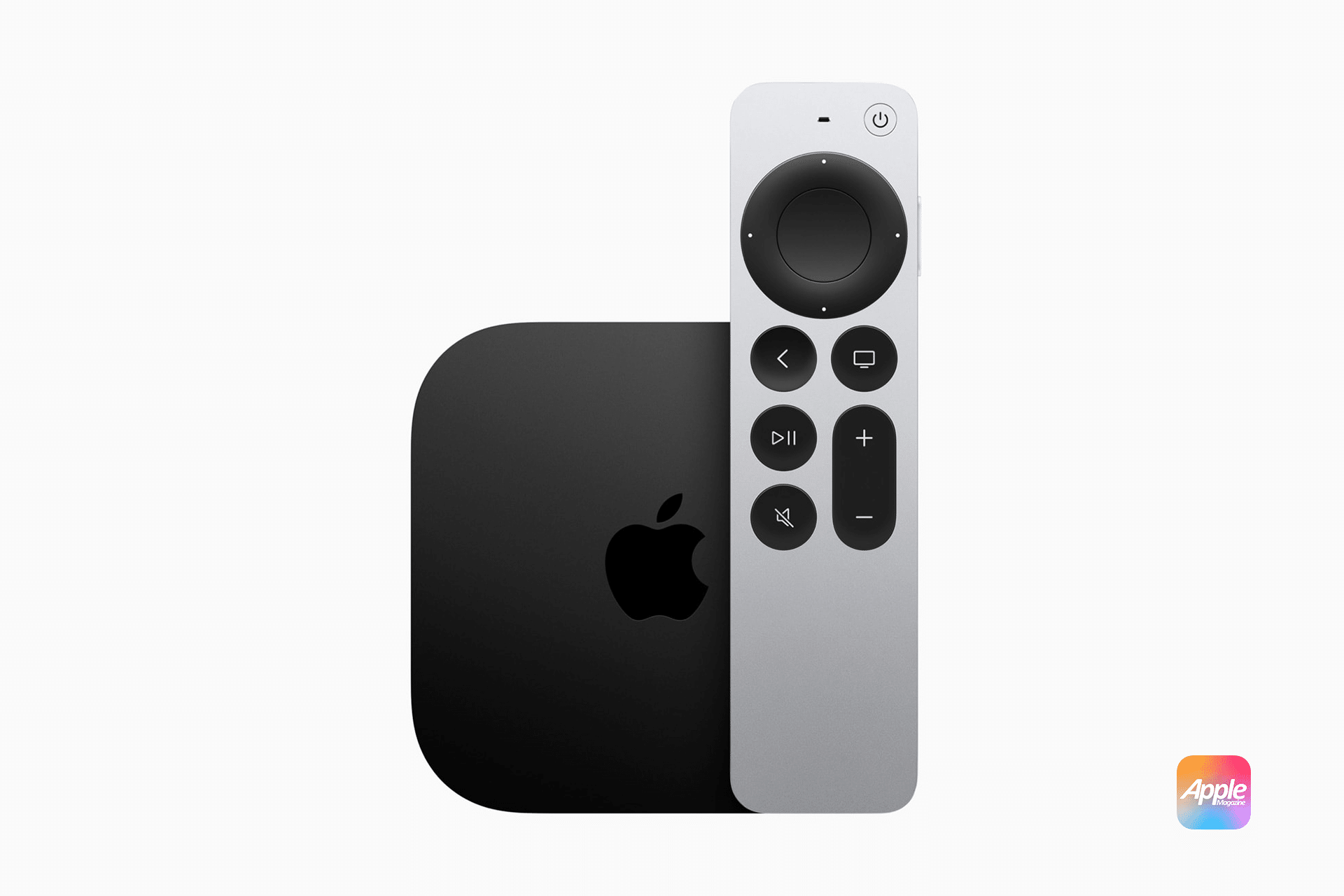
The Back button handles navigation history, while the TV button controls system-level behavior. The Play/Pause button manages playback across apps, and the Siri button activates voice control. Volume buttons integrate with compatible TVs, soundbars, and receivers, allowing the Apple TV remote to replace other controllers in many setups.
Learning how these elements combine into workflows is the key to mastering control.
Navigating Menus and Apps Efficiently
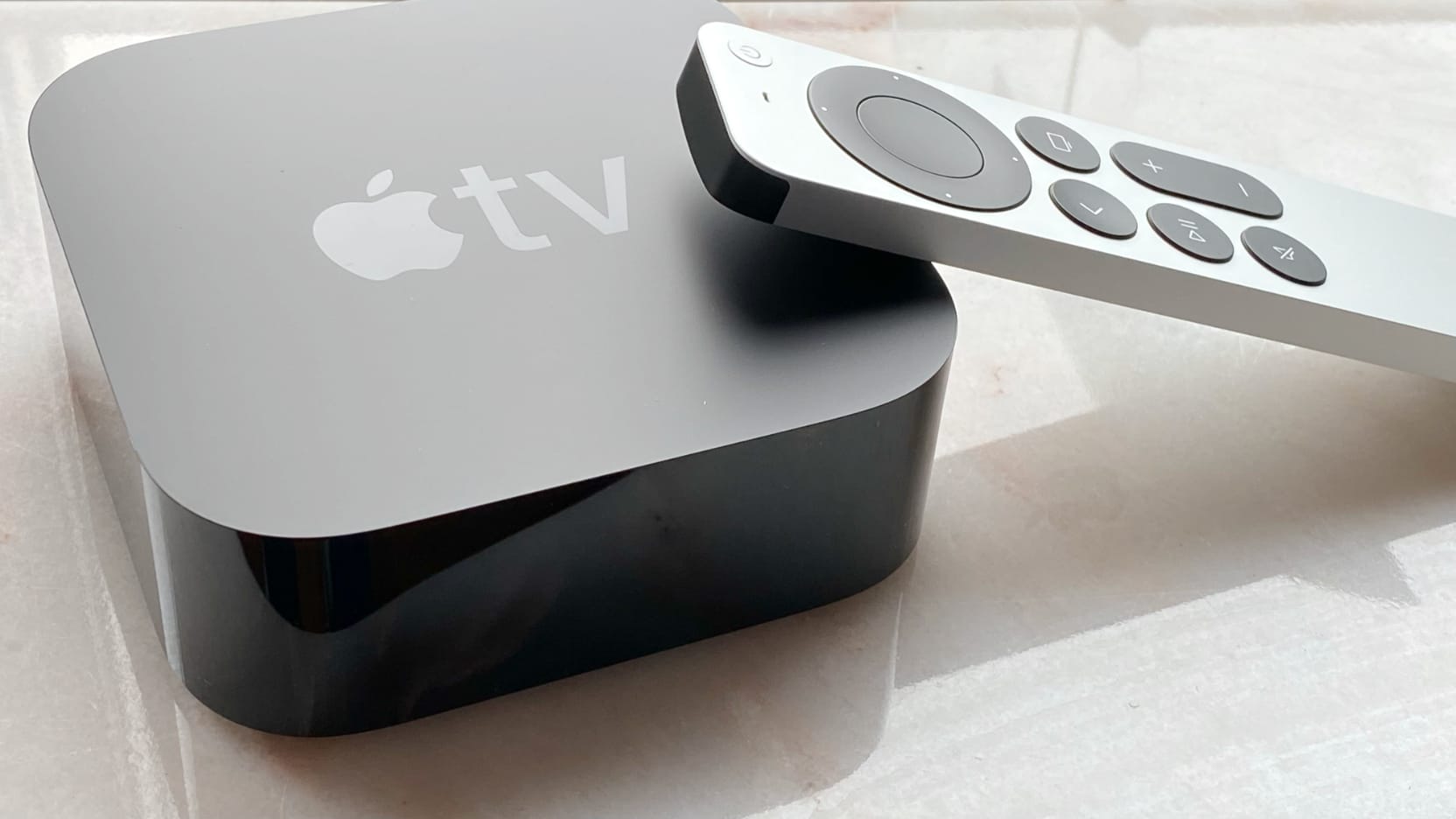
Basic navigation relies on light swipes across the touch surface to move focus between items. Faster swipes scroll long lists, while slower movements allow precise positioning. Clicking confirms selections instantly.
A common workflow for launching content looks like this:
Home button > Swipe to app > Click to open
When moving deep inside an app, returning quickly saves time. Instead of repeatedly clicking back, use:
Back button (press and hold) > Return to Home screen
This shortcut bypasses layered menus and brings you directly back to the main interface.
During browsing, pressing and holding the Back button often jumps to the top of a section, especially in apps with long scrolling pages. This behavior varies slightly by app but is consistent enough to become a useful habit.
Controlling Playback With Precision
Playback control is where the Apple TV remote’s gestures shine. A simple tap on the touch surface pauses or resumes content without opening overlays. Swiping left or right allows scrubbing through video timelines.
For accurate scrubbing, use this workflow:
Swipe lightly left or right > Pause on the frame > Click to resume
This approach avoids overshooting scenes and works well for skipping intros or credits.
The Play/Pause button provides immediate control without on-screen distractions. Holding it often reveals additional playback options such as audio tracks, subtitles, or playback speed, depending on the app.
Accessing Control Center Quickly
Apple TV’s Control Center provides fast access to system-level options such as user profiles, audio output, sleep mode, and connected devices. Instead of navigating through Settings, use:
TV button (press and hold) > Control Center
From there, you can switch users, connect AirPods, change audio output, or put Apple TV to sleep in seconds. This workflow is especially useful in shared households or when switching between personal setups.
Using Siri for Faster Actions
Siri is deeply integrated into Apple TV and often replaces manual navigation entirely. Holding the Siri button activates voice input, allowing direct commands.
A typical search workflow looks like this:
Siri button (press and hold) > Say show or movie name > Release
Siri searches across supported apps at once, reducing the need to open individual services. Playback control is also faster with voice commands, such as asking to rewind or skip ahead by a specific amount.
For accessibility or hands-free use, Siri can launch apps, enable subtitles, adjust volume, and even jump to specific episodes or scenes. Over time, voice control becomes one of the most efficient ways to interact with Apple TV.
Customizing Remote Behavior in Settings
Apple TV allows customization of how the remote behaves to match personal preferences. Adjusting sensitivity and button actions improves accuracy and comfort.
To adjust touch sensitivity, use:
Settings > Remotes and Devices > Touch Surface Tracking
Increasing sensitivity speeds up navigation, while lowering it reduces accidental movement.
You can also change what the TV button does by default:
Settings > Remotes and Devices > TV Button
This lets you choose whether the button opens the Apple TV app or returns to the Home screen, depending on how you primarily use Apple TV.
Volume control adapts automatically when compatible audio systems are detected, allowing a single remote to control both Apple TV and external speakers without additional setup.
Accessibility and Alternative Workflows
Apple TV’s accessibility features expand how the remote can be used. VoiceOver, motion adjustments, and button customization make navigation easier for users with different needs.
A hands-free workflow often looks like this:
Siri button > Speak command > Confirm with voice
This reduces reliance on touch gestures and provides spoken feedback for navigation and playback.
Accessibility settings can be found through:
Settings > Accessibility > Interaction or Vision
From there, users can tailor controls to match their comfort and abilities without changing the overall Apple TV experience.
Making the Remote Disappear
The goal of mastering the Apple TV remote is not to think about it at all. When gestures, button presses, and voice commands become automatic, interaction fades into the background. Navigation feels immediate, playback feels responsive, and the remote becomes an extension of the interface rather than a barrier.
With consistent use of these workflows, Apple TV becomes faster, quieter, and more intuitive, allowing attention to stay on content instead of controls.

