


The Notes app is often seen as a personal space. Grocery lists. Ideas. Quick reminders. Drafts that never leave the device. But once iCloud sync is enabled, Notes becomes a real-time collaboration tool that works quietly in the background across iPhone, iPad, and Mac.
For families, it becomes a shared task board. For students, it turns into a live research document. For teams, it works as a lightweight writing space without requiring a separate platform. Multiple people can edit the same note at the same time. Changes appear instantly. Checklists update in real time. Edits sync across devices without manual saving.
Before inviting others and setting up the Notes collaboration, ensure that iCloud is enabled for Notes.
Settings > [Your Name] > iCloud > Notes > On
Without iCloud enabled, collaboration will not work. Notes must be stored in the iCloud section, not “On My iPhone” or local storage.


Notes Collaboration Setup: How to Share a Note With Multiple Users
Once iCloud Notes is active, open the note you want to share. Tap the Share icon in the upper corner. Choose “Collaborate” instead of “Send Copy.” This distinction is important. Sending a copy creates a static version. Collaborate creates a shared document.
After selecting Collaborate, you can choose how to send the invitation — Messages, Mail, or link sharing. Recipients must use an Apple ID to join.
To adjust permissions before sending:
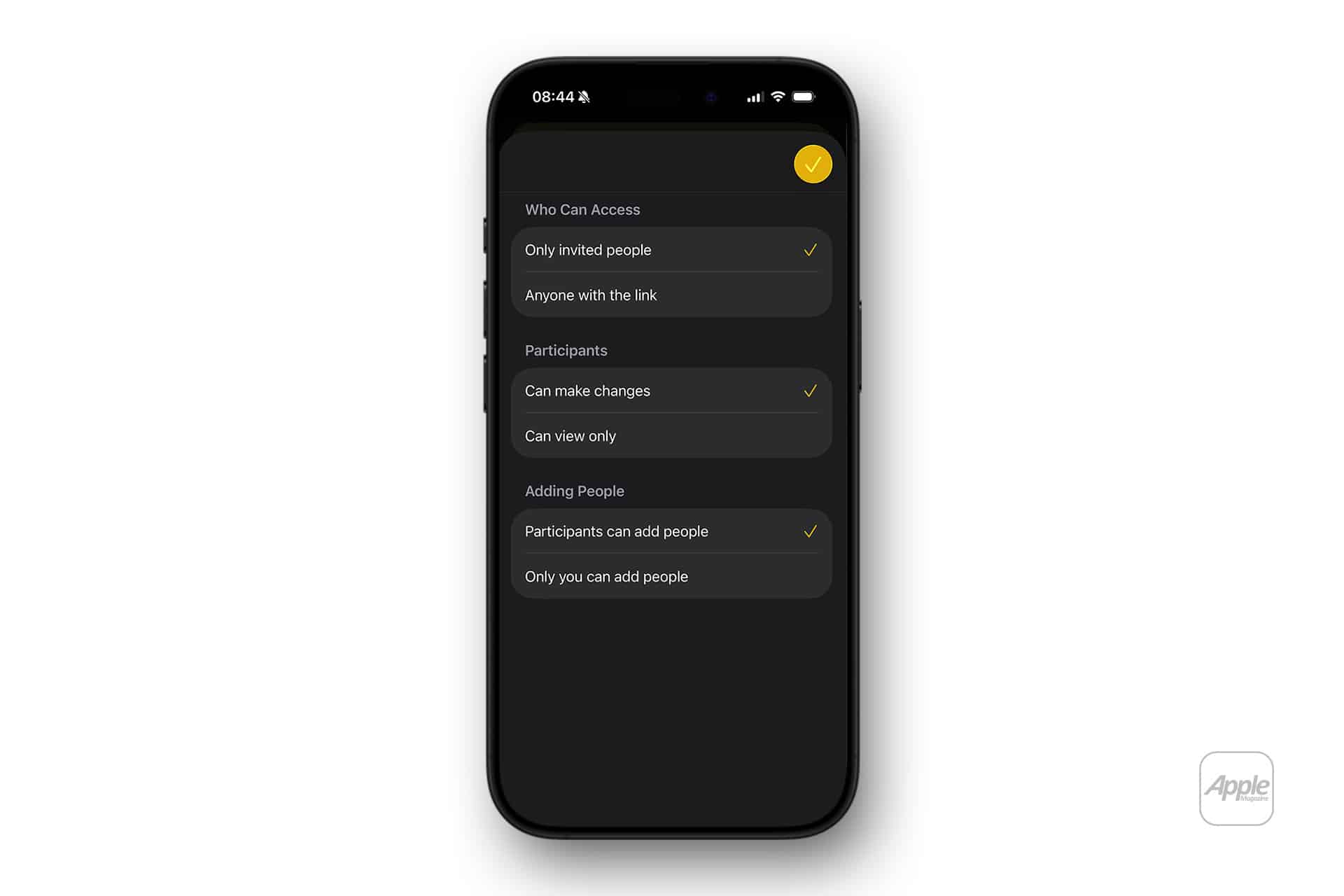
Tap Collaborate > Sharing Options
Here you can decide whether invited users can make changes or only view the note. You can also control whether others can invite additional participants.
Once the invitation is accepted, edits appear in real time. If someone types, their changes update immediately across devices.
Managing Access and Permissions
Collaboration does not end after sharing. You can review or change access anytime.
Open the shared note > Tap the collaborator icon at the top
From there, you can see who has access, modify editing rights, or remove someone entirely. If you stop sharing, the note returns to private status and disappears from other users’ devices.
Shared folders work similarly but apply collaboration rules to multiple notes at once. This is useful for projects or long-term planning.
Tap the folder > Tap the More button > Share Folder
Folder collaboration allows teams to organize multiple documents under one shared space without repeating the invitation process for each note.
What Makes Real-Time Editing Effective
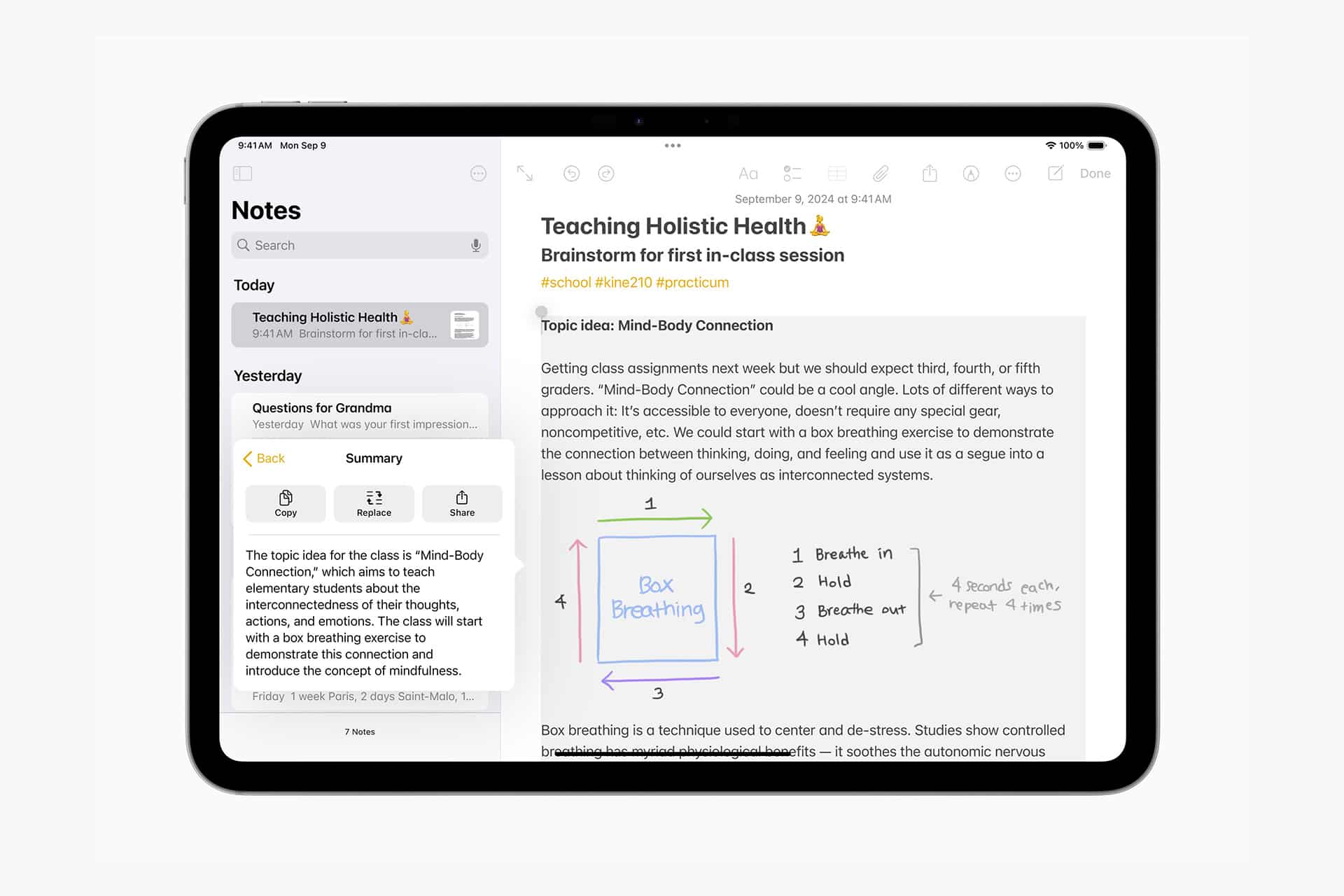
The strength of Notes collaboration is speed. There is no “Save” button. Edits sync continuously. If someone checks an item in a grocery list, it disappears for everyone at once. If a paragraph is rewritten, the change appears instantly on all devices.
It works across iPhone, iPad, and Mac without additional configuration. The experience remains consistent because the Notes app is integrated into the system, not layered on top of it.
For students organizing research, one person can gather sources while another edits structure. For families planning events, dates and details update live. For small teams, meeting notes can evolve while the meeting is still happening.
Limitations to Understand
All collaborators must use Apple devices and sign in with an Apple ID. Web-based editing through iCloud.com is possible, but the best experience happens inside the app.
If someone stores notes locally instead of in iCloud, sharing will not be available. Connectivity is required for real-time updates, though edits made offline will sync once the device reconnects.
Notes collaboration does not replace full document platforms for complex formatting or version control. It is designed for fluid, lightweight collaboration without overhead.
When set up properly, it becomes one of the most practical tools inside the Apple ecosystem. Open the note, invite participants, and start typing. The structure is simple. The sync is automatic. The collaboration feels immediate.