


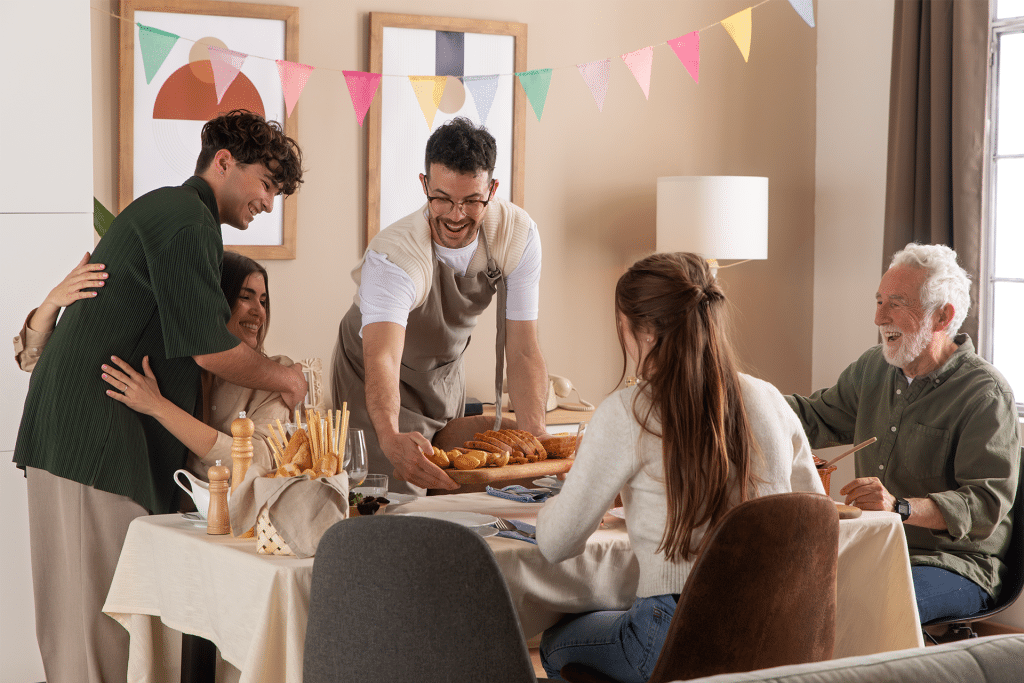
Let guests add songs to your Apple Music playlist using collaborative playlists, perfect for parties, dinners, and shared moments.
Music sets the tone of any gathering. Whether it’s a house party, a birthday dinner, or a casual hangout, the vibe often lives or dies by the playlist. Apple Music makes it possible to turn everyone into a DJ, without handing over your phone or losing control of what plays next.
Start by Creating the Main Playlist
Before inviting guests, create the playlist that will anchor the event. Choose a name that fits the occasion and add a solid base of songs to establish the mood. This first batch is important because it guides what guests are likely to add later.
Avoid starting with an empty playlist. A clear direction keeps the music cohesive and prevents wild jumps in style.
Workflow
Apple Music > Library > Playlists > New Playlist
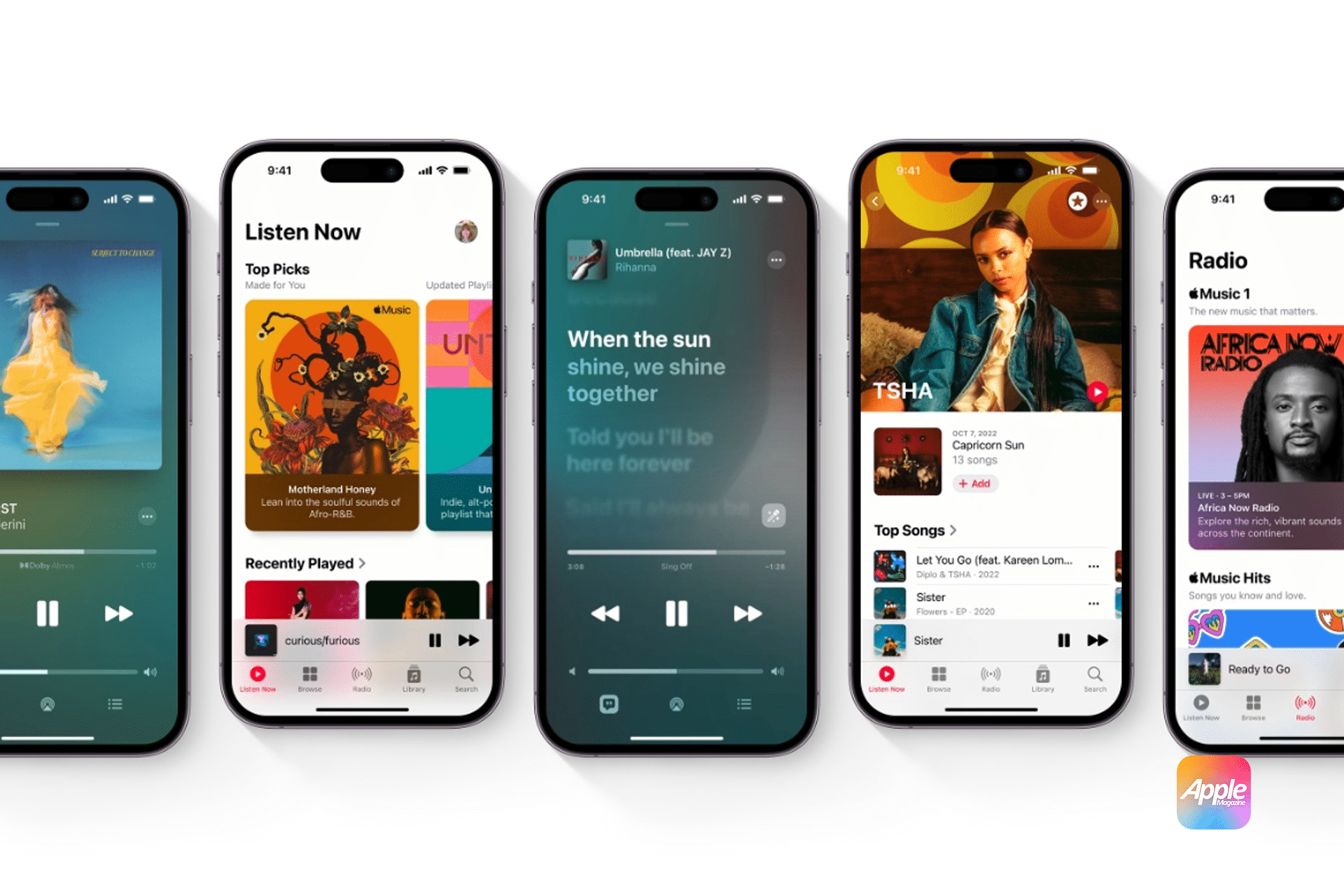
Enable Collaborative Playlist Access
Apple Music allows you to share playlists so others can add songs. Once the playlist is created, open it and enable collaboration. You’ll be able to invite guests using a link, AirDrop, Messages, or a QR-style share option, depending on your device.
Guests must have Apple Music access to add songs, but they don’t need your account or your device.
Workflow
Playlist > Share > Enable Collaboration > Share Link
Control the Chaos Without Killing the Fun
Giving guests access doesn’t mean giving up control. You can remove songs that don’t fit, reorder the queue, or turn off collaboration at any time. If someone adds ten songs in a row or changes the mood completely, you’re still in charge.
A good rule is to let the playlist grow naturally and step in only when needed. The best party playlists feel organic, not micromanaged.
Use Queue Smartly During the Party
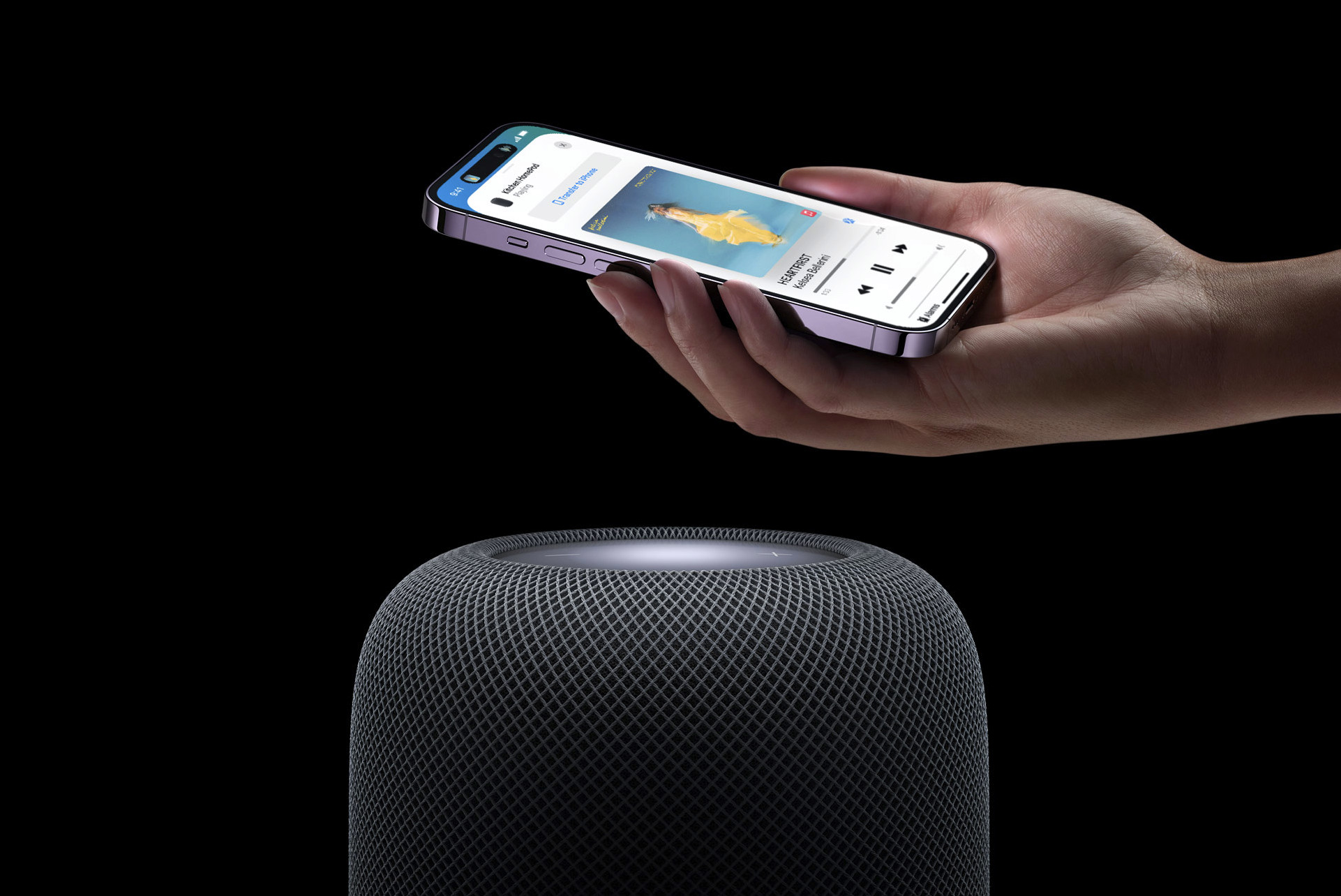
Instead of rearranging the entire playlist, use the play queue. This lets you decide what plays next without deleting guest additions. It’s perfect when someone requests a song that fits later, not right now.
Workflow
Now Playing > Up Next > Add to Queue
This keeps energy levels balanced and avoids sudden mood drops.
Share Access Before the Party Starts
The smoothest DJ-style experience happens when guests can add songs before music even starts. Sharing the playlist ahead of time lets people contribute without interrupting the moment.
By the time the first song plays, the playlist already feels shared, personal, and alive.
Know When to Lock It Down
As the party winds down or the mood shifts, you can disable collaboration with one tap. This freezes the playlist exactly where it is, preserving it as a memory of the event.
Later, that same playlist becomes a time capsule you can revisit, reuse, or refine for the next gathering.
Music works best when it’s shared. Turning a playlist into a group experience doesn’t just solve the “what should we play next” problem — it turns your guests into part of the moment.

