


Photo captions are one of the simplest ways to make a large photo library easier to manage. Apple Photos already recognizes faces, dates, locations, objects, pets, landmarks, and common scenes, but personal organization often needs details that machine recognition cannot know. A caption can add the missing context: who was there, why the photo was taken, what document it shows, which trip it belongs to, or what needs to be remembered later.
That makes captions useful beyond memories. They can turn the Photos app into a personal archive for receipts, school projects, home repairs, travel records, recipes, design references, serial numbers, family events, and screenshots. A picture may show a restaurant, but only the user knows it was the place chosen for a birthday dinner. A photo may show a cable, but only the user knows it belongs to the office monitor. A screenshot may show an order number, but a caption can make it searchable months later.
Apple supports captions in Photos on iPhone, iPad, Mac, and iCloud.com. Captions can help make photos and videos easier to search, especially when iCloud Photos keeps the library synced across devices. The feature is quiet, but it solves a common problem: camera rolls grow faster than memory.


Photo Captions Add Human Context
Photo captions work because automatic search is good at recognizing what is visible, while captions record what is personal. Apple Photos may identify a beach, a dog, a plate of food, a car, a city, or a person. It may not know that the beach photo belongs to a 2024 family trip, that the dog picture was from a vet visit, or that the food photo was a recipe idea worth saving.
Captions let users add names, nicknames, project labels, places, dates, tasks, or short notes. That makes search more personal. Instead of scrolling through hundreds of similar photos, a user can search for “kitchen renovation,” “Louise school play,” “passport copy,” “Manhattan apartment,” “birthday gift idea,” or “garage paint color.”
This is especially useful for screenshots. Many people use screenshots as temporary memory: tickets, confirmation numbers, maps, product ideas, receipts, posts, documents, chats, and app settings. Without captions, those screenshots quickly disappear into a crowded library. With captions, they become searchable records.
Captions also help when a photo looks ordinary but has future value. A picture of a router label, medicine box, luggage tag, parking spot, wine bottle, appliance model number, classroom notice, or hotel room number may be useful later. Adding a short caption at the moment of capture can save a long search.
How to Add Captions on iPhone, iPad, Mac, and iCloud
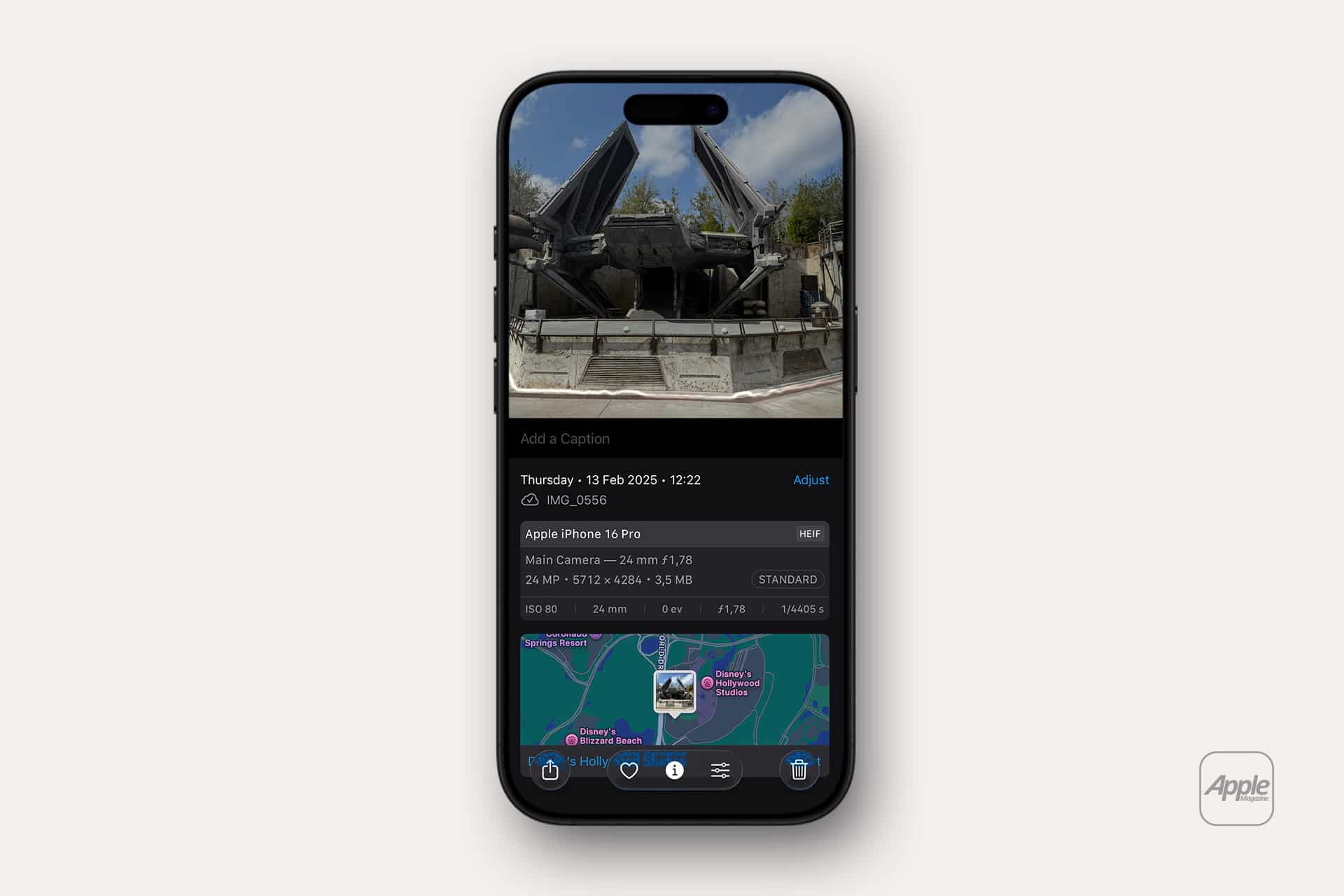
Apple makes captions available through the photo information view. On iPhone and iPad, open a photo or video in Photos, then swipe up or tap the information button to view details. From there, add a caption and save it. On Mac, select a photo or video, open the Info window, and add a caption. On iCloud.com, open Photos, view the item’s information, and edit the caption field.
To add a caption on iPhone or iPad:
Photos > Open a photo or video > Swipe up or tap Info > Add a Caption > Done
To add a caption on Mac:
Photos > Select a photo or video > Info button or Command-I > Add a Caption
To add a caption on iCloud.com:
iCloud.com/photos > Open a photo or video > Info > Add or edit caption
When iCloud Photos is enabled, captions can stay available across Apple devices using the same Apple Account. That makes the feature more useful than device-only notes. A caption added on Mac can help with search later on iPhone, and a caption added from iCloud.com can remain part of the synced library.
Mac users also have an advantage for larger organization jobs. The Photos app on Mac is more comfortable for reviewing many images, adding metadata, and organizing albums. For people with years of photos, adding captions in small batches on Mac can be easier than doing everything from iPhone.
A Practical Caption System
The best caption system is short and consistent. Captions should not become essays. They should include the words a person is likely to search later.
For family photos, captions can include the event, name, place, and year. “Louise school spring 2026” is more useful than “fun night.” For travel, captions can include city, hotel, restaurant, landmark, or trip name. For home projects, captions can include room, material, brand, measurement, or repair name. For documents and receipts, captions can include vendor, item, warranty, order number, or tax category.
A useful caption often combines natural language with a personal keyword. For example, “kitchen renovation faucet model,” “summer trip Niagara Falls hotel view,” “receipt MacBook repair,” or “party birthday ideas.” The words should match how the user thinks, not how a database would label the photo.
Consistency helps. If one photo uses “home repair” and another uses “house fix,” search may become messier. Choosing simple repeated terms such as “receipt,” “warranty,” “school,” “travel,” “recipe,” “work,” “home project,” and “family archive” makes the library easier to search over time.
Captions can also work with albums. Albums group photos visually. Captions make them searchable. A travel album can hold the full trip, while captions inside it identify hotels, restaurants, tickets, or moments. A home project album can show progress, while captions identify products and measurements.
Search, Smart Albums, and Privacy
Captions are most useful when paired with search. Apple Photos search can find people, places, categories, dates, and text from captions. On Mac, captions can also help with Smart Albums, which can collect photos based on metadata rules.
This creates a light tagging system without needing a separate photo-management app. A user can caption receipt images with “receipt,” then search for receipts later. A designer can caption reference images with “logo idea” or “cover inspiration.” A parent can caption school notices with “school notice” and the child’s name.
Smart Albums are especially helpful on Mac because they can automatically gather images matching a condition. For example, a Smart Album can collect photos where the caption includes “receipt,” “warranty,” or “home project.” That turns captions into a simple organizational layer.
To create a Smart Album on Mac:
Photos > File > New Smart Album > Set caption or metadata rules
Captions can include sensitive personal context, so they should be used carefully. A caption added to a private document photo, medical form, ID, receipt, or family image may sync through iCloud Photos if iCloud Photos is enabled. That is convenient, but users should remember that captions become part of the photo library’s metadata.
For sensitive items, a general caption may be safer than full details. “Insurance document” may be enough instead of adding full policy numbers. “School form” may be enough instead of writing personal identifiers.
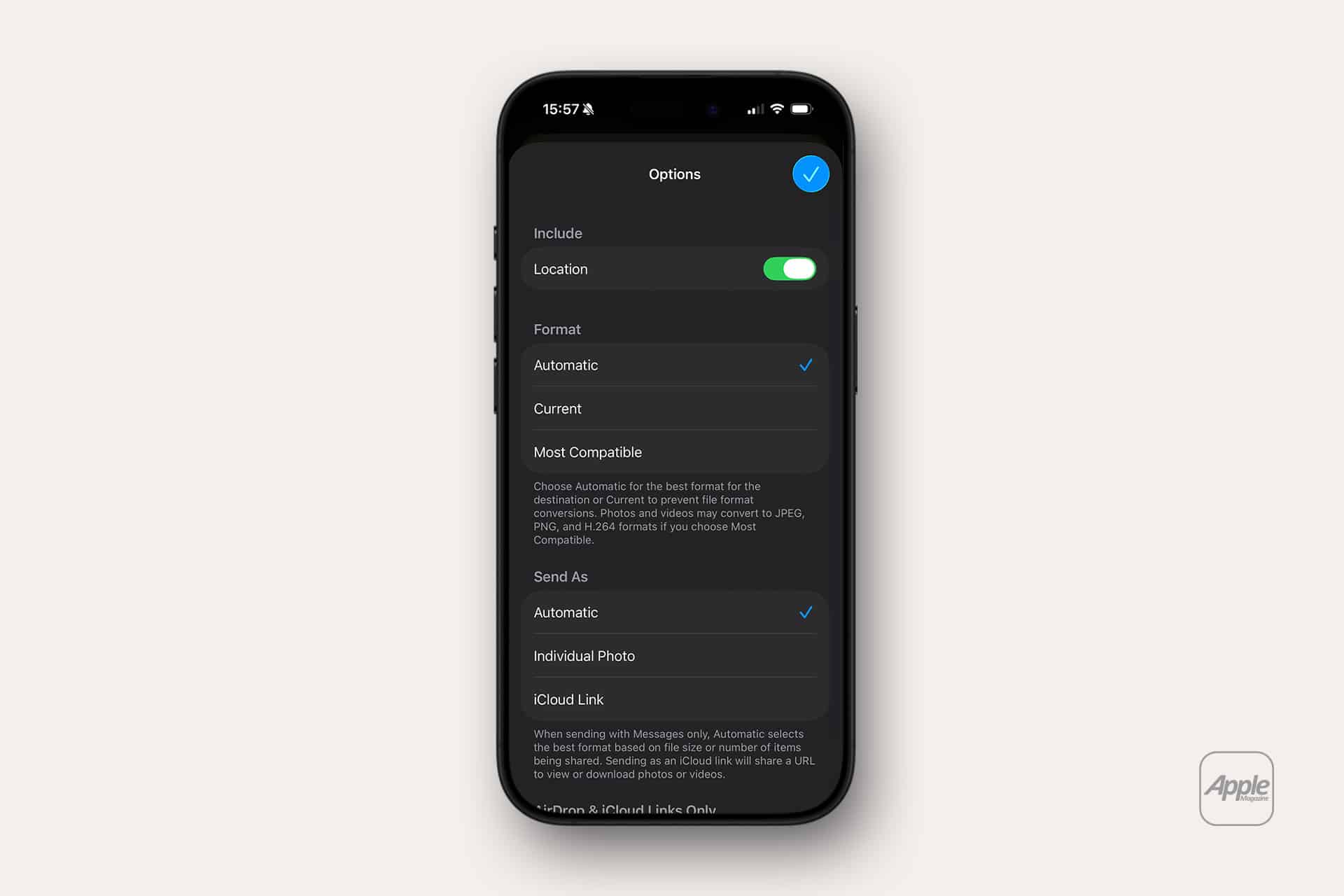
Users who share photos should also consider metadata. Captions may not always travel in the same way across every sharing method or app, but metadata can be included in some exports or workflows. Before sharing sensitive images, it is smart to check what information is being sent and remove location metadata when needed.
To manage location before sharing:
Photos > Open photo > Share > Options > Turn off Location
Captions are most useful when they help the owner search and understand a library. They should not create unnecessary exposure.
A Small Habit With Long-Term Value
Photo captions work because they add memory before details fade. A person may remember today that a photo shows the exact paint color used in the hallway. Two years later, that same image may look like any other wall photo. A caption preserves the reason the photo was taken.
The habit does not need to apply to every image. Most photos do not need captions. The best candidates are photos that will be searched later, photos that document something, screenshots with temporary information, family moments with names or events, and images that look visually similar to many others.
A simple rule works well: caption the photos that future-you will not understand immediately. That includes receipts, serial numbers, repair photos, trip details, school memories, medical paperwork, recipes, design ideas, and special family moments.
Apple Photos already organizes much of the visible world. Photo captions organize the personal meaning behind it. That is the part only the user can add.