

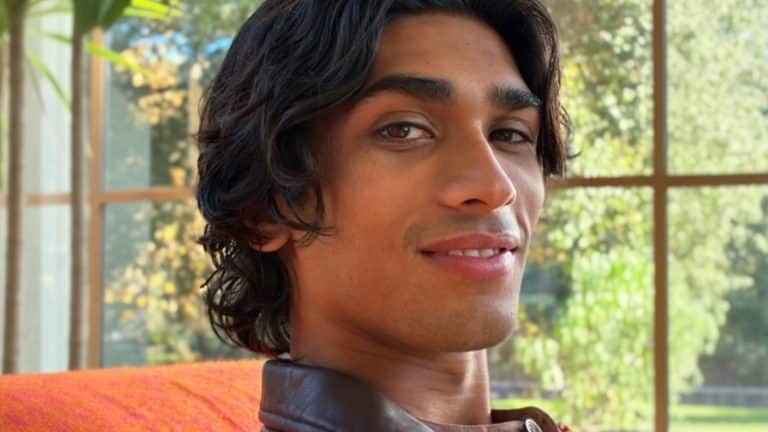
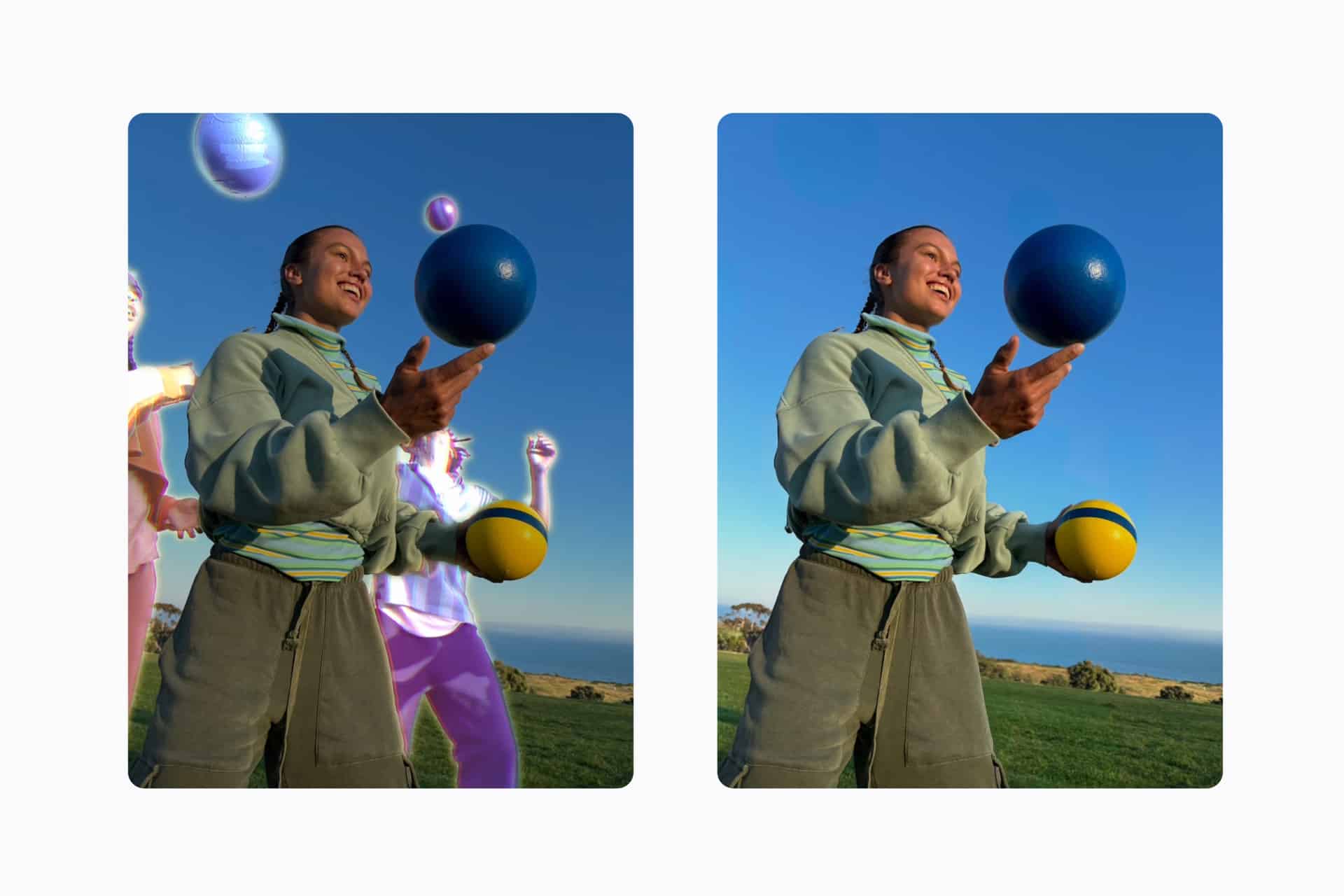
Photos Clean Up is becoming more capable in iOS 27, expanding beyond the small background distractions that worked best with the original Apple Intelligence feature.
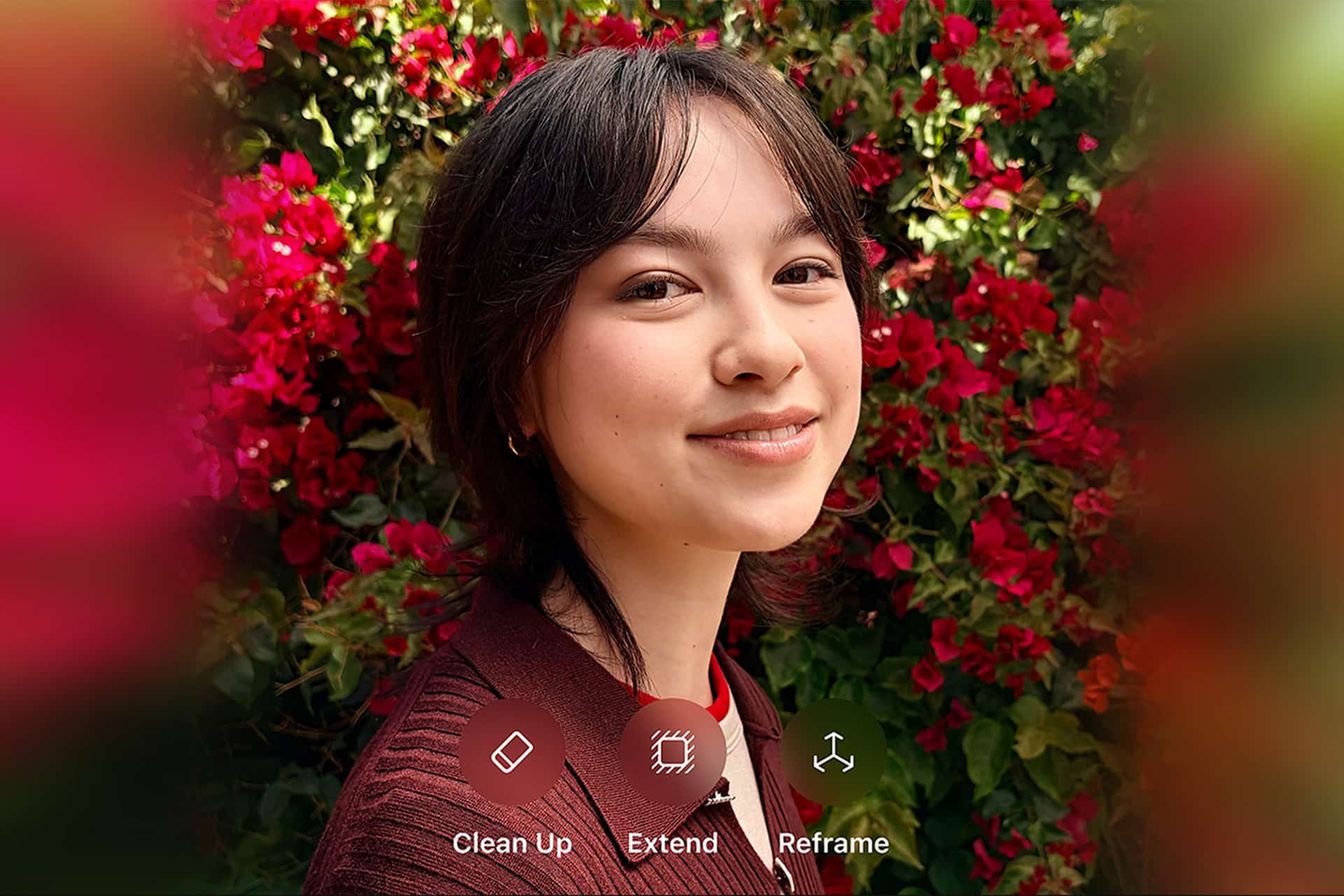
Apple describes the new Photos experience as including an upgraded Clean Up tool alongside additional AI editing options. The improved version is designed to remove larger objects while generating more convincing replacement detail across the space they occupied.
That could make the tool more useful for vacation photos interrupted by pedestrians, portraits with distracting furniture, product shots containing unwanted objects or outdoor images where signs, trash cans and vehicles compete with the intended subject.
The expanded capability does not uncover what the camera originally recorded behind an object. Those pixels do not exist. Photos Clean Up studies the visible scene and generates a likely continuation of nearby walls, pavement, sky, grass, water or other elements.
Larger removals require the model to invent more of the image, increasing the possibility of distorted lines, repeated patterns or details that never existed. The feature therefore works best as a guided editing tool rather than an automatic guarantee of a realistic photograph.
Photos Clean Up Handles More Difficult Scenes
The original Photos Clean Up could automatically identify certain background distractions and highlight them for removal. Users could also tap, brush or circle an object manually when the software did not select it by itself.
That workflow remains central to the upgraded version. What changes is the amount of visual reconstruction the model can attempt and the quality of the replacement area.
Removing a small bottle from a plain table is relatively straightforward because the software has visible surface information on every side. Removing an entire chair from the same scene may require it to recreate the floor, wall, shadows and the lower edge of another object.
Straight lines remain especially demanding. A deleted object may conceal parts of a fence, window frame, tiled floor or building. The model must continue those structures at the correct angle while matching lighting and perspective.
Reflections and shadows create separate problems. Removing a person may leave the person reflected in glass or casting a shadow across the ground. Users may need to perform another pass to remove those secondary traces.
The size of the object is therefore only one factor. A large distraction against an uncomplicated sky may produce a better edit than a much smaller object covering a face, hand or detailed piece of architecture.
Apple also warns that brushing over a person’s face may replace it with a pixelated effect. Clean Up is intended to remove distractions, not reconstruct a believable identity or generate a replacement face.

How to Use Photos Clean Up on iPhone and iPad
Photos Clean Up may automatically highlight objects that it considers removable when the editing tool opens. Tapping one of those highlighted areas is the quickest routine.
To remove an automatically detected distraction:
Photos > Open the photo > Edit > Clean Up > Tap the highlighted object > Done
The highlighted suggestion may not include the entire distraction. A person might be selected while a bag, shadow or reflection remains. After the first removal, users can inspect the area and apply another manual pass.
To remove an object that was not highlighted automatically:
Photos > Open the photo > Edit > Clean Up > Tap, brush or circle the object > Done
Tapping works best when the software already understands the object boundary. Circling can help when the complete item is easy to enclose. Brushing provides more control for narrow areas, irregular shapes and remaining fragments after the main removal.
Larger objects should usually be handled in several controlled passes rather than one wide brush movement. Removing the main object first allows the model to reconstruct the largest area. Smaller passes can then address missed edges, shadows or leftover details.
Users can enlarge the image while editing to work more precisely.
To zoom and reposition the photo during a Clean Up edit:
Photos > Open the photo > Edit > Clean Up > Pinch with two fingers to zoom > Drag with two fingers to reposition
Zooming is useful around hair, clothing, railings and the outline of the main subject. A wide brush can accidentally include part of something that should remain, while an extremely narrow brush may leave visible fragments around the edge.
Photos supports undo and redo while the editor remains open. That makes experimentation safer when a removal damages a nearby object.
To reverse the most recent editing step:
Photos > Open photo in the editor > Undo
To restore a removed step after using Undo:
Photos > Open photo in the editor > Redo
Tapping the image while editing can also provide a comparison between the edited photograph and its original appearance.
How to Preserve and Restore the Original
Photos uses nondestructive editing. Saving a Clean Up change does not permanently erase the source image, and the original can be restored later.
Users who want both versions visible in the library can duplicate the photograph before beginning. This is useful when comparing several approaches or preparing alternate versions for different purposes.
To duplicate a photo before using Clean Up:
Photos > Open the photo > More > Duplicate
The copy appears next to the original in the library. Clean Up can then be applied to the duplicate while the untouched photograph remains immediately available.
A saved edit can also be removed without creating a copy beforehand.
To restore the complete original after saving a Clean Up edit:
Photos > Open the edited photo > More > Revert to Original
Revert to Original removes all saved edits applied through Photos, not only the Clean Up operation. Cropping, exposure changes, filters and other adjustments will also be discarded.
People using iCloud Photos should remember that edits synchronize across their devices. Cleaning up an image on iPhone can change the version displayed on an iPad and Mac connected to the same photo library. Reverting the image also synchronizes.
Using Photos Clean Up on Mac
The Mac version offers the same fundamental object-removal process with greater control over brush size and a larger editing area.
To remove a distraction in Photos on Mac:
Photos > Double-click the photo > Edit > Clean Up > Select the Erase brush > Adjust Size > Click, brush or circle the object > Done
Some objects may be highlighted automatically after Clean Up opens. Clicking a highlighted area removes it without requiring a manual outline.
The Size slider should match the part being edited. A larger brush can remove the center of a vehicle, sign or person, while a smaller brush can refine the boundary near another subject.
To inspect a difficult area more closely on Mac:
Photos > Edit > Clean Up > Drag the Zoom slider or pinch on the trackpad > Drag the image to reposition it
Mac users can undo the most recent change through the Edit menu or with Command-Z. The entire image can later be restored by selecting it and choosing Image > Revert to Original.
Requirements and Practical Limits
Photos Clean Up requires Apple Intelligence hardware. Apple currently supports the feature on iPhone 15 Pro and iPhone 15 Pro Max, every iPhone 16 model and later compatible generations. Supported iPads require an A17 Pro or M1 chip and later, while Macs require M1 or newer.
Apple Intelligence must be enabled, and availability can vary according to language and region. The upgraded iOS 27 version remains prerelease software until the finished operating system arrives in fall 2026, so controls and processing behavior may change during testing.
Generated output can also vary between attempts. When one removal produces twisted lines or repeated textures, undoing it and selecting a smaller area may give the model a better boundary to follow.
A successful edit should be inspected at full size before publication. Building edges, fingers, text, reflections and repeating patterns can expose errors that remain difficult to notice on the smaller iPhone screen.
The safest workflow for a significant photograph is to duplicate it first, remove the distraction in several passes and keep the untouched copy beside the edited version until the generated area has been reviewed on a larger display.