


Preview is one of the most useful Mac apps many people never fully use. It opens images and PDFs by default, but it can also work like a digital version of a paper desk: reorganizing pages, deleting pages, combining documents, adding notes, highlighting text, signing forms, marking up drafts, and reviewing files without installing a separate PDF editor.
That makes Preview especially valuable for students, writers, office workers, teachers, freelancers, lawyers, designers, managers, and anyone who deals with contracts, invoices, reports, forms, scans, manuals, research papers, press materials, or school documents. Many PDF tasks that feel like they require paid software can already be handled inside macOS.
The best way to understand Preview is to stop thinking of it only as a viewer. It is a light PDF workstation built into the Mac. If old paper documents could be stacked, reordered, signed, marked with a pen, clipped together, or reviewed with sticky notes, Preview gives Mac users a digital version of those same habits.
Preview Makes PDFs Feel Like Paper
Paper documents are easy to understand because they are physical. A user can pull out page three, move a page to the front, attach another sheet, circle a paragraph, write a note, sign the bottom, or hand it back with comments. PDFs often feel less flexible because they look locked inside a file.
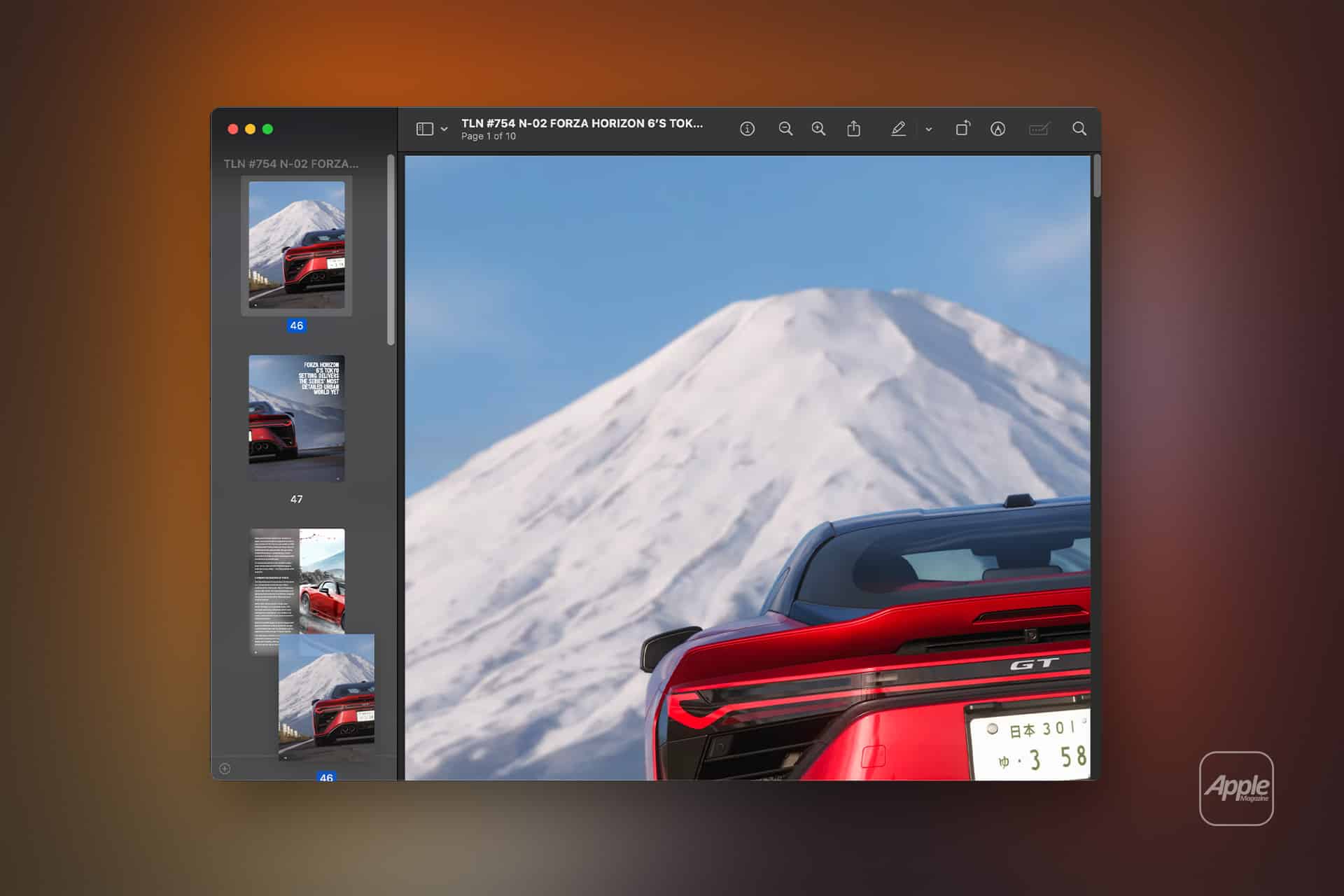
Preview reduces that feeling. The sidebar can show page thumbnails, making a PDF feel like a stack of pages. Users can drag pages into a new order, delete pages they do not need, rotate sideways scans, copy pages into another document, and combine separate PDFs by dragging files or pages together.
This is one of Preview’s strongest beginner features. A user does not need to understand advanced PDF editing. They only need to show thumbnails and move pages around visually.
View > Thumbnails
Once thumbnails are visible, each page appears in the sidebar. From there, users can click, drag, delete, rotate, or copy pages much like working with paper. It is simple, visual, and often faster than opening a larger PDF app.
Reorganize, Delete, and Rotate Pages
Preview is especially useful for fixing messy PDFs. Scanned documents often arrive with pages in the wrong order, blank pages, sideways pages, or unnecessary cover sheets. Preview can clean those files quickly.
To reorder pages:
Open the PDF in Preview > View > Thumbnails > Drag pages into the right order
To delete a page:
Open the PDF in Preview > View > Thumbnails > Select the page > Press Delete
To rotate a page:
Open the PDF in Preview > Select the page > Tools > Rotate Left or Rotate Right
This is helpful for scanned forms, school packets, signed documents, meeting materials, tax files, and downloaded reports. Instead of living with a messy file, users can turn it into a cleaner PDF in a few seconds.
A useful habit is to duplicate the PDF before making changes. That keeps the original safe in case a page is deleted by mistake.
File > Duplicate

Combining PDFs Into One File
Preview can also combine multiple PDFs into one document. This is useful when sending application materials, joining scanned pages, merging invoices, building a packet, or attaching several related files as one cleaner document.
To combine PDFs:
Open the first PDF in Preview > View > Thumbnails > Drag another PDF into the thumbnail sidebar
Users can drag the second PDF between existing pages, to the end of the document, or into a specific position. Preview adds the pages directly into the open document.
Individual pages can also be moved between PDFs. Open both documents, show thumbnails in both windows, then drag selected pages from one sidebar to the other.
This is one of the easiest ways to treat PDFs like paper. Instead of sending five attachments, users can create one organized file. Instead of rescanning a document because one page is missing, they can add the missing page from another PDF.
Add Highlights, Notes, and Markups
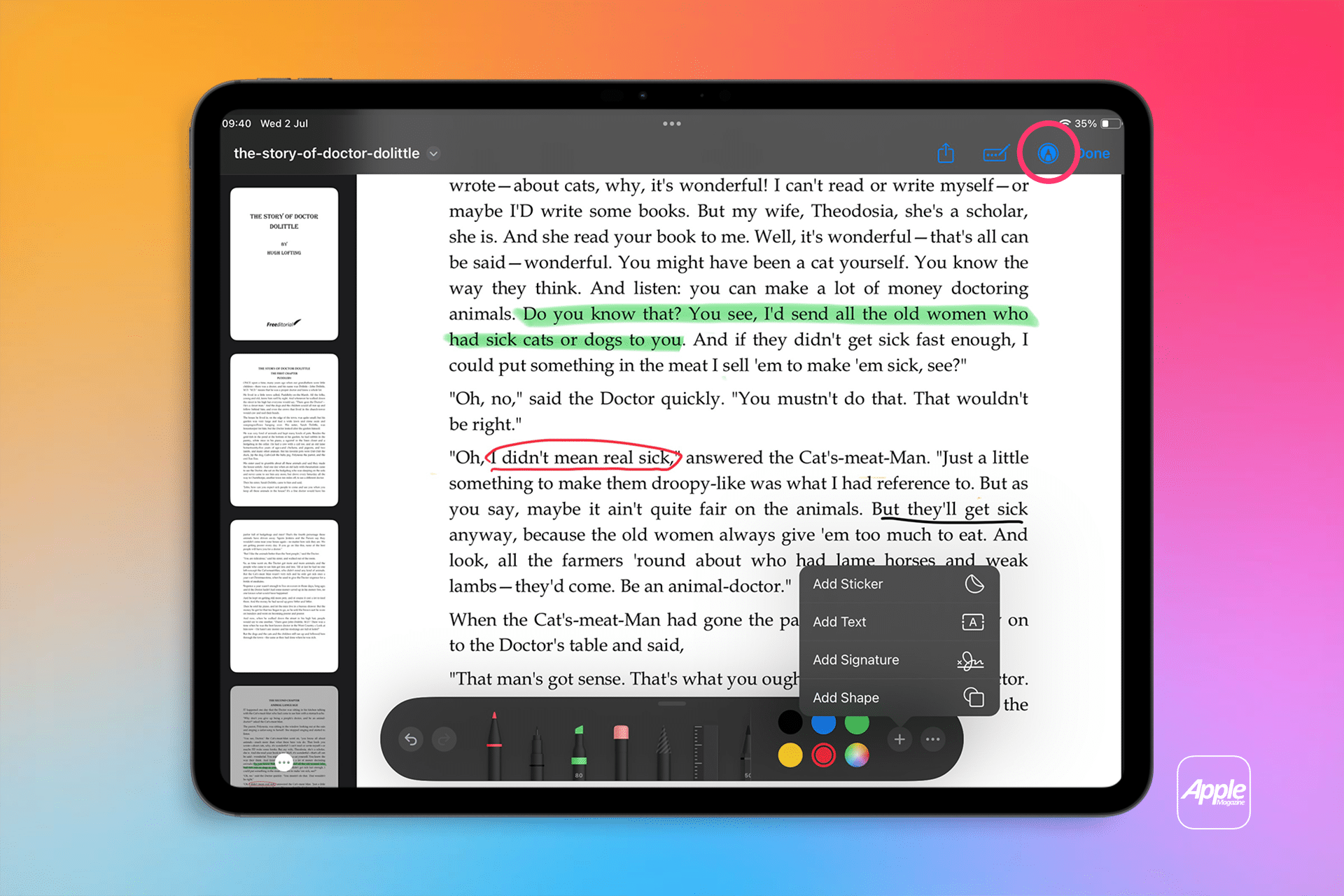
Preview’s Markup tools make it useful for reviewing documents. Users can highlight text, add notes, draw shapes, write comments, insert text boxes, and mark areas that need attention.
To show Markup tools:
Open a PDF in Preview > Click the Markup button in the toolbar
The Markup toolbar includes tools for drawing, shapes, text, signatures, notes, lines, arrows, color, borders, and text style. These tools are useful for editing drafts, reviewing contracts, marking readings, correcting layouts, and sharing feedback.
A user reviewing an article can highlight a sentence, add a note beside a paragraph, circle a typo, and place an arrow toward a section that needs revision. A teacher can mark a PDF assignment. A client can comment on a proposal. A designer can point to a layout issue.
This is where Preview feels closest to old paper documents. Instead of printing, marking with a pen, scanning, and sending back, the entire review can happen inside the PDF.
Use Notes for Cleaner Reviews
Notes are useful when a user wants to comment without cluttering the page. A note appears as a small icon on the PDF and opens when clicked. This keeps the document readable while still allowing detailed feedback.
To add a note:
Open a PDF in Preview > Markup > Note
Notes are useful for questions, revision requests, reminders, or explanations that would take too much space as visible text. They also make Preview more useful for collaborative review when the file is sent to another person.
For longer review sessions, highlights and notes can work together. Highlight the exact sentence, then add a note explaining the issue. This is clearer than writing a vague comment on the side.
Preview does not replace a full editorial workflow, but it is more than enough for many day-to-day reviews.
Sign PDFs Without Printing
Preview can create and insert signatures, which is one of its most practical tools. Users can sign with the trackpad, camera, iPhone, or iPad, then place the signature inside a PDF.
To create a signature:
Open a PDF in Preview > Markup > Signature > Create Signature
The trackpad option lets users sign with a finger. The camera option lets users sign on paper and hold it up to the Mac camera. iPhone or iPad can also be used to create a cleaner signature.
Once saved, the signature can be inserted into future PDFs without creating it again. This is useful for forms, school documents, permission slips, approvals, invoices, agreements, and business paperwork.
Users should still be careful with legally sensitive documents. Preview is convenient for adding a signature, but some contracts or regulated documents may require a specific digital signature platform, identity verification, or audit trail. For everyday forms, Preview is often enough.
Fill Out Simple Forms
Preview can help users complete many PDF forms. If the PDF has fillable fields, users can click each field and type directly. If the PDF is only a scan or flat document, users can use the text tool to place text manually.
To add text manually:
Open a PDF in Preview > Markup > Text > Move the text box into place
This works well for names, dates, addresses, short answers, or form fields that were not built correctly. Users can adjust font size, alignment, and color from the Markup toolbar.
Preview is especially useful when a form arrives as a non-editable PDF. Instead of printing and handwriting answers, users can add text boxes, sign the file, save it, and send it back.
For repetitive forms, it helps to save a clean original and create a filled copy each time.
File > Duplicate
Redacting Sensitive Information
Preview includes a redaction tool that can permanently hide sensitive information in a PDF. This is different from placing a black rectangle over text. Proper redaction removes the content so it cannot be selected, copied, or revealed later.
To redact:
Open a PDF in Preview > Markup > Redact Selection
This is useful for hiding account numbers, addresses, phone numbers, names, signatures, case details, personal identifiers, or private notes before sharing a document.
Users should treat redaction carefully. Once saved, redacted content cannot be recovered from that version of the file. It is better to duplicate the PDF first, redact the copy, then share the redacted version.
File > Duplicate
Do not rely on ordinary shapes or black boxes for privacy. If the goal is to remove information, use the redaction tool.
Use Preview With iPhone and iPad
Preview can also work with nearby Apple devices through Continuity features. A Mac user can add a sketch, signature, or markup from iPhone or iPad, which is especially helpful when using Apple Pencil on iPad.
This makes Preview more flexible. A user can review a PDF on Mac, then use iPad to draw or write more naturally. A signature created on iPhone can appear in Preview on Mac. Screenshots or scanned documents from iPhone can also move into Mac workflows quickly through AirDrop, iCloud Drive, or Continuity Camera.
For people who handle PDFs often, this connection between Mac, iPhone, and iPad makes Preview more useful than it first appears. The Mac gives a larger screen and better file management. iPad gives better pen input. iPhone gives quick scanning and capture.
Compress and Export PDFs
Preview can export PDFs and sometimes reduce file size, which is useful when a document is too large to email or upload.
To export a PDF:
Open the PDF in Preview > File > Export
From there, users can choose format and file options. macOS also offers a Reduce File Size Quartz Filter, though results can vary. It can make a PDF smaller, but it may reduce image quality too much for some documents.
This is useful for scanned PDFs, application packets, image-heavy reports, or documents with large embedded files. Before sending, users should open the exported file and check whether the quality is still acceptable.
A better habit is to keep two versions when reducing file size: one full-quality original and one smaller sharing copy.
File Names and Folder Habits Matter
Preview can edit PDFs, but good document management still depends on file habits. A clean PDF is less useful if it is buried under a confusing name like “Scan 4 final final copy.pdf.”
After editing a PDF, rename it clearly. Include the document type, date, and version when useful. For example:
- Invoice-ClientName-June-2026.pdf
- Contract-Review-Version-2.pdf
- School-Form-Signed.pdf
- Report-Notes-Reviewed.pdf
Mac users can also use tags in Finder to organize PDFs by project, client, school, finance, or personal documents. Preview handles the document itself, while Finder keeps the filing system clean.
This is the digital version of putting paper documents into labeled folders instead of leaving them in a pile.
Beginner PDF Workflows in Preview
A simple beginner workflow for reviewing a PDF starts with duplicating the file, turning on thumbnails, checking page order, adding highlights and notes, signing if needed, and saving the reviewed version with a new name.
File > Duplicate > View > Thumbnails > Markup > Save
A simple workflow for combining documents starts with opening the main PDF, showing thumbnails, dragging in another PDF, arranging pages, deleting unnecessary pages, and exporting a final copy.
View > Thumbnails > Drag PDF into sidebar > Reorder pages > File > Export
A simple workflow for sending a signed form starts with opening the form, adding text boxes where needed, adding a signature, saving a copy, and emailing or uploading the finished file.
Markup > Text > Signature > File > Save
A simple workflow for protecting privacy starts with duplicating the PDF, using Redact Selection on sensitive information, saving the redacted copy, and checking the file before sharing.
File > Duplicate > Markup > Redact Selection > Save
These routines cover much of what people used to do with paper: organize, mark, sign, combine, copy, and send.
Preview Is Enough for Most Everyday PDF Work
Preview is not a full replacement for advanced PDF software. It is not ideal for complex form design, professional prepress workflows, batch processing, advanced OCR management, legal document platforms, or enterprise-level PDF automation. But for everyday Mac users, it handles far more than opening a file.
It can organize pages, combine documents, remove pages, rotate scans, highlight text, add comments, fill forms, sign documents, redact private details, export copies, and support review workflows. That covers most PDF tasks people deal with at school, work, home, and small business.
The app’s strength is that it is already there. No extra subscription, no new account, no separate PDF utility for basic work. Open the PDF, show the thumbnails, turn on Markup, and treat the file like paper that happens to be smarter.