Your iPhone holds some of the most personal records of your life. Family moments, private conversations, documents, travel, health, and memories all live inside your Photos library. That is why Apple built photo privacy directly into iOS using Face ID, Secure Enclave encryption, and iCloud security. Protect iPhone Photos is not a third-party feature or a hidden trick. It is a system-level layer that keeps your images locked behind biometric authentication, even if someone gets physical access to your device.
Face ID does more than unlock your phone. It controls access to hidden albums, locked photos, app data, passwords, and even iCloud content. When you combine this with iOS privacy features, your Photos library becomes one of the most secure personal archives on any consumer device.
How Face ID Protects Your Photos
Face ID works through Apple’s Secure Enclave, a protected hardware system that stores your biometric data in an encrypted form that never leaves your device. Your face scan is not uploaded to iCloud or shared with Apple. It lives only inside the Secure Enclave and is used locally to approve access.
When Face ID is required for Photos, no one can open locked or hidden images without your face or passcode. Even if someone knows your Apple ID or has your device in hand, the photos remain sealed.

How to Turn On Face ID
Settings > Face ID & Passcode > Other Apps > Photos
This setting ensures that Face ID is required whenever someone tries to open protected areas of the Photos app, including hidden or locked albums.
How to Hide Photos on iPhone
Photos > Select > Choose Photos > More (…) > Hide
Hidden photos are removed from your main library and placed into the Hidden album.
How to Lock the Hidden Album With Face ID
Settings > Photos > Use Face ID
Once enabled, opening the Hidden album requires Face ID or your passcode.
How to Lock Individual Photos
Photos > Select Photo > More (…) > Lock
Locked photos move into the Locked album, which is always protected by Face ID. These images never appear in widgets, search results, or shared suggestions.
How iCloud Works With Locked Photos
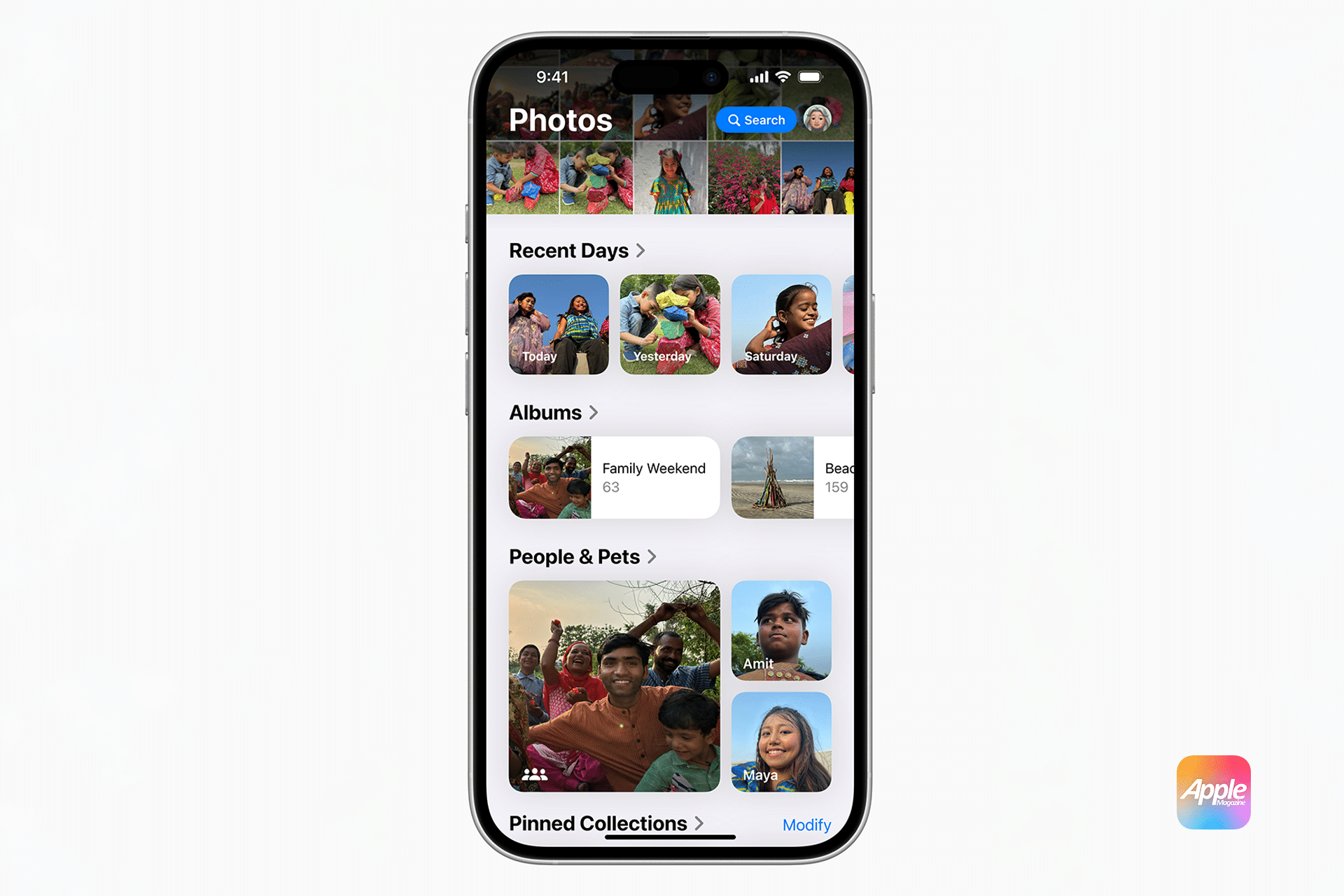
iCloud Photos syncs locked and hidden photos across devices, but their protection remains. A locked photo on your iPhone stays locked on your iPad and Mac. Even if someone accesses your iCloud account from a browser, locked photos remain hidden unless authenticated on a trusted device.
This means your privacy follows your photos everywhere inside the Apple ecosystem.
How Notifications, Search, and Stay Private
iOS prevents locked photos from appearing in:
- Spotlight search
- Siri suggestions
- Home Screen widgets
- Memories
- Photo widgets
- Third-party app previews
Even if someone is using your phone while it is unlocked, protected images stay invisible unless Face ID confirms your identity.
How to Add an Extra Layer of Protection
Settings > Face ID & Passcode > Require Attention for Face ID
This ensures Face ID only unlocks when your eyes are open and looking at the screen, preventing unlocks while sleeping or unaware.
You can also enable:
Settings > Face ID & Passcode > Stolen Device Protection
This adds time delays and extra biometric checks when your iPhone is away from familiar locations.

Why Apple’s Photo Security Is Stronger Than Third-Party Vault Apps
Many photo vault apps store images inside their own databases, often without hardware-level encryption. Apple’s system is different. It integrates Face ID, the Secure Enclave, iOS sandboxing, and iCloud encryption into a single privacy framework.
That means no app can access your locked photos, no system service can leak them, and even Apple cannot read them.
Your iPhone is not just a camera. It is a digital safe, and Face ID is the key that only you carry.