


Holding onto precious moments, an iCloud account often becomes the quiet keeper of life’s snapshots and everyday details for many Apple users. Lose access, and suddenly photos vanish, papers go missing, settings reset – everything feels out of sync. Items removed from iCloud Drive or linked apps might still hang around, waiting. Since iCloud Drive was active on your devices, recovery is still possible for up to a month after deletion. Thirty days pass, then they fade for good.
Here’s how to recover data from iCloud – photos, files, contacts, calendars, and even bookmarks. Depending on what you’re after, the way forward changes quite a bit if there’s a complete device backup or just bits and pieces missing.
Start by peeking at your backup status: open Settings, tap your name, go into iCloud, then tap iCloud Backup to see when the last backup happened.
Here’s a brief solution for iCloud recovery methods:
- iCloud.com (Files & Data): Go to iCloud.com, click Data Recovery, and select the files, contacts, or bookmarks to restore.
- iCloud.com (Photos & iCloud Drive): Access the “Recently Deleted” folder to recover photos, videos, and files within 30 days.
- Restore from Backup: If a device is lost or replaced, factory reset the device and choose “Restore from iCloud Backup” during the setup process to restore data, including apps, messages, and settings.
- Notes & Calendars: These can be restored from an earlier version via the Data Recovery tab on the iCloud browser page.
Files vanish faster than you think if they’re cleared twice – once from iCloud Drive, again from Recently Deleted. Recovery chances drop hard after that second delete. Peek under the hood now to uncover how restoring lost items works across iPhone, iPad, or Mac.
How to Recover Data from iCloud on iPhone/iPad
Starting fresh with an iCloud backup brings back your entire iOS setup. That snapshot fills your iPhone or iPad by wiping whatever was there before. Most choose this move when switching devices or clearing one out fully. It drops every file, app, and setting just as they were saved last.
Follow the steps below to recover data from iCloud on an iPhone or iPad:
- Start by wiping the device clean, but only if there is already stuff on it. When bringing back data to a gadget that has information stored, clearing it comes before anything else. Open Settings, head into General, find Transfer or Reset Device, select that option. Tap on Erase All Content and Settings when ready. Done right, the screen goes blank, waiting.
- After the device restarts, follow the on-screen setup steps until you reach the “Apps & Data” screen.
- Now choose the option “Restore from iCloud Backup”.
- Open the app using your Apple ID. After that, pick one backup from those shown. Look at when it was saved and how big it is before selecting. The right choice depends on these details.
- Once the process finishes, keep your gadget plugged into both the network and the outlet. After a reboot, app installations start automatically.

How to Recover Data from iCloud on Mac
Not many realize – iCloud Backup works just for iPhones and iPads. Restoring a full Mac? That won’t happen through iCloud, unlike what you’re used to on mobile devices
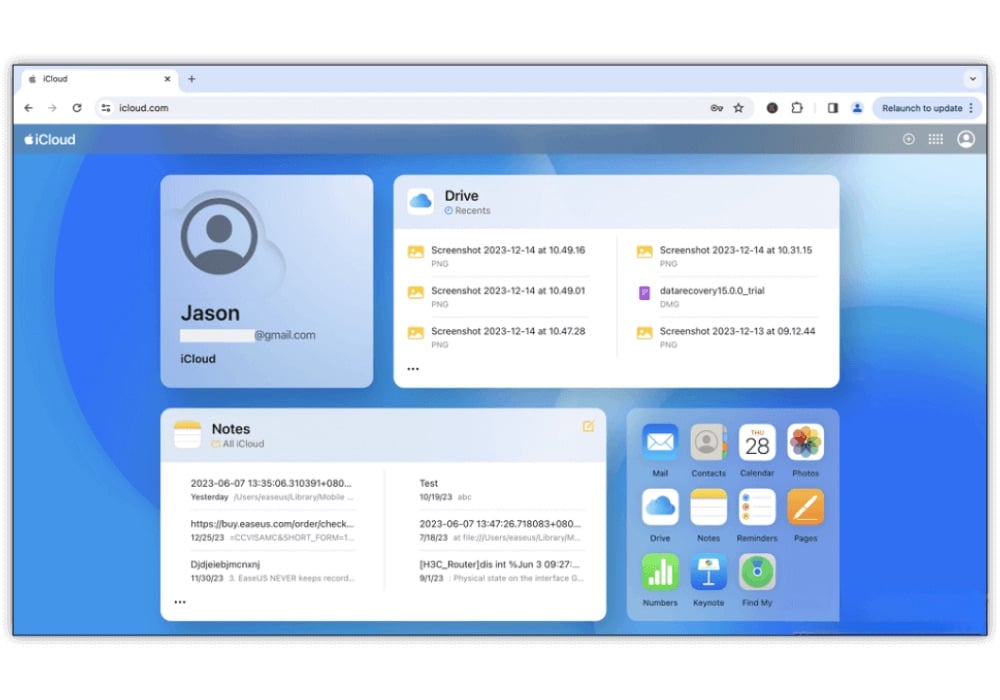
Recovery on a Mac focuses on retrieving specific files and data types directly from your iCloud account, primarily through the web interface.
Using a Mac to recover things means pulling certain files straight from your iCloud, most often by going online. What shows up depends on what’s already stored there.
- For Files in iCloud Drive: Log in to iCloud.com, open iCloud Drive, and select “Recently Deleted” from the sidebar. Here, you can restore files deleted within the last 30 days.
- For Photos and Videos: Open the Photos app on iCloud.com and navigate to the “Recently Deleted” album to recover items.
- For Contacts, Calendars, and Bookmarks: On iCloud.com, scroll down and click “Account Settings,” then find the “Data Recovery” section. Here, you can restore archived versions of your contacts, calendars, or bookmarks.
How to Recover Files from iCloud without Backup
Is it possible to recover permanently deleted files from iCloud? A single click removes a file without warning. Then silence – where did it go? Disappeared completely, maybe not. The odds of getting it back depend on how many minutes have passed since removal and on the reasons for the erase.
Things you remove from iCloud Drive, Photos, or Notes stick around at first. They show up in a folder named Recently Deleted instead of disappearing immediately. That spot holds them safely for almost a month. After that period, they go away for good. Getting them back during those weeks? Simple enough. The steps already covered make it possible.
Even little progress might stall if the 30-day window ends – once removed through an app, files sometimes skip the “Recently Deleted” folder entirely.
For cases beyond iCloud’s built-in recovery features, tools like EaseUS Data Recovery Wizard for Mac offer an alternative approach. Follow the steps below to recover data from iCloud without a backup:
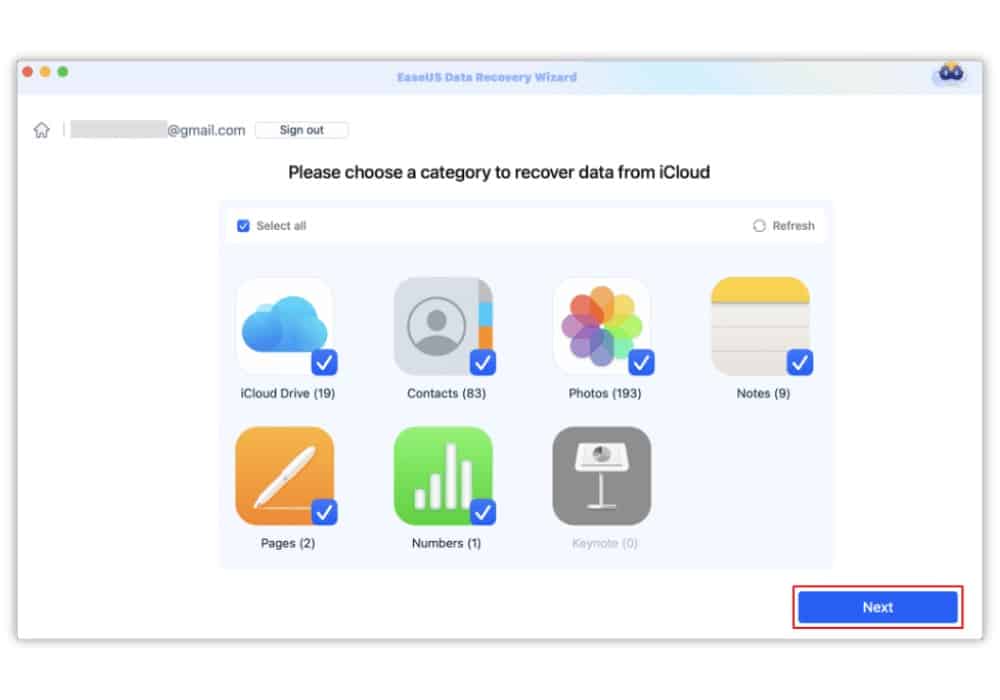
- Install and launch EaseUS Data Recovery Wizard for Mac, and select the iCloud tab from the left list, choose the “Recover data from iCloud account” option to recover your photos, and click “Next” to log in to your iCloud account.
- EaseUS software will quickly scan all the recoverable data from your iCloud account. Check the categories you want, and click “Next”.
- Select the files you want to restore, click the eye icon to preview their details, then click the “Recover” button to restore them.
Conclusion
Start at iCloud.com if you need to grab deleted and lost items, such as files, notes, contacts, etc., from the cloud. 30 days after deletion, those bits might still be there. Open a browser first, then sign in. For things like old calendar dates or contact details, try the “Data Recovery” option tucked inside iCloud Settings.
Another way? Pull everything back on an iPhone or iPad when setting up again. Choose restore from backup, either while starting fresh or later through system menus. This resets the whole device to how it looked last time it saved.
Suppose your files were permanently deleted, try EaseUS Data Recovery Wizard for Mac and restore data in clicks!
Ultimately, the most reliable strategy is proactive prevention. Regularly checking that your important data is backed up – whether through iCloud, Time Machine, or another dedicated backup service – is the surest way to ensure you can always recover what matters most.