

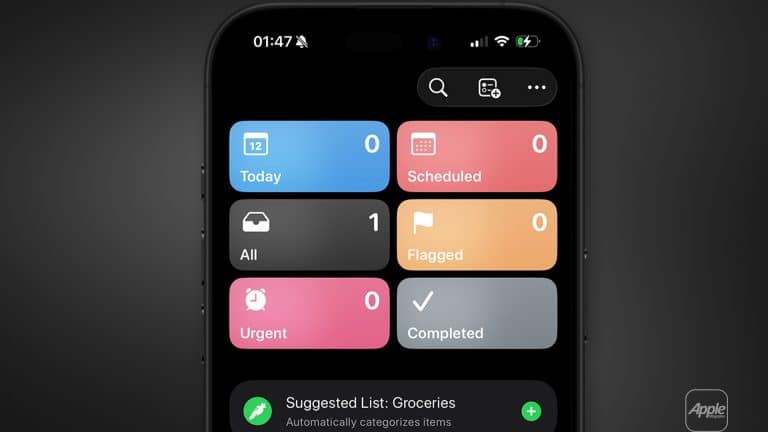
Large goals rarely fail because they are impossible. They fail because they remain undefined. When a task sits on a list as a single line — “Launch project,” “Prepare presentation,” “Organize trip,” “Finish thesis” — it carries weight without clarity. The mind sees effort, but not direction. That’s where reminders subtasks setup becomes more than a feature. It becomes a framework for thinking.
Inside Apple’s Reminders app, what looks like a simple checkbox system actually supports layered organization.
Beneath the clean interface lies the ability to break intentions into structured, sequential actions. And that structure changes how progress feels. Instead of facing one intimidating block of responsibility, you begin to see the steps that make completion realistic.
When a task is broken into subtasks, each smaller action becomes concrete. “Prepare annual report” transforms into research, draft, review, revise, submit. “Plan family vacation” becomes book flights, reserve hotel, confirm rental car, create itinerary, prepare documents. The difference is not cosmetic — it’s cognitive. Clarity reduces friction. Specificity reduces delay.
Apple designed Reminders to remain visually calm, but the nested subtask structure gives it depth. A parent reminder acts as the container. Subtasks live inside it, forming a hierarchy that mirrors how real projects unfold. Each subtask can carry its own due date, priority, and tags. Each can be completed independently. Yet all contribute to the larger objective.
Reminders subtasks setup also supports long-term planning in a way that feels natural inside the Apple ecosystem. Projects created on Mac appear instantly on iPhone. Edits made during the day sync back to iPad.
Subtasks completed from Apple Watch reflect everywhere. There is no fragmentation between devices. The structure travels with you.
For users managing complex responsibilities — work deliverables, academic research, family logistics, creative projects — this hierarchy transforms Reminders from a checklist into a lightweight planning engine. It doesn’t try to compete with heavy project management software. It simply removes resistance between idea and execution.
How to Create Subtasks in Reminders
On iPhone or iPad:
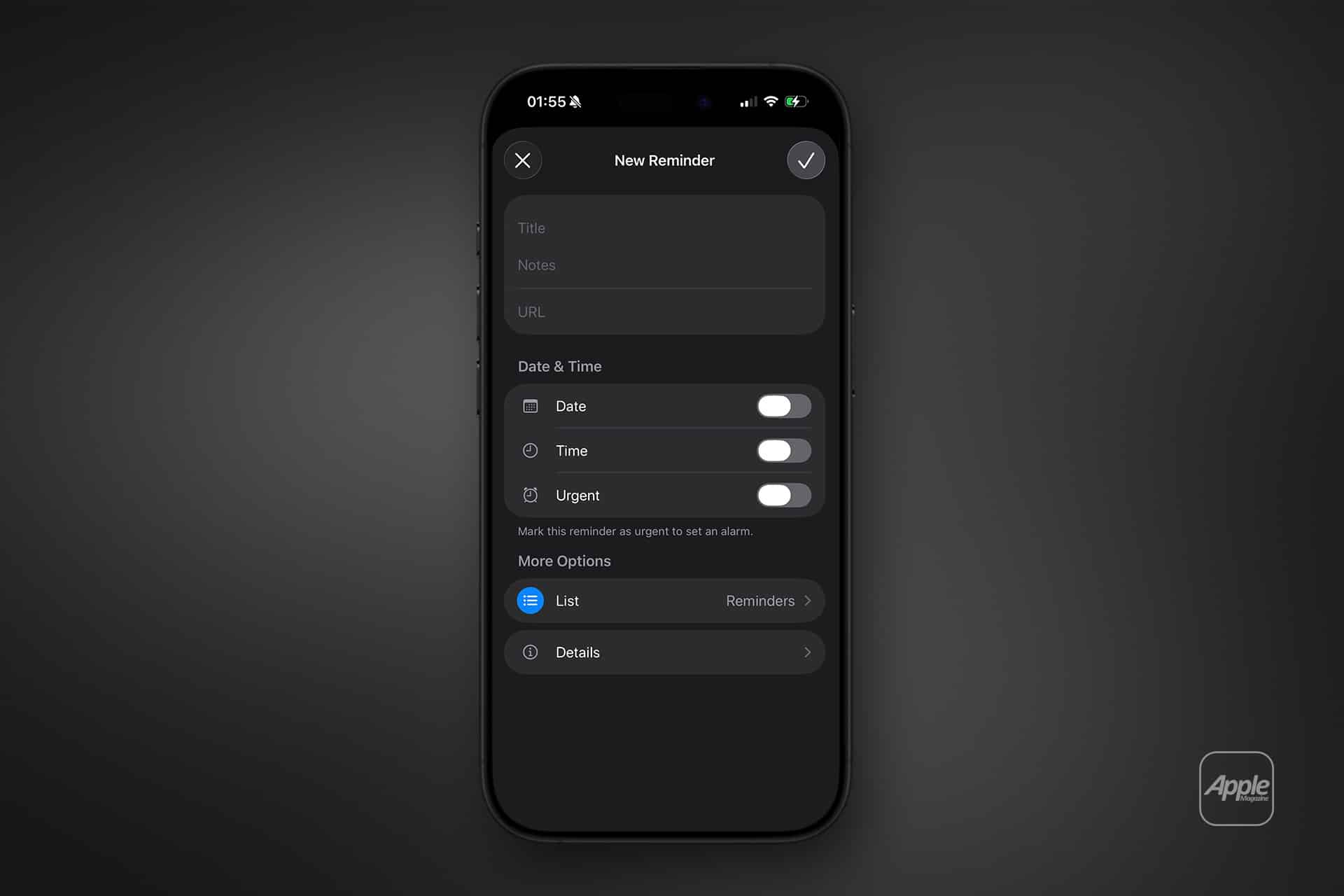
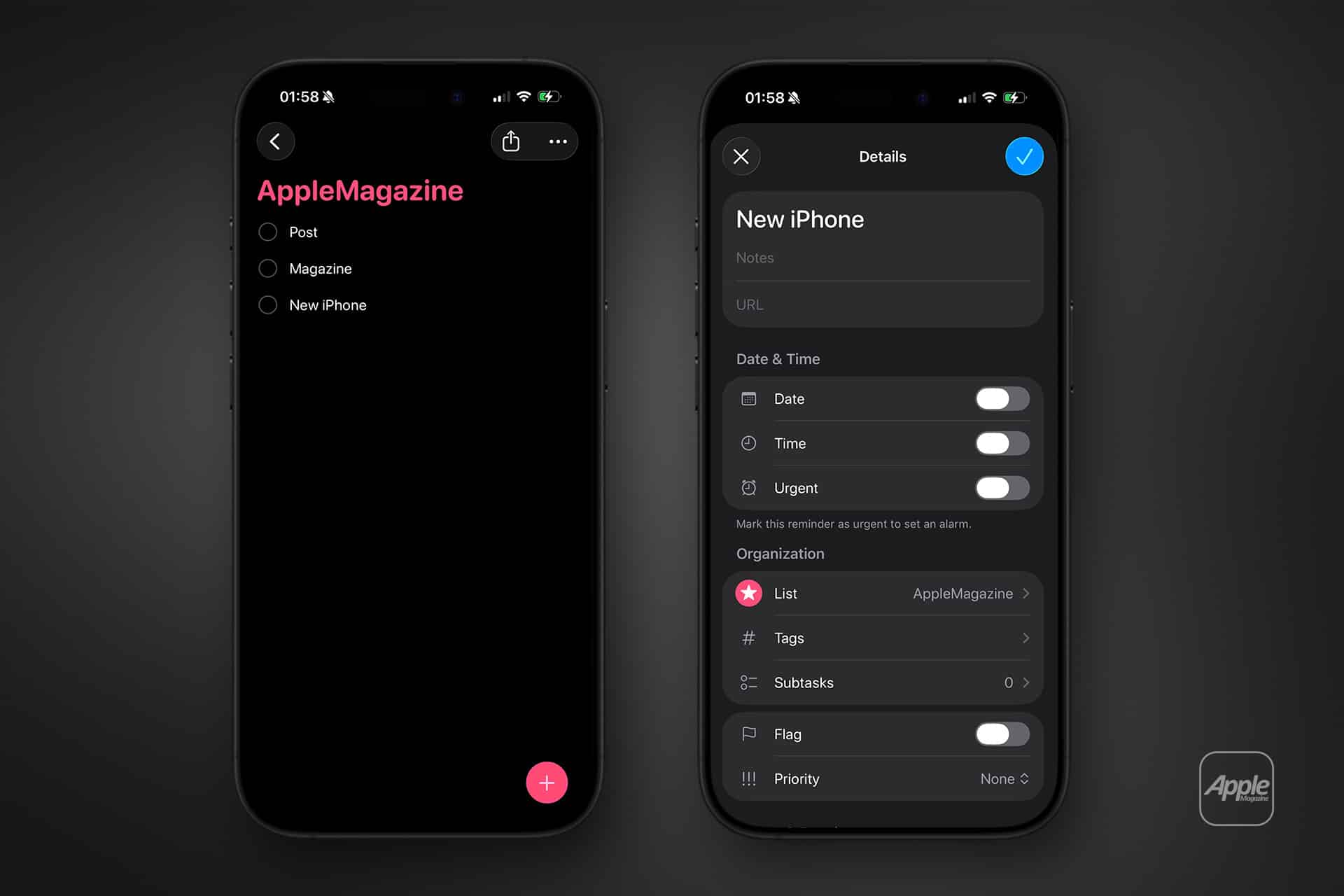
Open the Reminders App > Create a New Task > Add Subtasks
Each subtask becomes nested beneath the main reminder.
Another quick method is to create multiple tasks and drag one onto another. The dragged item becomes indented, forming a hierarchical structure.
On Mac, the process feels even more fluid.
After creating a task, select additional items and press:
Edit > Indent Reminder
Or use the keyboard shortcut:
Command + ]
This indents the selected reminder, turning it into a subtask beneath the parent item.
The result is a layered checklist where each subtask remains actionable and visible.

Why Breaking Tasks Down Works
Productivity research consistently shows that smaller, clearly defined steps reduce mental resistance. When a task says “Design slides,” it feels vague. When it says:
- Draft outline
- Choose visuals
- Create slide template
- Final review
Each step becomes specific. Checking off one subtask delivers immediate feedback, reinforcing motivation.
Reminders subtasks setup makes this psychological process visual. Progress is not theoretical; it is tracked in real time.
Tracking Progress Over Time
Reminders integrates across Apple devices via iCloud. A project created on Mac appears instantly on iPhone. Subtasks completed on Apple Watch update everywhere.
Completed subtasks remain visible within the parent task until the main reminder is marked finished. This provides a record of effort within the project itself.
Smart Lists can also filter tasks by due date, priority, or tags. This means even nested subtasks can appear dynamically based on urgency or category.
Using Tags and Priorities With Subtasks
Each subtask can carry its own due date, priority level, and tags. For example, in a “Launch Website” project, subtasks can include deadlines for design, content, and testing.
Tags allow cross-project filtering. A subtask tagged #urgent will appear in a Smart List even if it belongs to a larger project group.
This layered organization turns Reminders from a basic checklist app into a lightweight project manager.
Collaboration and Shared Lists
Reminders also supports shared lists. When collaborating with others, subtasks maintain clarity. Team members can assign specific steps within a larger task without duplicating effort.
For families, shared lists help break down responsibilities for events, travel planning, or home projects.
The simplicity of reminders subtasks setup hides its real power. By nesting actionable steps beneath meaningful goals, Apple’s Reminders app encourages clarity, structure, and measurable progress. Instead of staring at one overwhelming objective, users build momentum through small completions — transforming large intentions into achievable sequences, one subtask at a time.