


There’s a moment when your browser starts to feel crowded. Work tabs mixed with travel searches. Client dashboards next to dinner reservations. Shared cookies logging you into the wrong account at the wrong time. Safari Profiles solve that in a clean, built-in way — no extra browser required.
Instead of switching between different browsers, Safari now allows multiple profiles inside the same app. Each profile has its own history, tab groups, cookies, favorites, and extensions. It feels like having two completely separate environments, while staying inside Apple’s ecosystem.
Why Safari Profiles Change Daily Workflow
For professionals working remotely, Safari Profiles create a clear line between responsibilities and personal life. A work profile can include project management tools, email platforms, analytics dashboards, and corporate accounts. A personal profile can keep shopping, social media, streaming, and private searches isolated.
Cookies do not mix. Logins stay separated. Autofill suggestions adapt to each profile’s context.
That separation reduces accidental mistakes — like replying from the wrong account or sharing a link tied to a personal login session.
How to Set Up Safari Profiles on Mac
Safari Profiles are available in recent versions of macOS.
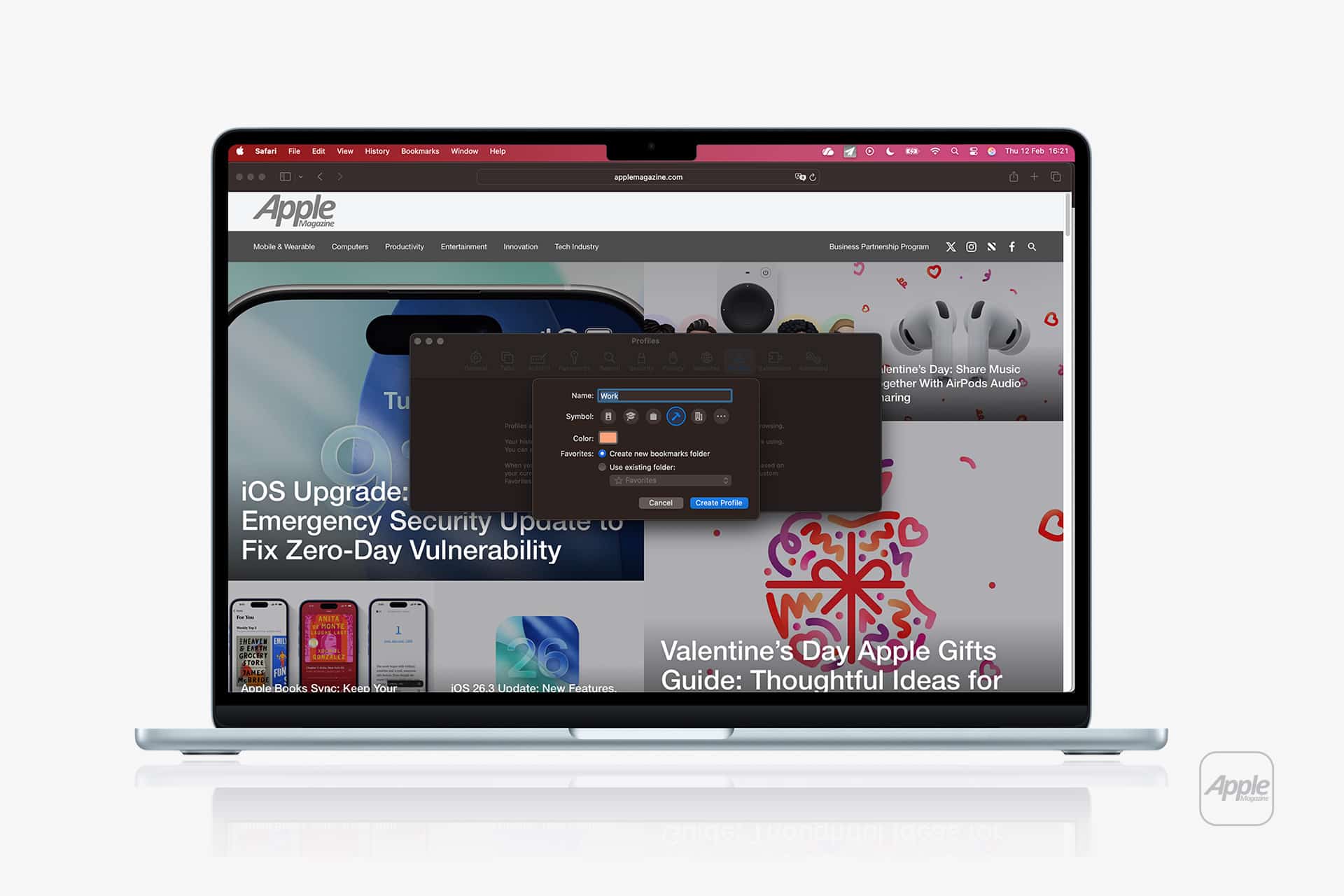
Safari > Settings > Profiles > Add Profile
From there, you can:
- Choose a profile name
- Assign a custom icon and color
- Select a dedicated Favorites folder
- Decide which extensions are enabled
Each profile can open in its own window, visually distinguished by color accents in the toolbar.
You can also set a profile as default for specific websites.
Safari > Settings > Profiles > Choose Profile > Set Websites
This ensures that, for example, your company tools always open in the Work profile automatically.

Setting Up Safari Profiles on iPhone and iPad
Safari Profiles sync through iCloud across devices signed into the same Apple ID.
Settings > Safari > Profiles > Add Profile
Just like on Mac, you can define:
- Name
- Icon
- Separate Favorites
- Individual extensions
Switching between profiles happens directly inside Safari’s tab view. Each profile keeps its own tab groups and browsing data.
This allows someone to check work email in one profile while keeping personal research untouched in another.
Managing Extensions Per Profile
One powerful aspect of Safari Profiles is extension control. Some extensions are useful at work but unnecessary elsewhere. Others are personal and shouldn’t interfere with professional browsing.
Safari > Settings > Profiles > Select Profile > Extensions
From here, toggle extensions on or off for each environment.
This reduces clutter and improves performance by limiting active tools to what each profile actually needs.
Privacy and Data Separation
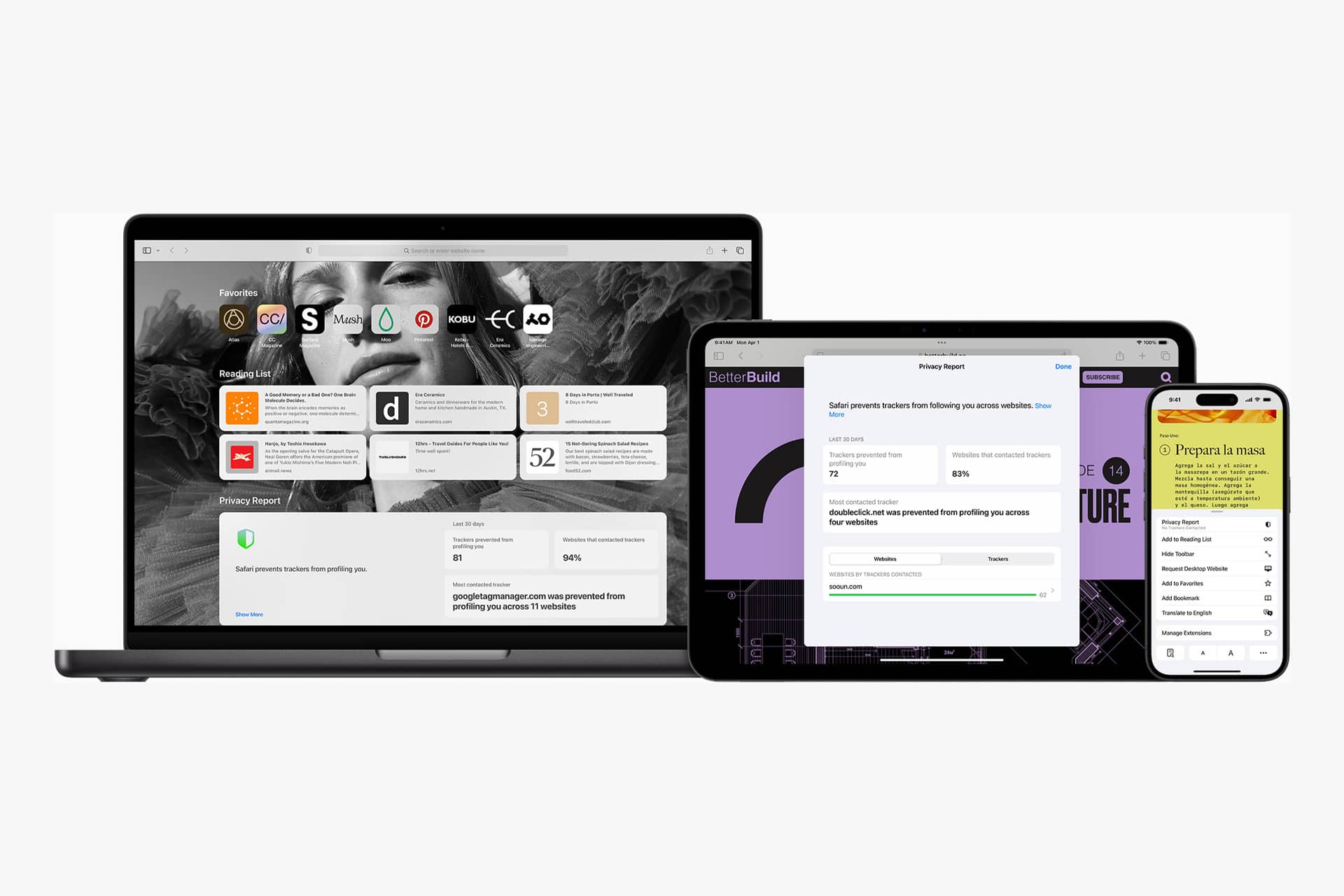
Safari Profiles isolate cookies and browsing history. That means signing into Google or Microsoft accounts in one profile does not automatically carry over into another.
It also prevents algorithm crossover. Work research doesn’t influence personal search suggestions. Personal browsing doesn’t surface inside professional autocomplete results.
This structural separation feels cleaner over time. The browser stops feeling like one chaotic stream and starts behaving like two focused spaces.
Who Benefits Most From Safari Profiles
Freelancers managing multiple clients. Students balancing academic research with personal browsing. Executives handling corporate dashboards while traveling. Anyone sharing a device within a household.
Safari Profiles also reduce the need for Private Browsing mode in certain cases. Instead of temporarily hiding activity, users can permanently isolate different aspects of their digital life.
A More Organized Digital Space
Safari Profiles bring structure to something most people use constantly but rarely organize — their browser.
Instead of downloading a second browser or constantly logging in and out, everything lives inside Safari, separated but synchronized across devices.
With just a few settings adjustments, work stays in one lane, personal life in another, and the browser becomes easier to manage every day.