


Every time a webpage loads, dozens of invisible elements may attempt to measure behavior. Advertising scripts, analytics tools, embedded social media widgets, and third-party resources can collect browsing patterns across multiple sites. Safari tracking prevention is Apple’s response to that behavior, focusing on limiting cross-site tracking without requiring complex setup from the user.
Unlike browsers that rely heavily on optional extensions, Safari integrates tracking protection directly into the WebKit engine. This allows the browser to detect patterns commonly associated with tracking and restrict them automatically.
Understanding how Safari tracking prevention works — and how to control its settings — ensures users maintain visibility into how their browsing data is handled.
How Safari Tracking Prevention Works
Safari tracking prevention centers on Intelligent Tracking Prevention (ITP), a system that uses on-device machine learning to identify trackers and limit their ability to follow users across websites.
When a website embeds content from another domain — such as advertising networks or social platforms — Safari evaluates whether that domain attempts cross-site tracking. If so, Safari may:
- Block third-party cookies
- Restrict storage access
- Limit script execution across sites
This approach differs from simply blocking all cookies. Safari allows functional cookies needed for login sessions and preferences while reducing cross-site data aggregation.
Because tracking detection happens locally on the device, browsing history is not uploaded for evaluation.
Viewing Safari Privacy Reports
Safari tracking prevention includes built-in transparency through Privacy Reports.
On iPhone or iPad:
Settings > Safari > Privacy Report
Or within Safari itself:
Safari > Tap “AA” in Address Bar > Privacy Report
On Mac:
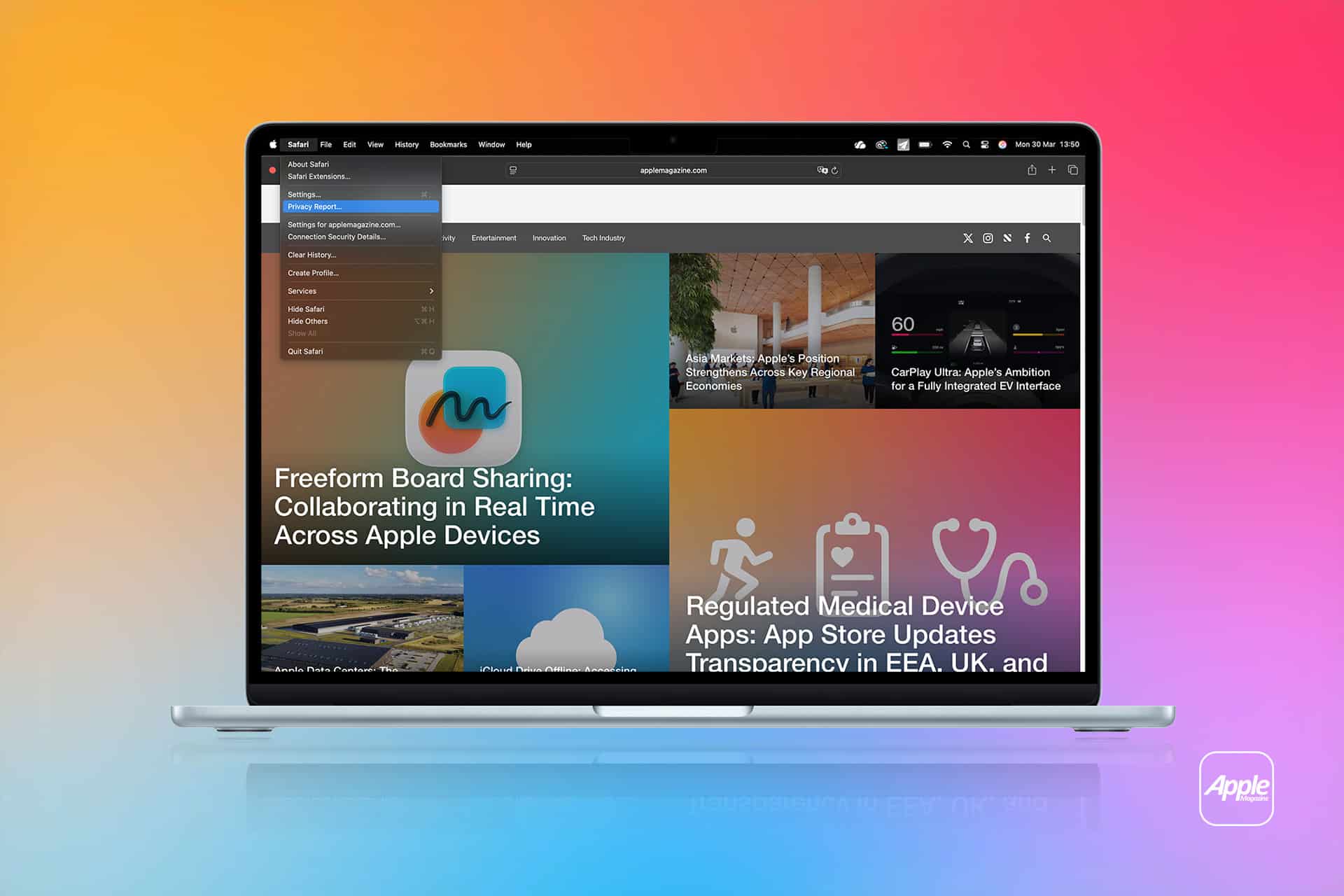
Safari > Privacy Report
The Privacy Report shows:
- Number of trackers blocked
- Websites that attempted tracking
- Most frequently contacted tracker domains
This visibility allows users to see how often tracking attempts occur and which domains are involved.

Controlling Safari Tracking Prevention Settings
Safari tracking prevention is enabled by default, but users can adjust certain controls.
On iPhone or iPad:
Settings > Safari > Privacy & Security
Key controls include:
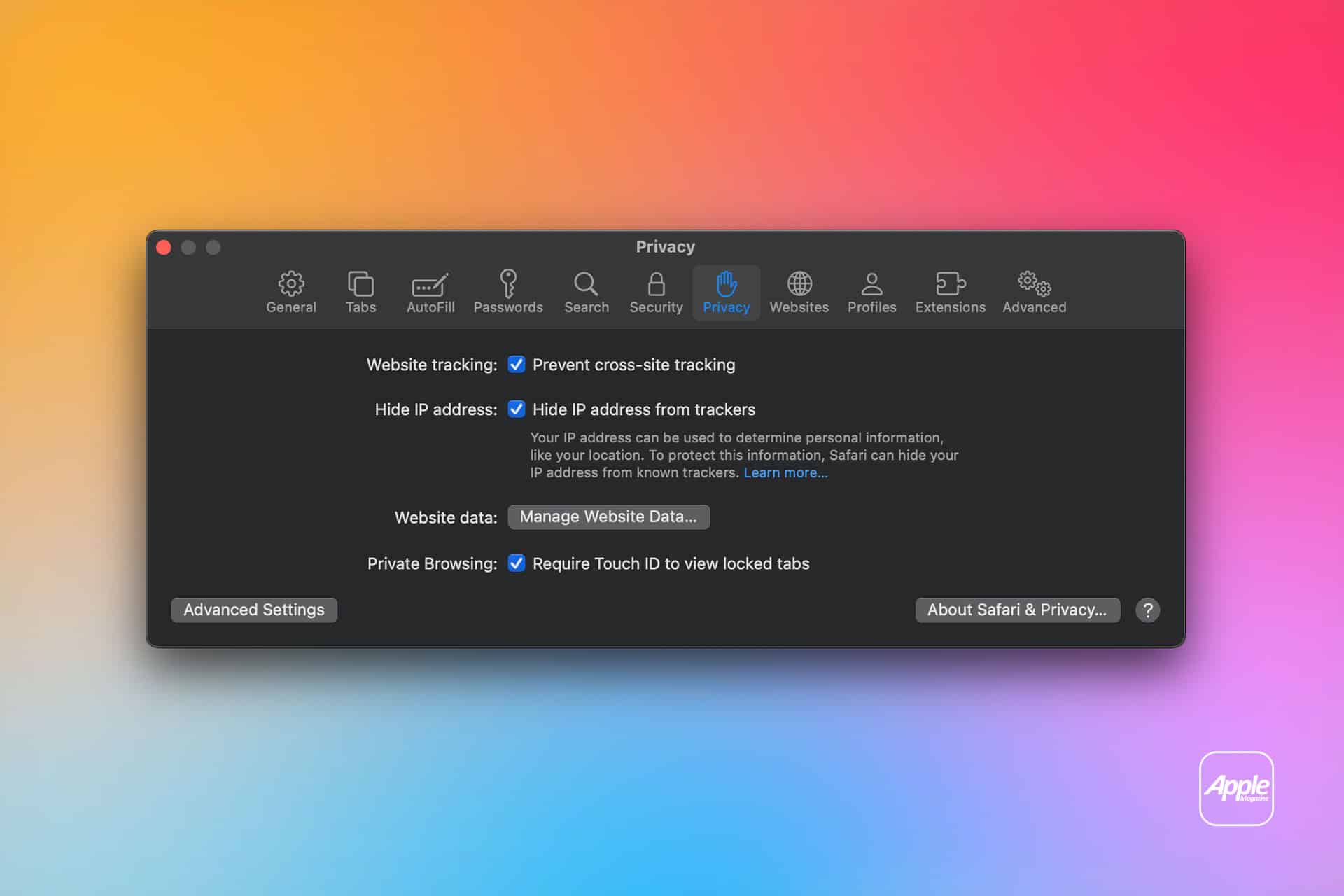
- Prevent Cross-Site Tracking
- Hide IP Address from Trackers
- Block All Cookies
“Prevent Cross-Site Tracking” activates Intelligent Tracking Prevention and should remain enabled for standard privacy protection.
“Hide IP Address from Trackers” limits exposure of network-level identifiers to known trackers.
“Block All Cookies” is a stronger measure that may break login sessions and site functionality, so it is generally reserved for specific use cases.
On Mac:
Safari > Settings > Privacy
Users can enable or disable “Prevent cross-site tracking” and manage website data from the same panel.
Managing Website Data and Stored Trackers
Safari tracking prevention reduces tracking persistence, but websites may still store local data for functionality.
To review stored website data:
On iPhone or iPad:
Settings > Safari > Advanced > Website Data
On Mac:
Safari > Settings > Privacy > Manage Website Data
From there, users can remove individual site data or clear all stored information.
Clearing stored data resets cookies and site permissions, which may require logging in again on affected sites.
Private Browsing and Tracking Prevention
Private Browsing mode in Safari enhances isolation further. Each Private session:
- Blocks cross-site tracking
- Does not save browsing history
- Limits local storage retention
On iPhone:
Safari > Tabs > Private
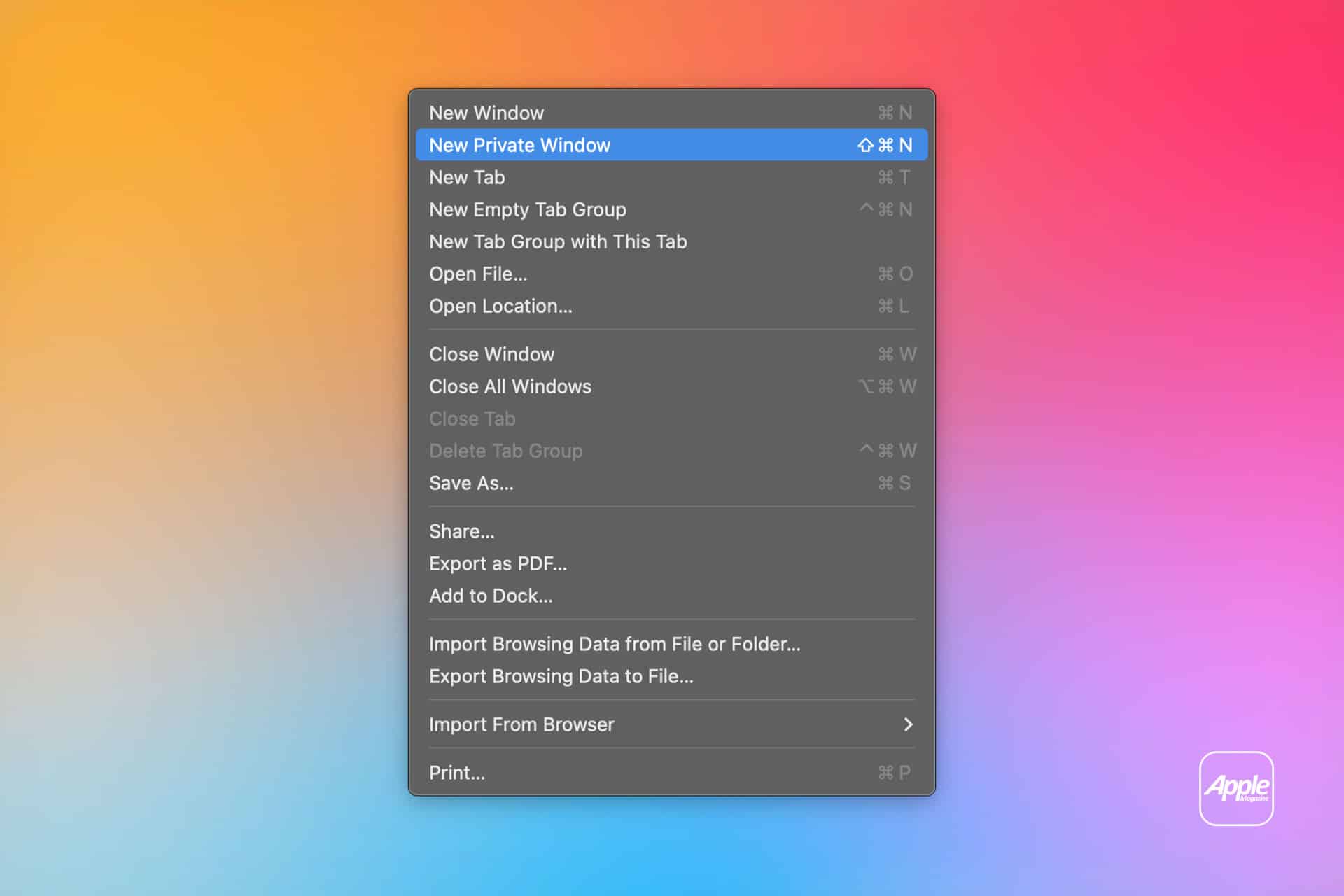
On Mac:
File > New Private Window
While Private Browsing reduces local traces, it does not make activity invisible to network providers or websites themselves.
Content Blockers and Additional Controls
Safari tracking prevention can be extended using content blocker apps available in the App Store. These apps integrate with Safari to filter scripts, ads, and known tracker domains.
To enable content blockers:
Settings > Safari > Extensions
Users can install compatible apps and activate filtering controls from this menu. Content blockers operate alongside Intelligent Tracking Prevention, creating layered protection.
Balancing Privacy and Functionality
Some websites rely on third-party scripts for authentication or embedded services. In rare cases, Safari tracking prevention may interfere with specific site features.
Users can temporarily adjust site-level settings:
On iPhone:
Safari > Tap “AA” > Website Settings
On Mac:
Safari > Settings for This Website
From there, users can manage permissions including camera, microphone, location, and content blocking preferences.
These adjustments apply only to the selected website.
Safari tracking prevention continues evolving across iOS and macOS updates, with refinements aimed at reducing cross-site tracking techniques while preserving browsing performance and compatibility.