


Safari web apps transform frequently used websites into standalone experiences without installing traditional App Store apps. For users who rely on cloud tools, dashboards, collaboration platforms, or productivity services, this approach reduces friction and keeps workflows streamlined inside the Apple ecosystem.
Unlike traditional browser tabs, Safari web apps remove the address bar and navigation clutter. They open in a focused window, behave like apps in multitasking views, and can be placed on the Home Screen or Dock.
Creating Safari Web Apps on iPhone and iPad
Safari web apps are created directly from the browser.
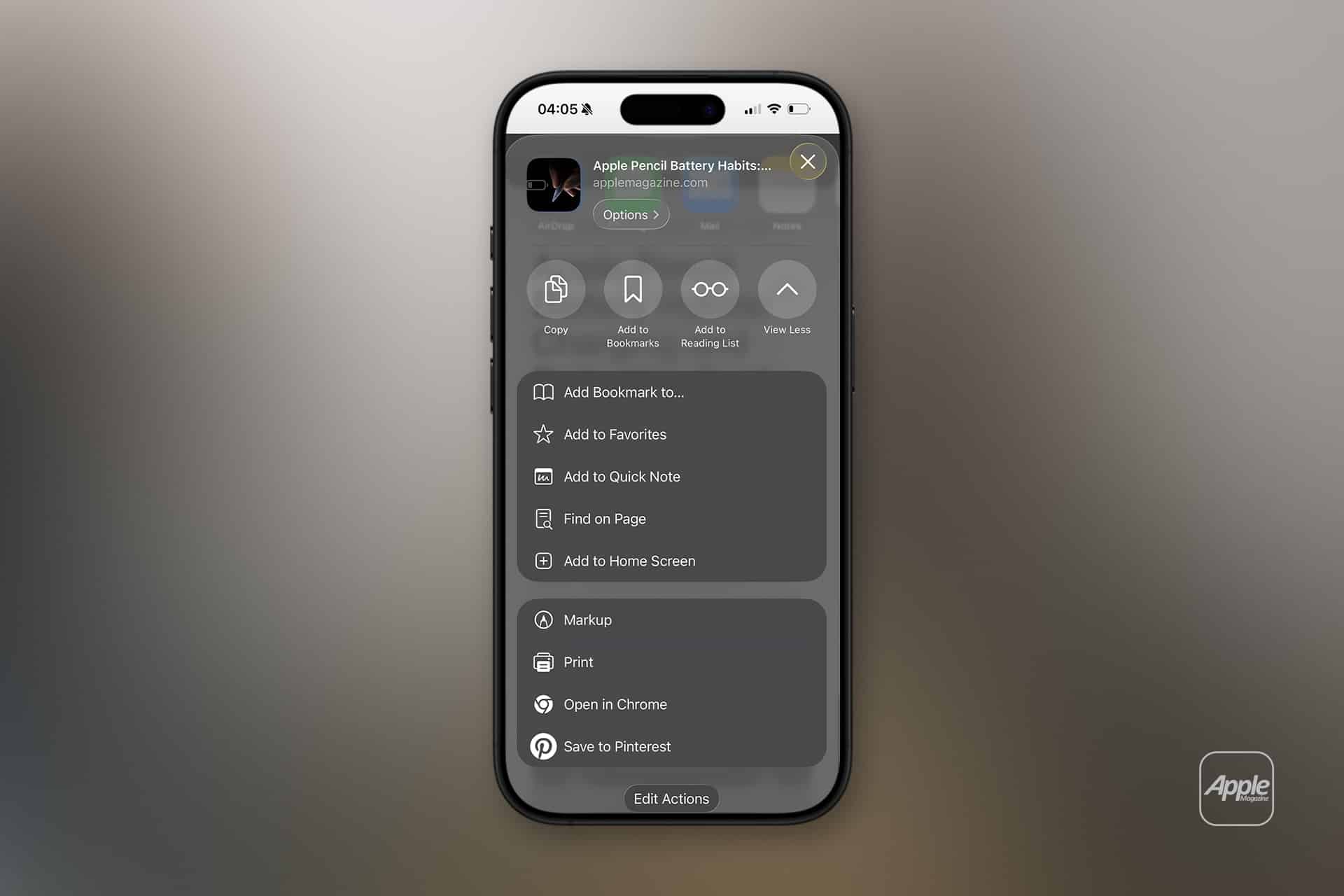
Open Safari > Navigate to the desired website > Tap Share icon > Add to Home Screen
You can rename the shortcut before confirming. Once added, the icon appears alongside installed apps. When launched, the site opens in standalone mode without Safari interface controls.
This method works best with websites optimized for mobile display or built as Progressive Web Apps (PWAs). Many productivity platforms, project management tools, and cloud editors are already optimized for this format.
Web apps created this way support multitasking features on iPad, including Split View and Stage Manager, making them function similarly to native applications.

Creating Safari Web Apps on Mac
Safari web apps on macOS provide a more integrated experience.
Open Safari > Navigate to the website > File > Add to Dock
macOS creates a standalone web app that appears in the Dock and Launchpad. The site opens in its own window without standard browser tabs or bookmarks visible.
This separation allows web apps to behave independently of regular Safari browsing sessions. They can appear in Mission Control and be assigned to specific Desktops or Focus modes.
Managing Notifications and Permissions
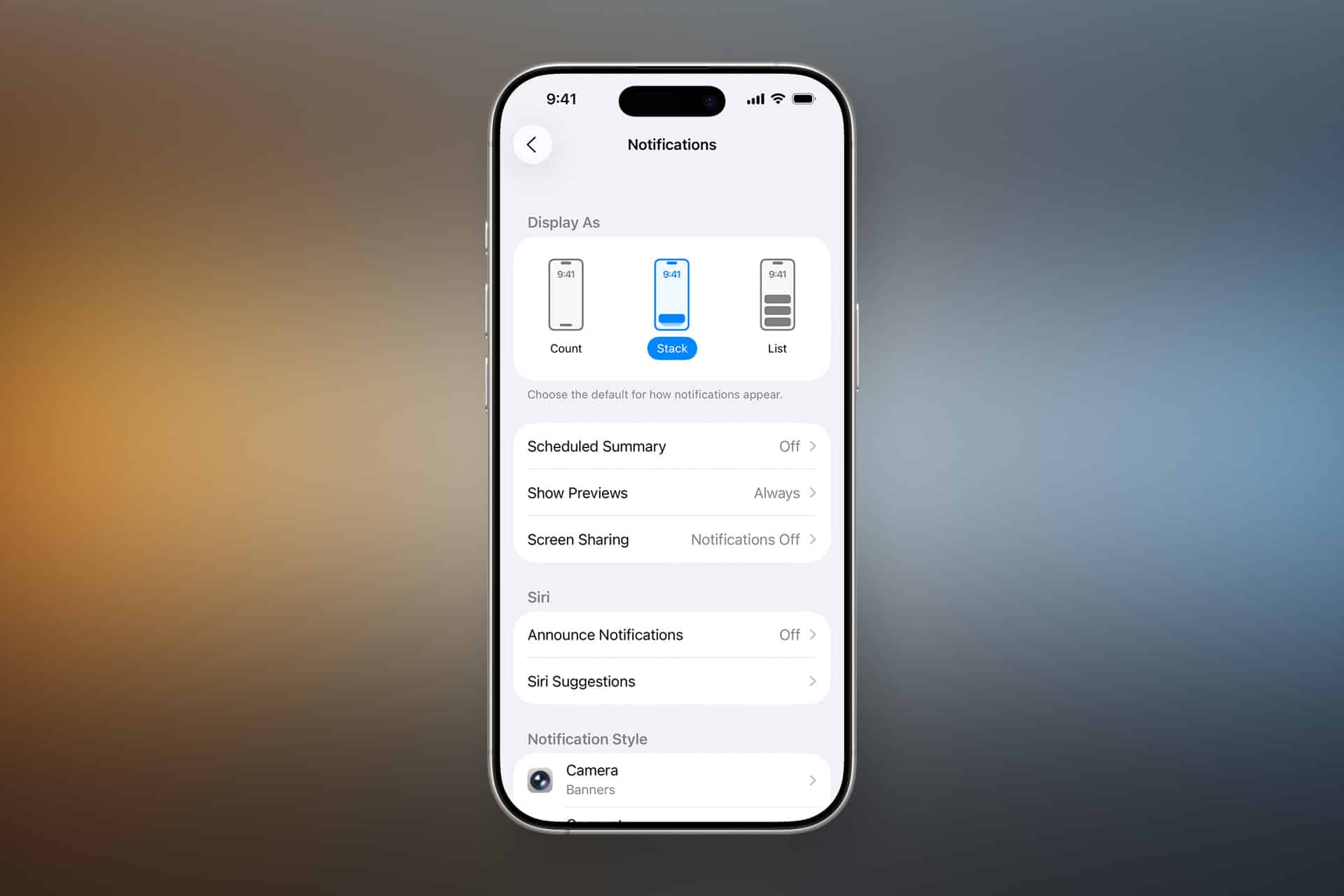
Safari web apps can request notifications if supported by the website.
On iPhone or iPad:
Settings > Notifications > Select the web app
On Mac:
System Settings > Notifications > Select the web app
Permissions such as camera, microphone, and location access are managed like traditional apps once the web app is created.
To adjust permissions on iPhone:
Settings > Safari > Advanced > Feature Flags
On Mac:
Safari > Settings > Websites
This ensures web apps integrate securely within Apple’s privacy controls.
Organizing Safari Web Apps in Workflows
Safari web apps fit naturally into Apple workflows. For example:
- Add a cloud-based task manager to Home Screen
- Pin a project dashboard to Mac Dock
- Use a web-based CRM as a standalone workspace
- Assign a web app to a Focus filter
Focus filters allow certain apps to appear during specific modes.
On iPhone or iPad:
Settings > Focus > Select Focus > Add Filter
Web apps behave like standard apps in this context.
Using Safari Web Apps with Shortcuts
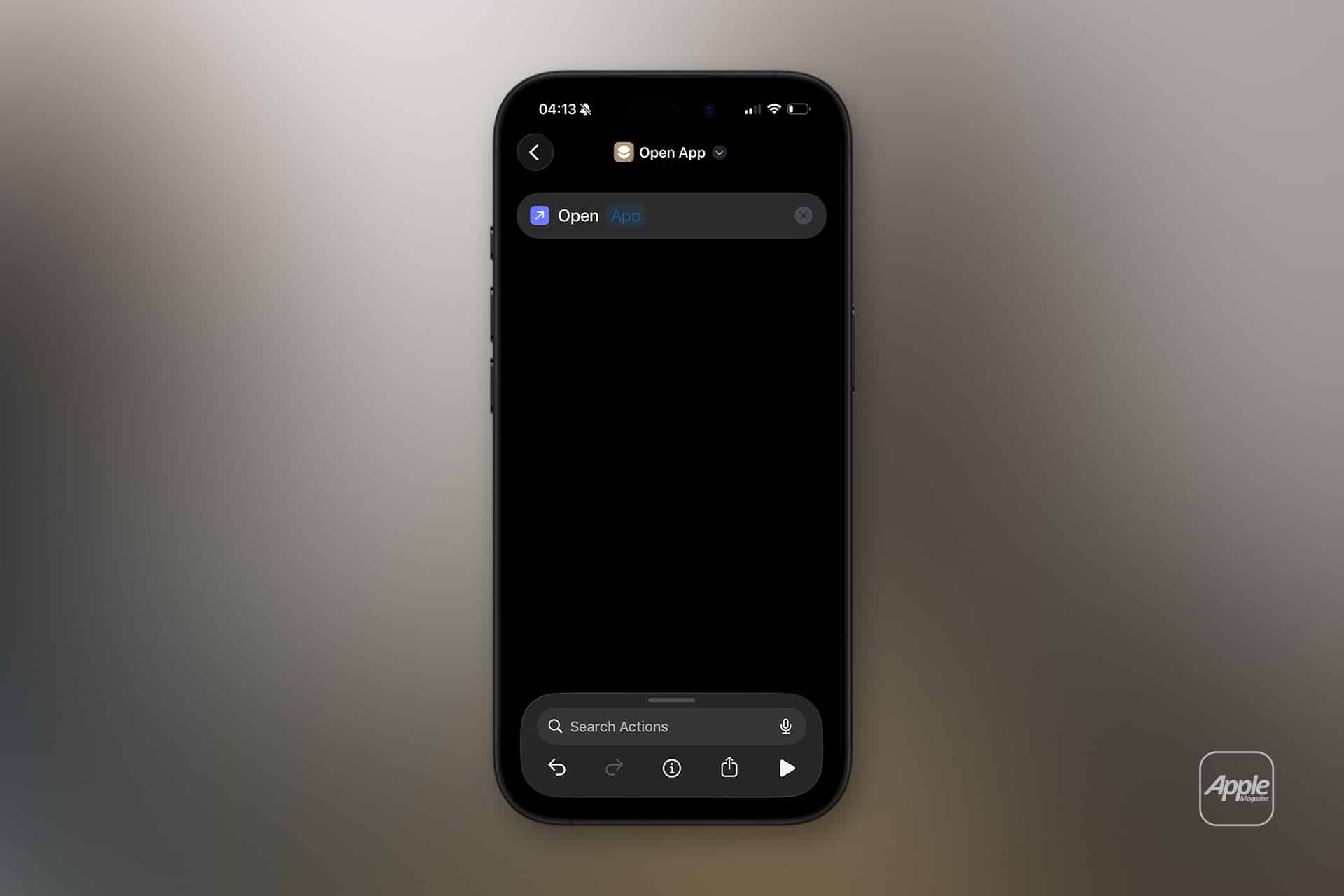
Safari web apps can be launched via automation.
Open Shortcuts > Add Action > Open App
Select the created web app. This allows chaining inside automation routines, such as opening a dashboard when connecting to work Wi-Fi.
Limitations to Consider
Safari web apps depend on internet connectivity unless the website itself supports offline caching. Unlike native apps, functionality is tied to the site’s backend availability.
Not all websites behave optimally in standalone mode. Some may redirect to mobile layouts or require additional authentication steps.
Advanced desktop-level features available in full Safari may not appear inside the web app window.
Removing Safari Web Apps
On iPhone or iPad:
Press and hold the web app icon > Remove App
On Mac:
Drag the web app from Dock to Trash or remove from Applications folder
Removing the web app does not delete account data from the service itself.
Safari web apps provide a lightweight alternative to traditional app installation, turning frequently visited sites into integrated, distraction-free tools within Apple workflows. By combining Home Screen placement, Dock integration, Focus filters, and automation triggers, websites become structured components of daily productivity across iPhone, iPad, and Mac.