

Apple Pay is designed to turn your iPhone into a secure, everyday wallet that works across Apple devices and apps. Once configured, it replaces physical cards for most daily transactions while adding layers of security that traditional wallets cannot match. Setting it up properly ensures fast payments, better organization, and peace of mind wherever you go.
Before starting, make sure you’re signed in with your Apple ID, have Face ID or Touch ID enabled, and are running a recent version of iOS. Most major banks and card issuers support Apple Pay, but availability may vary by region.
Getting Started With Apple Wallet
Apple Wallet comes preinstalled on iPhone, and it acts as the hub for Apple Pay, cards, passes, tickets, and IDs. The setup process is built into the Wallet app and takes only a few minutes.
Open the Wallet app and tap the plus symbol in the top corner. From there, Apple guides you through adding your first card, explaining security steps along the way. The interface is intentionally simple, reducing friction for first-time users.
Workflow
Wallet app > Add Card > Debit or Credit Card > Scan Card or Enter Details > Verify With Bank
Adding Cards Securely
You can add a debit or credit card by scanning it with the iPhone camera or entering details manually. Once entered, your bank verifies the card, usually through a one-time code sent by text, email, or banking app. Apple never stores your actual card number on the device or Apple servers. Instead, a unique device account number is created and encrypted.
This process allows Apple Pay to function even if your card details change, and it prevents merchants from accessing sensitive information during transactions.
Using Apple Pay Across Devices
After adding a card on iPhone, you can extend Apple Pay to other Apple devices linked to your Apple ID. Apple Watch allows contactless payments without taking out your phone. On iPad and Mac, Apple Pay simplifies online purchases and app payments.
On Apple Watch, cards are added through the Watch app on iPhone. On Mac with Touch ID, cards sync automatically. On older Macs, payment approval happens through iPhone or Apple Watch.
Workflow
Settings > Wallet & Apple Pay > Add Card > Select Device
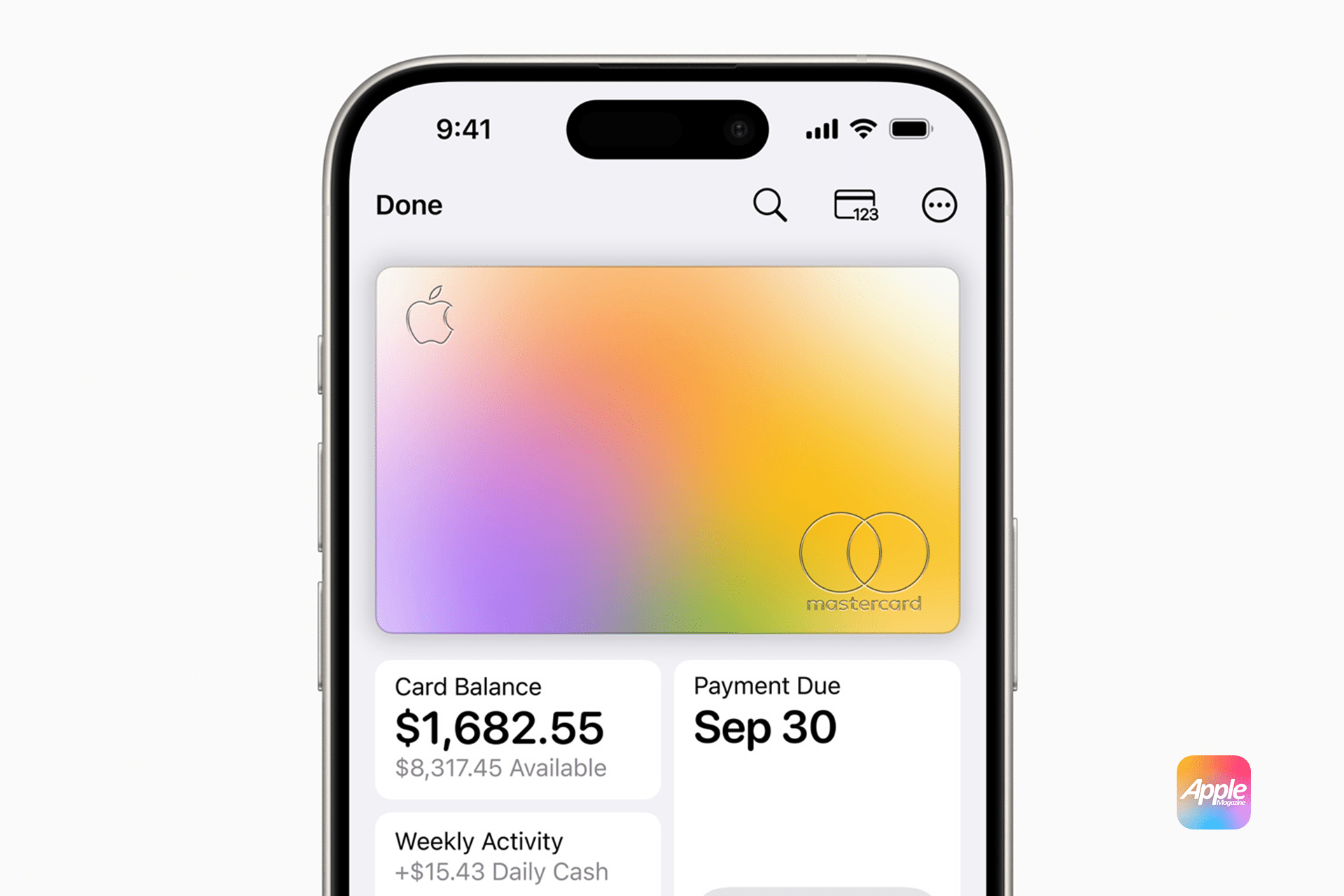
Apple Pay in Stores, Apps, and Online
In physical stores, Apple Pay works anywhere contactless payments are accepted. Hold your iPhone near the terminal and authenticate with Face ID, Touch ID, or passcode. On Apple Watch, double-click the side button and hold it near the reader.
In apps and websites, Apple Pay appears as a checkout option. Shipping and billing information autofill securely, reducing checkout time and minimizing data sharing.
Apple Pay Security and Privacy
Security is central to Apple Pay’s design. Every transaction requires biometric authentication or a passcode. If your device is lost, you can suspend Apple Pay remotely using Find My, preventing unauthorized use.
Apple does not track what you buy, where you shop, or how much you spend. Transaction data remains private, stored only for your own records inside Wallet.

Adding More Than Cards
Apple Wallet can store more than payment cards. You can add boarding passes, event tickets, transit cards, hotel keys, and supported IDs. Keeping everything in Wallet reduces clutter and ensures essentials are always accessible.
These items often update automatically, such as gate changes on boarding passes or balance updates on transit cards, making Wallet a central travel and daily-use tool.
Making Apple Pay Part of Daily Life
Once set up, Apple Pay becomes second nature. It’s faster than using cash or cards, more secure than traditional wallets, and deeply integrated into the Apple ecosystem. Over time, Wallet evolves into a personalized hub for payments, access, and identity, all protected by Apple’s privacy standards.


