
Spotlight is one of the fastest ways to locate almost anything on your Mac, from documents and applications to web suggestions and quick calculations. You can open it instantly with a keyboard shortcut and then type what you’re looking for as Spotlight displays results in real time. While its basic use is intuitive, there are several features and refinements that can improve your workflow and help you find exactly what you need faster.
How to Launch and Use Spotlight
Spotlight is easy to access and begins working as soon as you press a shortcut or click its icon. Once open, results appear as you type and are grouped by relevance. You can preview results, find their location, open apps instantly and even perform actions directly from Spotlight without navigating through the Finder.
Settings > Keyboard > Shortcuts > Spotlight
Settings > Siri & Spotlight > Search Results
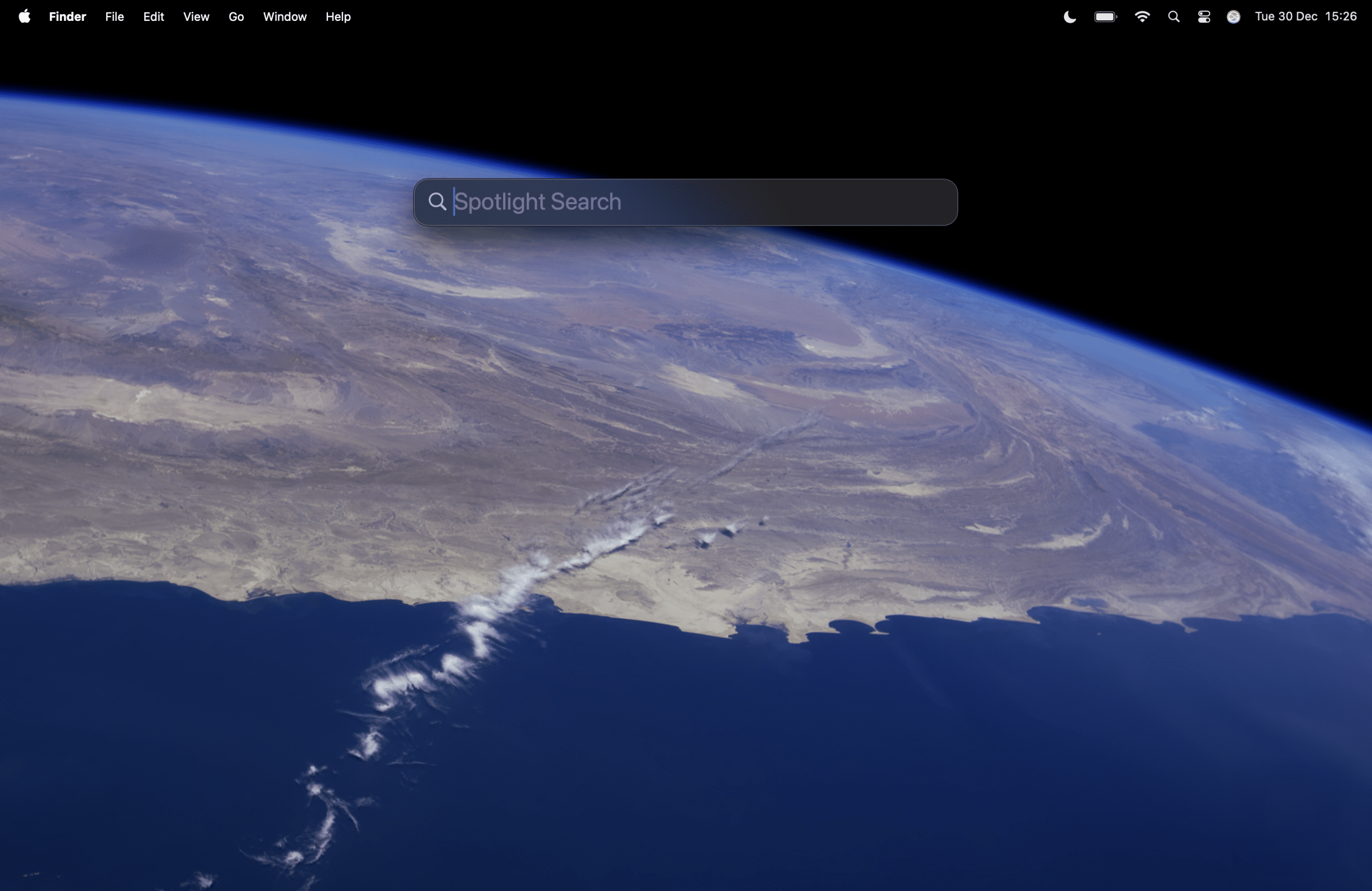
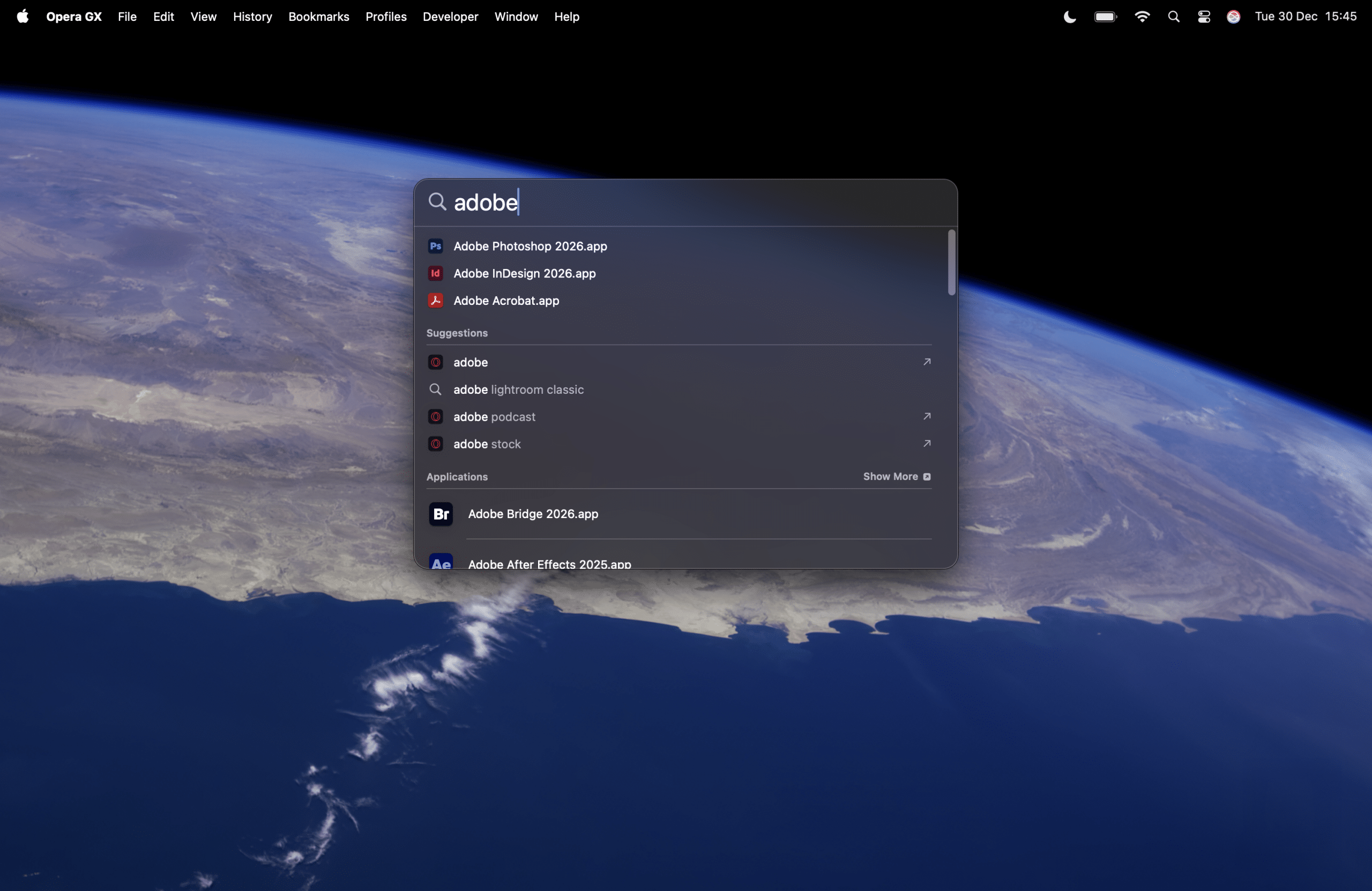
Start by pressing Command + Space bar to open Spotlight on your Mac. Alternatively, click the Spotlight icon in the menu bar if it’s visible. As you begin typing, Spotlight will dynamically list top matches, which you can scroll through using the arrow keys. Press Return to open an item or Command + Return to reveal its location in Finder.
Search Faster With Smart Tips
Spotlight understands more than exact file or app names — it supports natural language and shortcuts that help refine your results. For example, typing “kind:pdf” filters results to just PDF files, or you can use natural phrases like “documents from last week” to narrow results. Boolean operators like AND, OR and NOT help combine or exclude specific terms.
Spotlight isn’t just for files. You can use it to:
• Launch applications quickly by typing their name and hitting Return.
• Run quick calculations and unit or currency conversions without opening a calculator app.
• Search for definitions by entering a word and pressing Command + L.
• Preview files without opening them using the Spacebar key, saving time when you’re browsing results.
Advanced Filters for Precision
In macOS, Spotlight can be fine-tuned to reduce clutter or focus on specific content types. Under System Settings > Siri & Spotlight, you can enable or disable categories like mail, messages, images or web results to customize what appears in searches. These filters help you narrow results when you’re looking for something specific or want fewer unrelated matches.
Cut Down on Noise in Results
If your Spotlight results feel overwhelming, try excluding entire folders you don’t want Spotlight to index. Drag a folder into the Privacy tab of Spotlight preferences to remove it from search results. This can be useful if you have large directories of temporary files or backups that clutter results.
Shortcuts That Speed Up Search
Mastering a few key shortcuts will make Spotlight even more efficient:
• Command + Space bar — Open Spotlight
• Arrow keys — Move between results quickly
• Return — Open selected result
• Command + Return — Reveal item in Finder
• Command + L — Find word definitions
• Command + B — Search the web for your Spotlight query in your default browser
Spotlight also integrates clipboard access and quick actions in macOS, letting you search what you copied recently or launch actions like timers, shortcuts or commands directly from the search field without navigating to individual apps.
Getting the Most Out of Spotlight
Using Spotlight effectively can change how you interact with your Mac. Whether you’re quickly opening apps, finding files buried deep in folders, converting values, or performing quick calculations, Spotlight streamlines these tasks into a single, powerful search bar. Customizing which data it includes and mastering a few shortcuts can further boost your productivity.