Study Focus is not a single switch. It’s a combination of Focus mode, sound environment, and small system adjustments that work together to reduce mental noise. When configured properly, your iPhone, iPad, or Mac stops pulling attention away and starts supporting long study sessions.
This setup is especially effective for reading, writing, exam preparation, and any task that requires sustained attention.
Creating a Dedicated Study Focus Mode
Start by creating a Focus mode used only for studying. Keeping it separate from work or sleep avoids overlap and keeps notifications predictable.
Workflow
Settings > Focus > Add Focus > Custom > Name it “Study”
Once created, allow only essential contacts and apps. Many people allow none at all, relying on scheduled breaks to check messages.
Silence notifications completely or allow only time-sensitive alerts if necessary.


Using Focus Filters to Reduce Visual Noise
Focus Filters help limit what appears on screen while Study Focus is active.
You can hide:
- Email inboxes not related to study
- Personal calendars
- Messaging threads
- Work-related browser tabs
Workflow
Settings > Focus > Study > Focus Filters
This keeps apps technically open, but visually quiet.
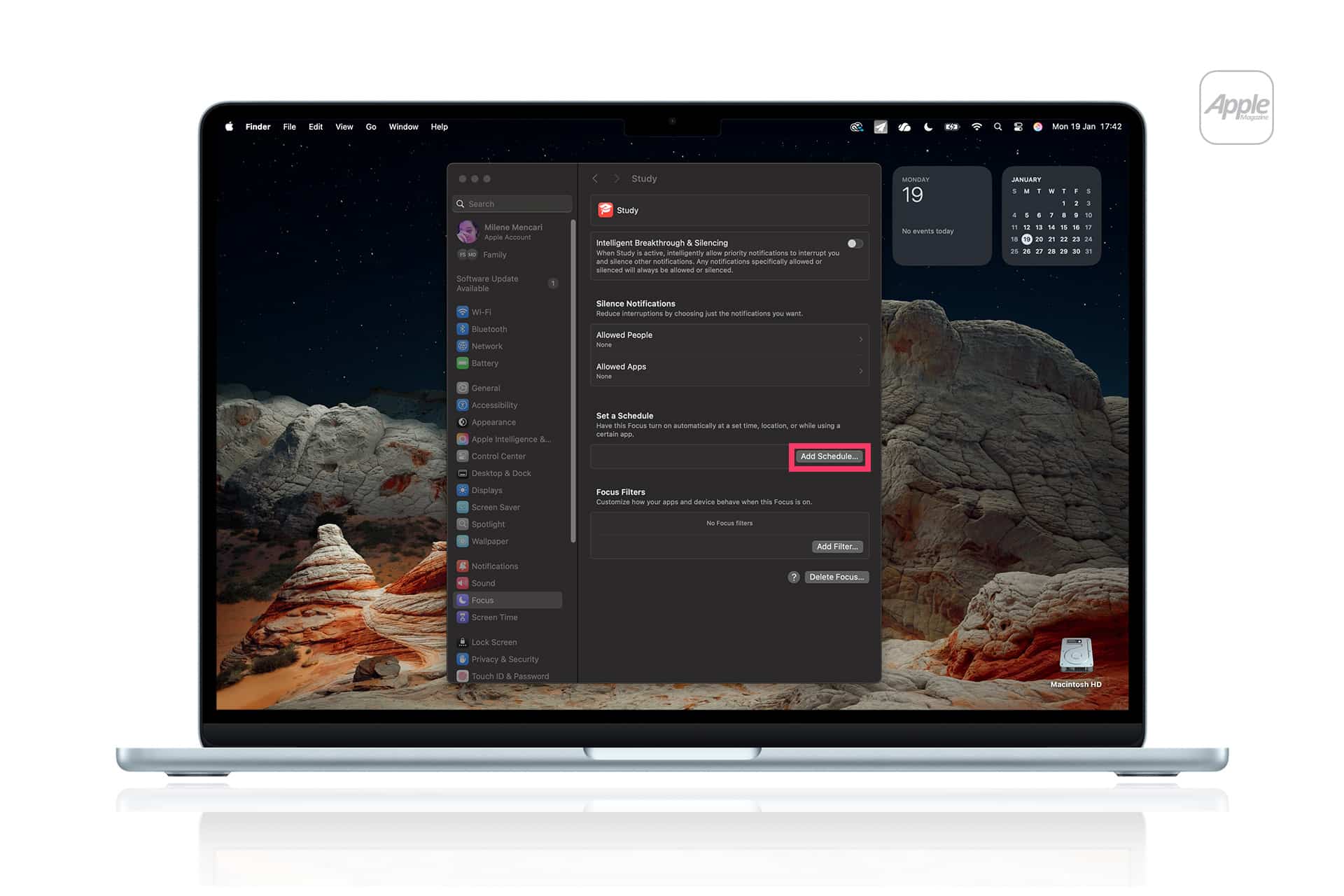
Scheduling Study Focus Automatically
Automation removes friction. Instead of remembering to enable Study Focus, let the system handle it.
Workflow
Settings > Focus > Study > Add Schedule
You can trigger Study Focus by:
- Time of day
- Location (library, home desk)
- Opening a specific app
This consistency trains your brain to associate the mode with concentration.
Using Accessibility Background Sounds
One of the most effective study tools on Apple devices lives inside Accessibility. Background Sounds create a stable audio layer that masks distractions without demanding attention.
Available sounds include:
- Ocean
- Rain
- Stream
- Balanced noise
- Bright noise
- Dark noise
Workflow
Settings > Accessibility > Audio & Visual > Background Sounds
Once enabled, you can control volume independently from media and system sounds.
Many people prefer rain or ocean sounds for reading, while darker noise works well for writing and problem-solving.
Quick Access to Study Sounds
For fast access, add Background Sounds to Control Center.
Workflow
Settings > Control Center > Add Hearing
This allows you to turn study sounds on or off instantly without leaving your workspace.
Combining Study Focus With Background Sounds
Study Focus and Background Sounds work best together. Focus mode limits interruptions, while sound stabilizes the environment.
When notifications stop and audio remains consistent, the nervous system relaxes. This makes it easier to stay in one task without checking the screen repeatedly.
This combination is especially helpful in shared spaces, dorms, or during travel.

Using Reduce Interruptions Focus Option
On newer iOS versions, Reduce Interruptions can be layered into Study Focus. This prioritizes notifications based on relevance and urgency.
Workflow
Settings > Focus > Study > Focus Mode Options > Reduce Interruptions
This allows truly critical alerts through while filtering everything else, without fully disconnecting.
Applying the Same Setup on iPad and Mac
Study Focus syncs across devices. When enabled on iPhone, it activates on iPad and Mac automatically.
On Mac, Study Focus pairs well with:
- Full-screen reading or writing apps
- Stage Manager workspaces
- Safari Reader mode
The goal is consistency. The same signals across devices reinforce focus.
Building a Study Routine Around Focus
Study Focus works best when used consistently. Turning it on signals the start of a study session. Turning it off marks a break.
Over time, this rhythm reduces resistance to starting and improves session length. The device becomes part of the routine rather than a source of interruption.
A well-configured Study Focus doesn’t remove technology. It reshapes how it behaves during the hours that matter most.