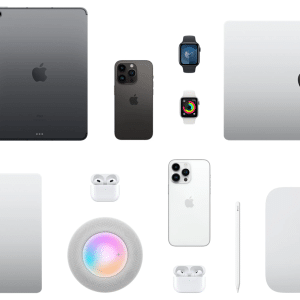
iCloud Photos is Apple’s built-in system for keeping every photo and video automatically synced, protected, and available across iPhone, iPad, and Mac. Instead of treating photos as files that need to be copied between devices, iCloud Photos turns your entire library into a living cloud-based collection that updates everywhere the moment something changes. A picture taken on your iPhone appears on your iPad and Mac moments later. An edit made on your Mac updates on your phone. Even a deleted photo disappears from all devices in one unified action.
This approach solves one of the biggest problems of the digital age: losing memories when devices are replaced, reset, or damaged. With iCloud Photos active, the real photo library lives in Apple’s servers, not on a single device. Your hardware becomes a window into your collection rather than the only place where it exists.
iCloud Photos also powers features people often take for granted. Face recognition, location maps, object search, and shared albums all depend on this unified system. The result is a photo experience that feels continuous, no matter which Apple device you happen to be holding.
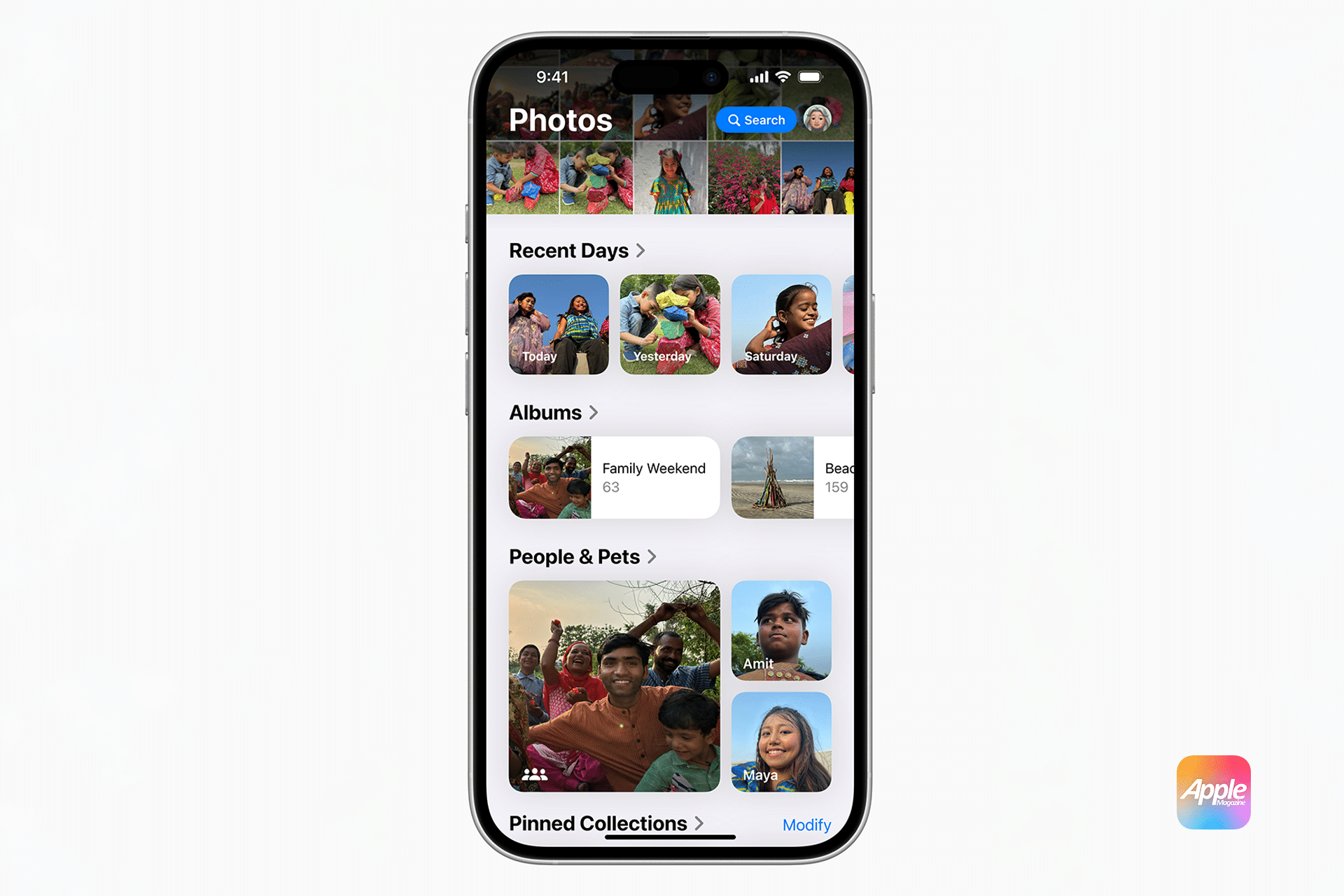
How to Enable iCloud Photos on Every Device
Settings > [Your Name] > iCloud > Photos > Sync this iPhone
Settings > [Your Name] > iCloud > Photos > Sync this iPad
System Settings > [Your Name] > iCloud > Photos > Sync this Mac
Turning on iCloud Photos begins uploading your entire photo library to Apple’s servers. The first sync may take hours or even days depending on the size of your library and your internet speed, but it only needs to happen once.
After the initial upload, every new photo, edit, or deletion is synced automatically in the background.
How Storage Works With iCloud Photos
Settings > [Your Name] > iCloud > Photos > Optimize iPhone Storage
Settings > [Your Name] > iCloud > Photos > Download and Keep Originals
Optimize Storage keeps full-resolution photos in iCloud while smaller versions live on your device, freeing up space without losing access to anything. When you open a photo, the original downloads instantly.
Download and Keep Originals stores full-quality files locally and in iCloud, which is ideal if you have a lot of device storage and want offline access to everything.
You can mix and match these settings between devices. A Mac with a large SSD might store originals, while an iPhone uses optimized storage.
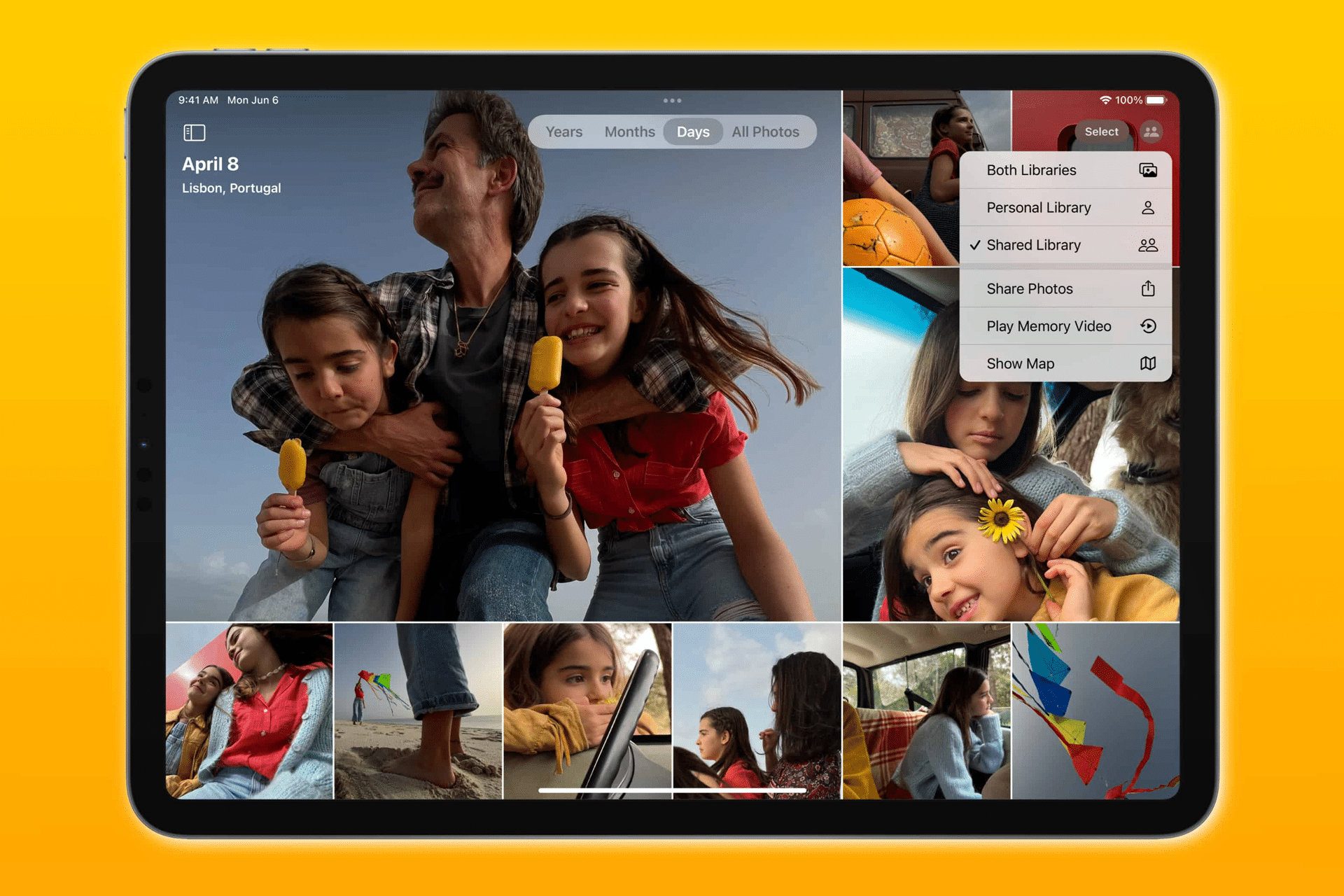
How iCloud Photos Keeps Everything in Sync
Once enabled, iCloud Photos behaves more like a database than a folder. Every device is working with the same library.
Take a photo on your iPhone and it appears on your Mac. Crop it on your Mac and the crop appears on your iPad. Delete it on your iPad and it vanishes from every device.
This also means there is no manual syncing, cables, or export steps. Everything flows automatically as long as devices are signed into the same Apple ID.
How to Organize Photos Across All Devices
Photos > Albums > + > New Album
Photos app on Mac > File > New Album
Albums, smart collections, people recognition, and location groupings all sync through iCloud Photos. When you create an album on one device, it appears everywhere.
Apple’s on-device intelligence also analyzes faces, landmarks, pets, and objects so you can search your entire photo history by typing simple words like “dog,” “beach,” or “birthday.”
How to Recover Deleted Photos
Photos > Albums > Recently Deleted
When you delete a photo, it moves to the Recently Deleted album and stays there for 30 days. During this period, it can be restored with one tap. After 30 days, the file is permanently removed from iCloud and all connected devices.
This safety net protects against accidental deletions while still keeping everything in sync.
How to Restore Photos on a New iPhone, iPad, or Mac
Settings > [Your Name] > iCloud > Photos > Sync this iPhone
Signing into a new device and enabling iCloud Photos brings back your entire library without needing to restore from a computer backup. The photos stream down automatically in the background, starting with your most recent items.
Using iCloud Photos With External Storage on Mac
Mac users can store their Photos library on an external SSD while still using iCloud Photos. This allows massive libraries without filling up internal storage, while still keeping everything synced and protected in the cloud.
The Mac becomes a powerful hub for managing and editing photos, while iCloud ensures nothing is ever lost.
iCloud Photos Is Not a Backup System
iCloud Photos is not a traditional backup system. Because it mirrors changes everywhere, deleting a photo deletes it everywhere. For long-term protection, it works best alongside Time Machine or another external backup that keeps historical copies.
This combination gives both convenience and safety.