

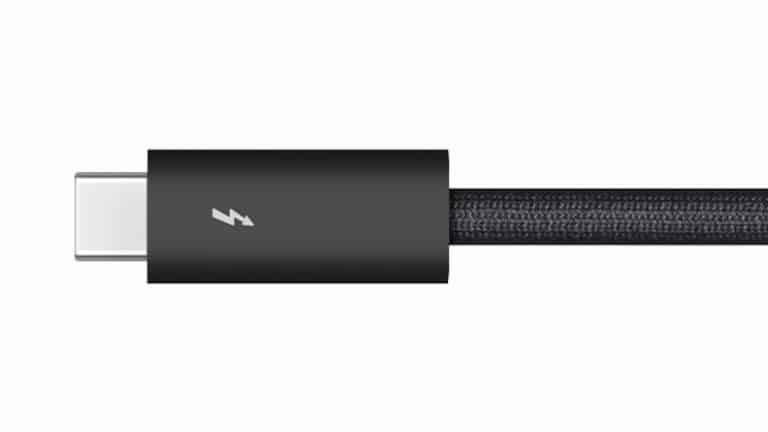
Thunderbolt cables have become one of the simplest upgrades for anyone moving large files between a Mac, iPad, external SSD, dock, display, or storage system. The connector may look like ordinary USB-C, but the cable behind it can decide whether a transfer takes seconds, minutes, or long enough to interrupt a workflow. For photographers moving RAW libraries, editors working with ProRes footage, designers backing up project folders, and students carrying large media files between devices, the right Thunderbolt cable can make a visible difference.
The confusion comes from the shape of the port. USB-C is only the connector. Thunderbolt, USB4, USB 3, DisplayPort, and charging standards can all use that same reversible plug, but they do not perform the same way. A basic USB-C charging cable may power a MacBook or iPad without offering the speed needed for large transfers. A Thunderbolt 4 cable can support up to 40Gb/s. A Thunderbolt 5 cable can support even higher bandwidth on compatible hardware, with Apple’s Thunderbolt 5 Pro Cable rated for Thunderbolt 5 data transfer up to 120Gb/s, USB4 data transfer up to 80Gb/s, and up to 240 watts of power delivery.
That difference matters because transfer speed is not only about the computer. It depends on the full chain: the Mac or iPad, the cable, the external drive or dock, and the file system or storage media being used. A fast Mac connected to a slow cable will not unlock the full speed of a high-performance SSD. A Thunderbolt cable connected to a basic USB-C drive will still be limited by the drive. The label on the cable, and the standard it actually supports, are the details that separate a clean workflow from a frustrating one.

Thunderbolt Cables and the USB-C Confusion
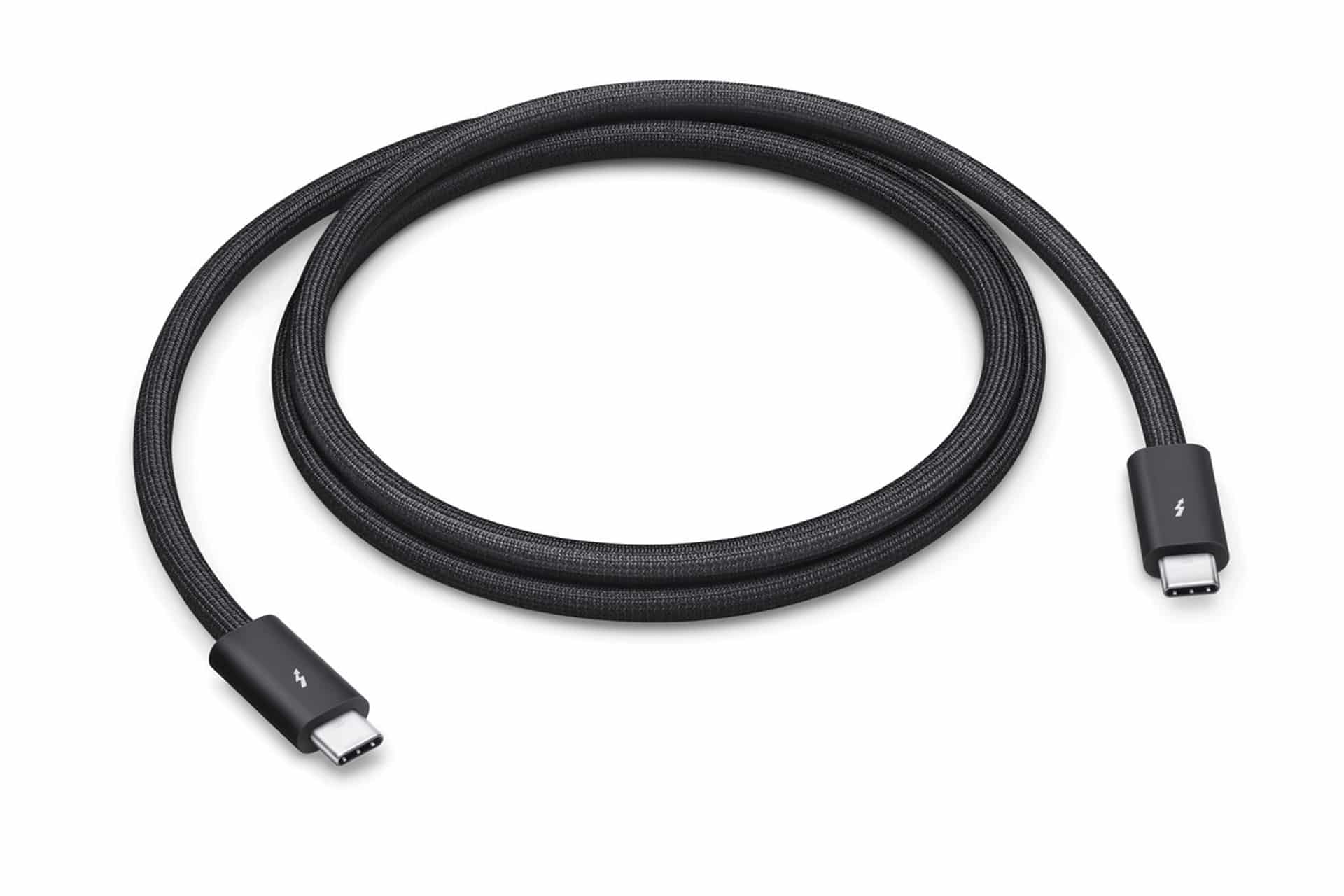
Thunderbolt cables are easy to mistake for regular USB-C cables because the ports look identical. That is convenient for compatibility, but it also makes shopping harder. A cable sold mainly for charging can look almost the same as a cable built for high-speed transfer, external displays, and daisy-chained accessories. The easiest way to avoid mistakes is to check for the Thunderbolt icon and read the stated data rate, not just the connector type.
Apple’s older Thunderbolt 3 USB-C cable supports Thunderbolt 3 data-transfer speeds up to 40Gb/s and USB 3.1 Gen 2 speeds up to 10Gb/s. That makes it useful for connecting a Mac to Thunderbolt 3 accessories, docks, and external drives, but it is not the same as newer Thunderbolt 5 cabling. Apple’s Thunderbolt 5 Pro Cable adds support for Thunderbolt 5 data transfer up to 120Gb/s, USB4 data transfer up to 80Gb/s, DisplayPort 2.1 video output, and power delivery up to 240 watts.
For most owners, Thunderbolt 4 remains more than fast enough. It supports up to 40Gb/s and is widely used across modern Macs, docks, displays, and external SSDs. Thunderbolt 5 is aimed at heavier workflows where faster external storage, high-resolution displays, capture systems, or advanced docking setups can benefit from the extra bandwidth. The newer standard is also backward compatible with earlier Thunderbolt and USB-C devices, though the final speed always drops to the slowest supported link in the chain.
That last point is the detail buyers often miss. A Thunderbolt 5 cable does not turn a USB 3 drive into a Thunderbolt 5 drive. It simply gives compatible devices the room to run at their rated performance. The same applies to older Macs and iPads. A high-end cable can still work, but the transfer speed will follow the port and storage standard supported by the device.
Cable length also affects what users should buy. Short passive Thunderbolt cables are usually best for maximum speed and simple desk setups. Longer cables may require active electronics to maintain performance over distance, especially in studios where the Mac, dock, display, and storage array are not all sitting next to each other. For everyday use, a short certified Thunderbolt cable is usually the safest choice. For professional desks, the right long active cable can clean up the setup without giving up reliable transfer performance.
The practical buying rule is simple: do not choose a cable only because it is USB-C. Choose it by its standard, speed, power rating, and certification. A cable used only for charging a phone does not need to be expensive. A cable used to connect a MacBook Pro to a high-speed SSD, dock, or display should be treated as part of the performance setup
Fast Transfers Depend on the Full Setup
Thunderbolt cables help most when the files are large and the storage device is fast enough to use the connection. A folder of documents will not show much difference between ordinary USB-C and Thunderbolt because the files are small. A 500GB video project, a Lightroom catalog with thousands of RAW images, a Final Cut Pro library, or a large Time Machine backup can show a much larger gap.
The fastest setups usually pair a Thunderbolt-equipped Mac with an external SSD or RAID system that supports Thunderbolt or high-speed USB4. In that situation, the cable becomes a key part of the storage path. With the right cable, editors can cut video directly from an external drive, photographers can keep active libraries outside the internal SSD, and teams can move large project folders without waiting on slow transfers before every handoff.
Mac users also benefit from Thunderbolt’s ability to carry data, display, and power through a single cable. A MacBook Pro connected to a Thunderbolt dock can charge, connect to storage, run an external display, attach Ethernet, and access card readers from one port. That setup reduces cable clutter, but it also makes the quality of the Thunderbolt cable more important. When one cable carries the desk, a weak or mismatched cable can create problems that look like drive issues, display flicker, or unreliable accessory connections.
For iPad owners, the picture depends on the model. USB-C iPad models can connect to external drives, cameras, displays, and docks, but transfer speeds vary by hardware generation. Some iPad Pro models support Thunderbolt and USB4, making them more capable for large creative transfers. Other USB-C iPads support slower USB standards, even though the connector looks the same. A Thunderbolt cable may still connect physically, but it will not exceed the port’s own limits.
The same caution applies to iPhone models with USB-C. A good cable can help with clean connections and compatibility, but the maximum speed depends on the iPhone model and the device attached to it. For people recording large video files or moving media into editing apps, checking both the cable and device specs matters more than assuming every USB-C product behaves the same.
External SSDs deserve special attention. Many compact drives advertise high speeds, but not all of them are Thunderbolt drives. Some use USB 3.2 Gen 2 at up to 10Gb/s, others use USB 3.2 Gen 2×2, which many Macs do not support at its full speed, and newer models may use USB4 or Thunderbolt. A Thunderbolt cable is useful, but the drive’s controller decides the real ceiling. Buyers should look for a drive and cable combination that matches the Mac’s ports rather than relying on the largest number printed on the package.
Choosing the Right Thunderbolt Cable
The best Thunderbolt cable for fast transfers is the one that matches the newest device in the setup without overspending for speed that cannot be used. Owners of Thunderbolt 3 and Thunderbolt 4 Macs working with common docks and SSDs can usually stay with a certified Thunderbolt 4 cable rated for 40Gb/s. It will support fast external storage, displays, and reliable docking for most current Apple setups.
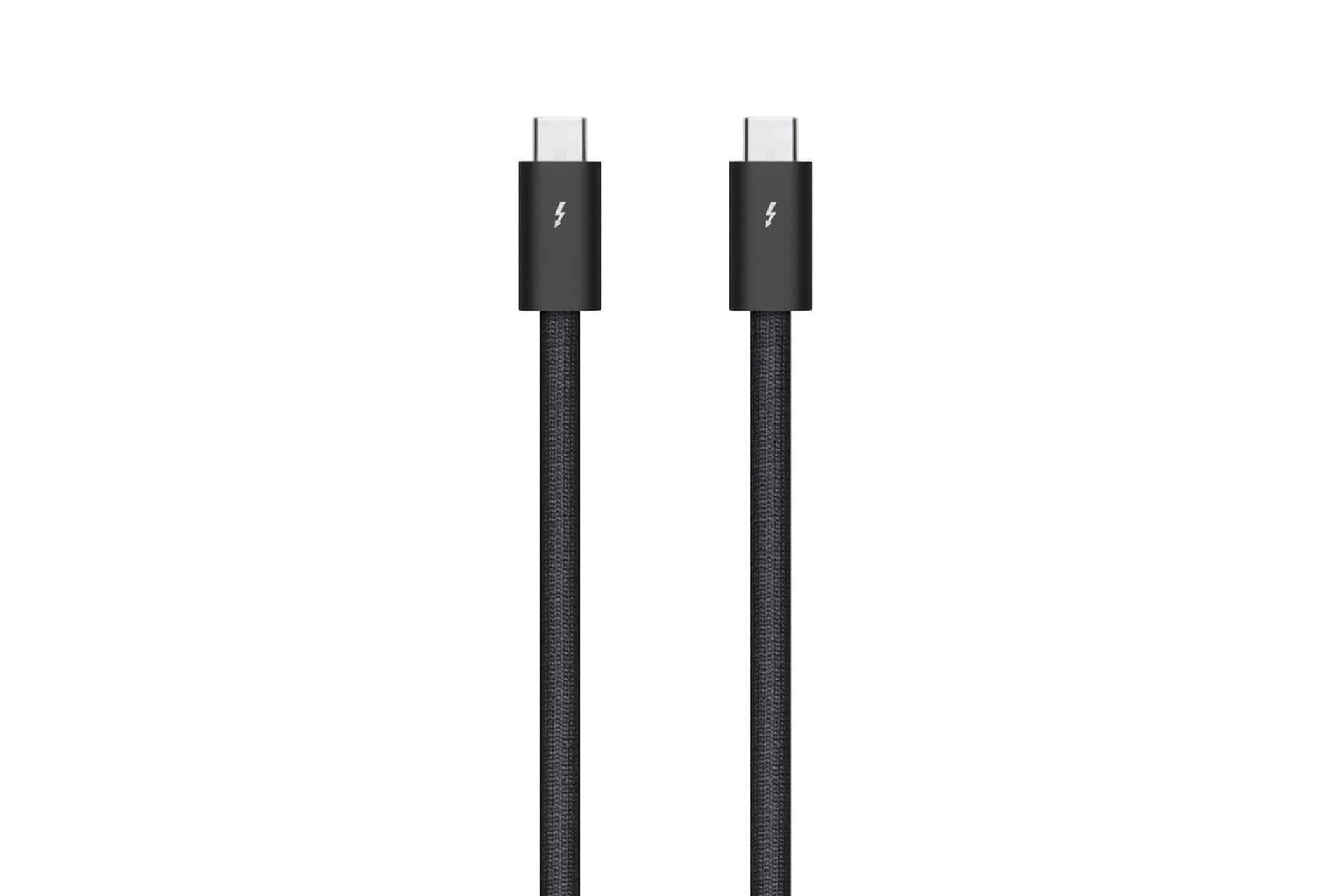
Owners using newer Thunderbolt 5 hardware, high-bandwidth docks, or advanced storage systems should look at Thunderbolt 5 cables. Apple’s Thunderbolt 5 Pro Cable is built for the latest standard, with support for Thunderbolt 5 transfer speeds up to 120Gb/s, USB4 up to 80Gb/s, DisplayPort 2.1, daisy-chaining up to six Thunderbolt devices, and up to 240 watts of power delivery. That makes it more than a simple transfer cable; it is built for desks where storage, video output, and charging share the same connection.
For most shoppers, the most important warning is to avoid anonymous USB-C cables that do not list a proper data rating. Many inexpensive cables are designed mainly for charging and may only support USB 2.0 data speeds. That can be fine for power, but it is a poor match for external drives or device transfers. A cable that charges a MacBook does not automatically make it a good cable for moving large files.
A good Thunderbolt cable should clearly state its supported standard, data speed, and power delivery. It should also come from a reliable manufacturer with certification details. The Thunderbolt logo is helpful because it gives buyers a quick visual cue, especially when several similar USB-C cables are mixed together in a bag or drawer. Keeping one labeled Thunderbolt cable dedicated to external storage can prevent the common problem of grabbing the wrong cable and wondering why a transfer is slow.
Length should be chosen with the desk in mind. A one-meter cable works well for a MacBook connected to a portable SSD, dock, or nearby display. Longer cables are better for permanent setups, but they should be chosen carefully because not every long USB-C cable maintains full Thunderbolt performance. Creative studios with external storage under a desk or displays mounted farther away should consider certified active cables when distance becomes a requirement.
There is also no need to replace every cable at once. The best approach is to identify the cable used for the most demanding transfer task and upgrade that first. For many people, that means the cable between a Mac and an external SSD. For others, it is the cable between a MacBook and a Thunderbolt dock. Once that link is dependable, the rest of the setup becomes easier to diagnose.
Thunderbolt cables are not the most exciting accessory, but they sit directly between the device and the work. Faster Macs, sharper displays, and larger external drives all depend on a cable that can carry the data properly. As Thunderbolt 5 becomes more common across high-end accessories, the small cable in the box or on the desk will keep deciding how much of that performance actually reaches the files being moved.