


The iPhone records frames at spaced intervals and then plays them back at normal video speed. This makes long processes appear fast and fluid. The Camera app automatically adjusts how often it captures frames depending on how long you record. Short recordings capture fewer frames per second, while longer recordings compress more time into the same final clip.
This automatic behavior means you do not need to calculate frame rates or exposure times. The iPhone handles the technical work, letting you focus on the scene and the story you want to tell.

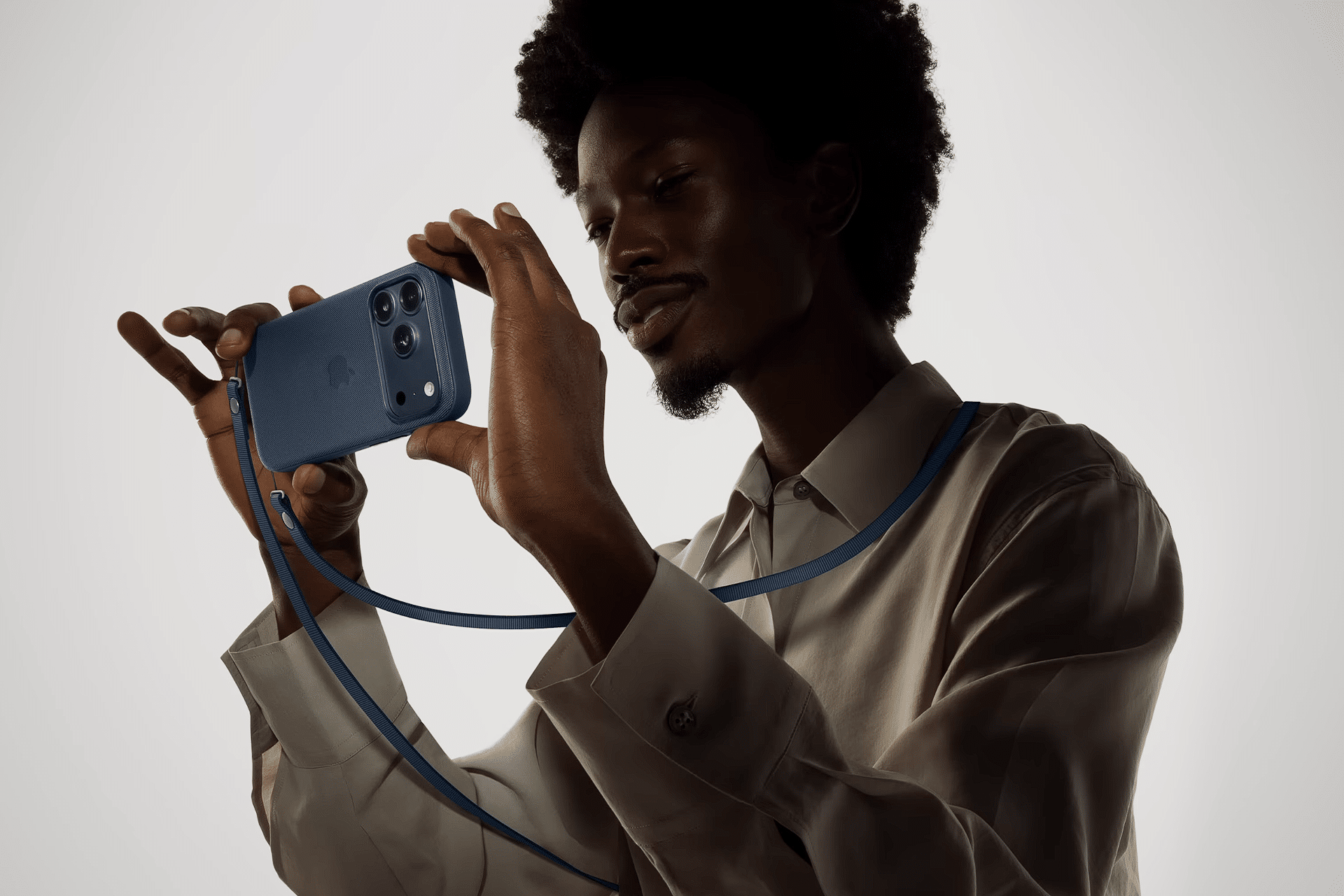
Choosing the Right Scene
Time-lapse works best with visible movement. The more change that happens during recording, the more dramatic the result will feel. Natural light changes, weather movement, and crowds create powerful sequences because they show transformation.
Common subjects include sunrises, sunsets, traffic, clouds, tides, people, construction, and creative projects. Even simple moments like a cup of coffee cooling or a sketch taking shape can feel cinematic when viewed through time-lapse.
Look for patterns. Flowing motion creates a rhythm that feels natural and satisfying when compressed.
How to Record a Time-lapse
Camera App > Swipe to Time-lapse > Place iPhone on stable surface > Tap Record > Wait > Tap Stop
Stability is essential. Any movement of the phone will appear exaggerated in the final video. A tripod is ideal, but a flat surface works well if the phone is not disturbed.
Tips for Better Results
- Lock exposure by tapping and holding on the screen
- Enable Airplane Mode to avoid interruptions
- Record for at least 20 minutes for major changes
- Avoid touching the device during recording
- Shoot during transitions like dusk or dawn
Lighting changes add depth and emotion. The soft light at sunrise or sunset creates smooth color shifts that feel alive.
Creative Time-lapse Ideas
- Film clouds racing across the sky
- Capture shadows moving across your room
- Record a busy street from above
- Show a creative project from start to finish
- Document a plant growing over days
- Film night traffic for glowing light trails
These moments feel ordinary in real time, but time-lapse reveals their hidden beauty.
Sharing Your Story
Once recorded, your time-lapse appears automatically in Photos. You can trim it, apply filters, or share it directly to social platforms. Many creators use time-lapse to open or close a story, adding emotional pacing to their videos.
Time-lapse changes how you experience time itself. It compresses hours into seconds, showing that nothing is static. With your iPhone, you hold a creative tool that reveals motion, growth, and rhythm in the world around you. It is not just a camera mode. It is a new way to see.

