Visual Look Up is one of those small iPhone tricks that turns into a habit. It starts as curiosity—what plant is that? what’s that building?—and then it sneaks into daily life. A photo of a street sign becomes a quick translation. A screenshot of a museum label becomes a deeper read. A picture of a dog you just met becomes a fun “wait, is that really a…” moment you share at dinner.
It also helps when you’re not in a “look at this pretty photo” mood. Think practical: a mystery flower your neighbor gave you, a random landmark from a trip you can’t place, a cool painting you want to remember, or a plant your cat keeps trying to eat. Visual Look Up is right there inside Photos, so it fits naturally into the way most iPhone libraries already work: snap, forget, and later—search, remember, learn.
How Visual Look Up Works in Photos
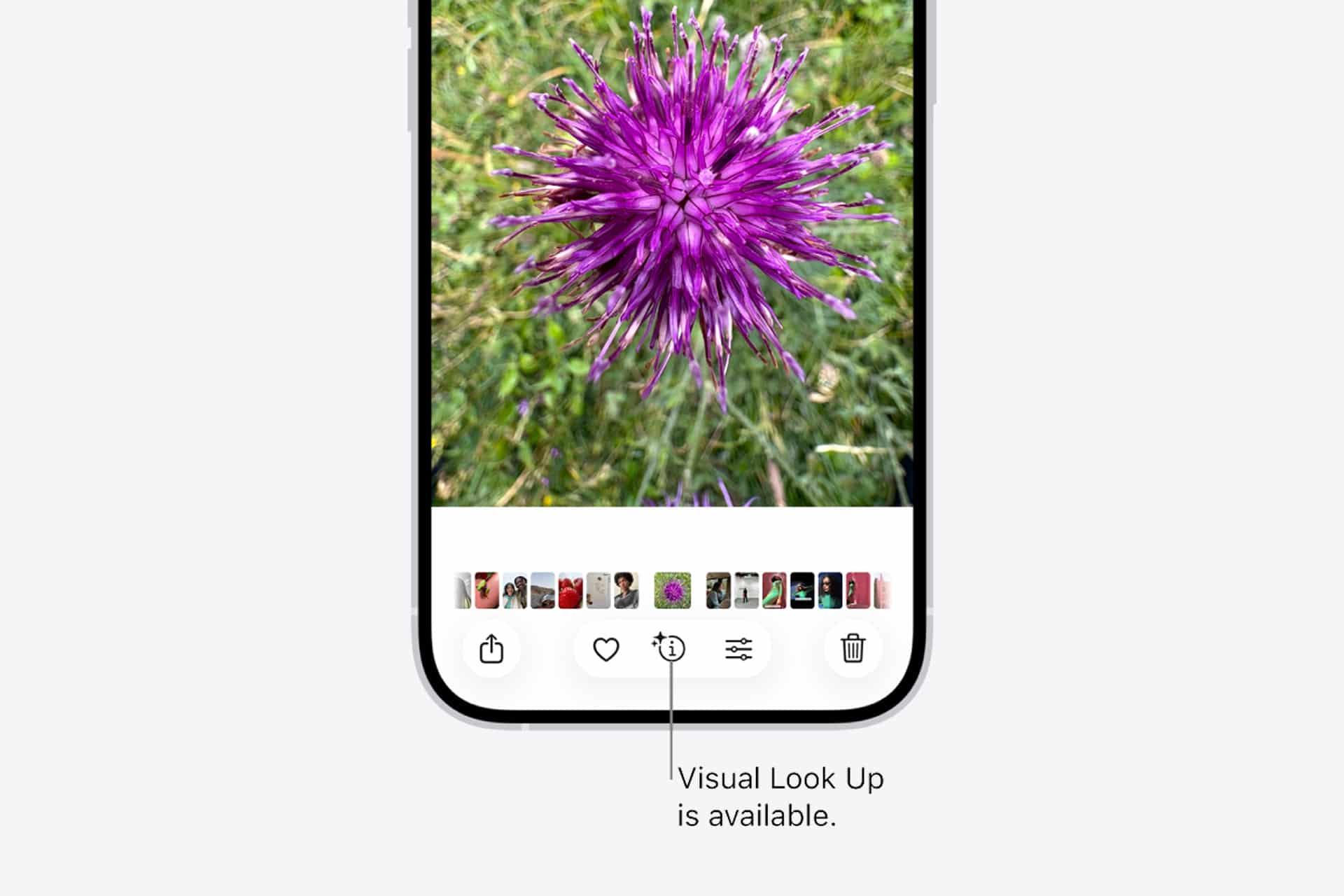
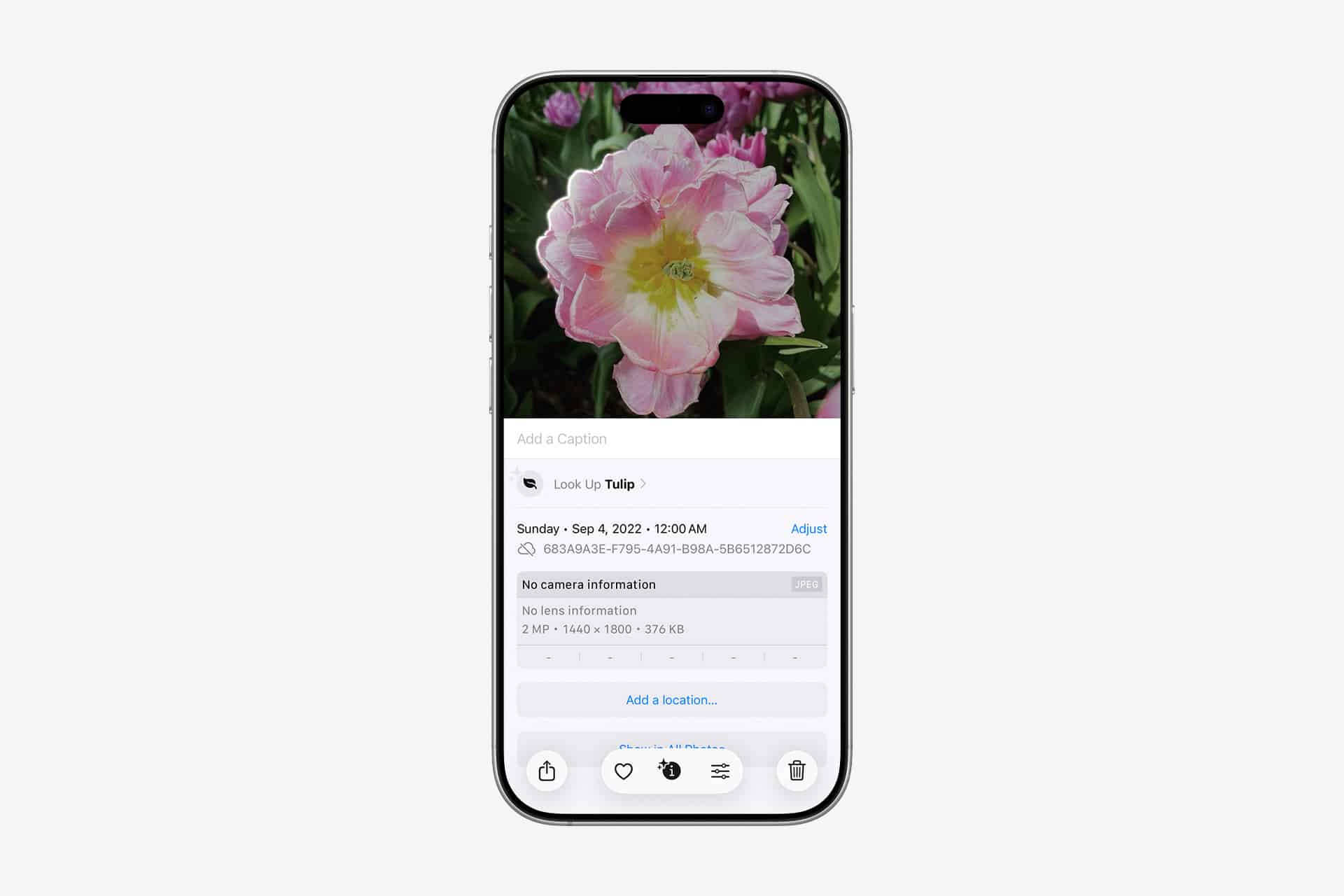
The simplest way to check is to open any photo and pull up the info panel. If Photos recognizes something worth identifying, it’ll offer a Visual Look Up option.
Settings > Apps > Photos > Enhanced Visual Search > Off (optional)
Open Photos > pick a photo > tap the Info button > tap Visual Look Up (when it appears)
If you’re testing it for the first time, try photos with obvious subjects: a clean shot of a plant leaf, a clear pet face, a well-known building, a book cover, or a museum piece. Busy, dark, blurry shots usually get fewer matches. And not every image will trigger the feature—sometimes there’s simply nothing confident enough to label.


Everyday Things It Can Identify
The fun part is how broad it can be. Visual Look Up can surface details about landmarks, art, plants, pets, books, and more—right from the picture you already took.
Plants:
Great for travel, gardens, and that one houseplant that refuses to cooperate. A quick ID can help you learn light and watering needs, or at least give you the right name to search later.
Pets:
This is the “party trick” category. You’ll get hints that point you in the right direction, especially with clear photos.
Landmarks and Art:
Perfect after a trip when you’re scrolling your camera roll and thinking, “Wait, where was this again?” It can connect the dots from a single photo to a place or artwork.
Food:
Sometimes it can recognize dishes and nudge you toward related recipes.
And it isn’t locked to Photos. Apple also notes Visual Look Up can be used in places like Safari and Quick Look, which matters when you’re working with images outside your camera roll.
Small Habits That Make It Better
A few tiny changes help a lot.
First, take one extra second to shoot clean. If you’re trying to identify a plant, move closer and fill the frame with leaves or flowers. If it’s a building, step back so the shape is clear. If it’s a pet, aim for the face in good light.
Second, use screenshots on purpose. If you find an image online—an artwork, a landmark, a plant photo—save it and run Visual Look Up on the screenshot. It’s an easy way to turn browsing into a quick mini “learn this” moment without opening a dozen tabs.
Third, keep it lightweight. It’s tempting to treat this like a magic scanner. The best experience is more casual: tap, check, move on. When it nails it, great. When it doesn’t, you’ve lost about three seconds.
Privacy Controls You Should Know About
There’s a separate Photos setting called Enhanced Visual Search, which Apple documents as a toggle inside Photos settings.
Settings > Apps > Photos > Enhanced Visual Search > On/Off
That’s worth knowing because it’s the kind of setting you might want to review after an update, especially if you keep a tight grip on what features are enabled. Apple also has a dedicated support page that explains Visual Look Up at a high level, if you want the official overview before tweaking anything.
A quick reality check:
Visual Look Up is not a promise that every photo becomes searchable knowledge. It’s more like a smart “bonus layer” that appears when Photos recognizes something confidently enough to label.