

A slow or unstable Wi-Fi connection can feel unpredictable. Pages stall halfway through loading. Video calls freeze. Downloads fluctuate between normal and unusable. When this happens, the first instinct is often to blame the device. In reality, Wi-Fi performance depends on several factors — signal strength, router configuration, interference, and system settings.
WiFi troubleshooting should follow a simple order: check signal quality, verify router stability, review device settings, and reset only when necessary.
Start With Signal Strength
Before changing any settings, confirm the strength of the connection.
On Mac:
Click Wi-Fi icon in Menu Bar
On iPhone or iPad:
Settings > Wi-Fi
If signal bars are low, the issue may simply be distance from the router or interference from walls and large objects. Moving closer often resolves speed fluctuations immediately.
Wi-Fi signal weakens through concrete, metal, and dense furniture. Elevators, basements, and certain building materials reduce stability.
Restart Router and Device
A router restart resolves many temporary issues. Turn it off for about 30 seconds before powering it back on. This refreshes the connection to your internet provider.
After the router is back online, restart the Mac, iPhone, or iPad. This ensures the device reconnects cleanly.
Restarting both sides of the connection eliminates cached routing issues that may cause instability.


Forget and Rejoin Network
If instability continues, removing and rejoining the network can refresh configuration.
On iPhone or iPad:
Settings > Wi-Fi > Tap “i” next to Network > Forget This Network
Reconnect by selecting the network again and entering the password.
On Mac:
System Settings > Network > Wi-Fi > Details > Forget This Network
Rejoining resets stored network preferences.
Check for Software Updates
Outdated system software may contain networking bugs that affect performance.
On iPhone or iPad:
Settings > General > Software Update
On Mac:
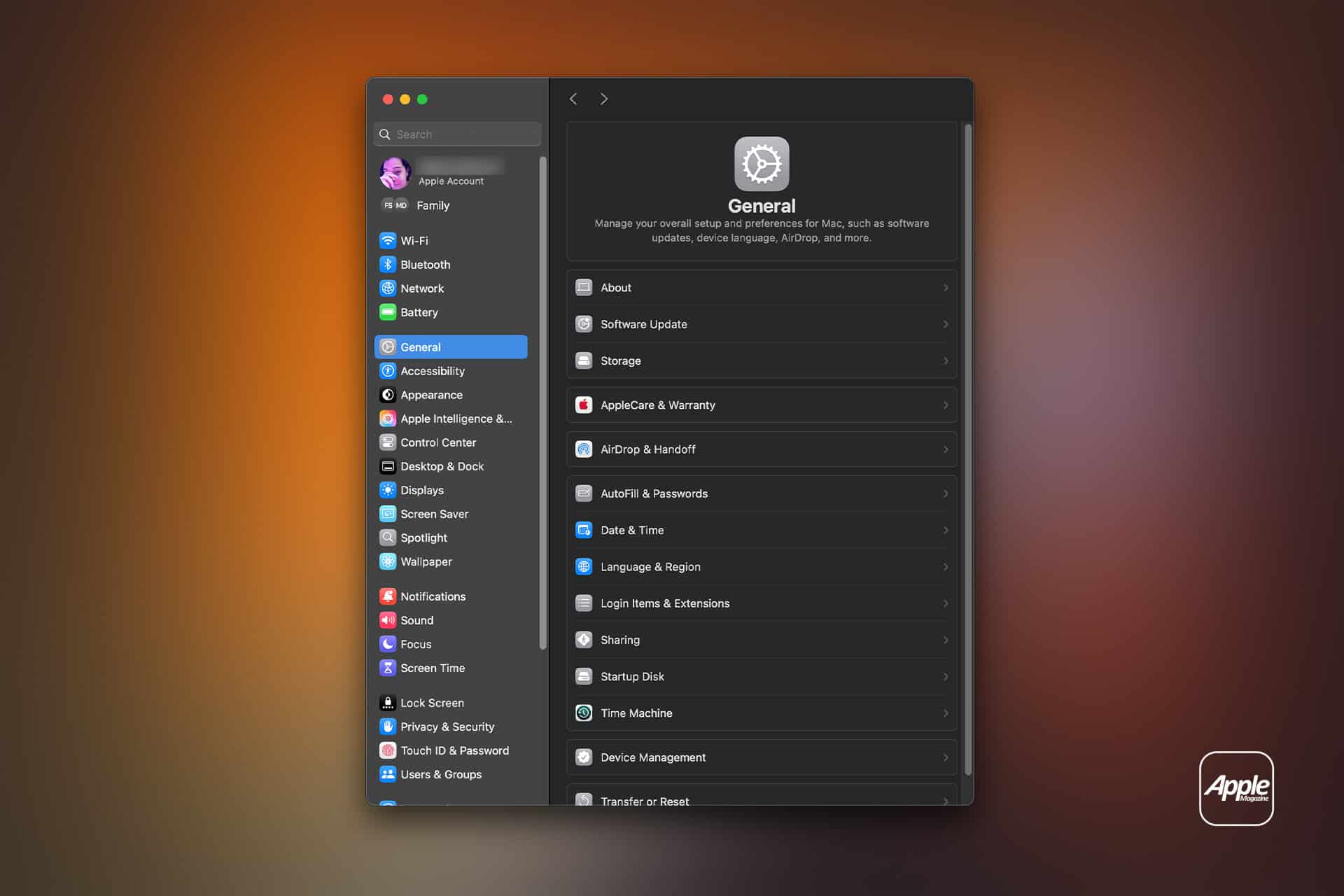
System Settings > General > Software Update
Installing the latest version ensures modem firmware and network drivers are current.
Renew DHCP Lease on Mac
If the Mac struggles with IP assignment, renewing the DHCP lease can help.
System Settings > Network > Wi-Fi > Details > TCP/IP > Renew DHCP Lease
This requests a new IP address from the router, which may resolve conflicts.
Reset Network Settings on iPhone
For persistent issues on iOS devices:
Settings > General > Transfer or Reset iPhone > Reset > Reset Network Settings
This removes saved Wi-Fi passwords and VPN configurations but often resolves deeper connection problems.
Be aware that all stored networks will need to be reentered afterward.
Check for Network Congestion
Even with strong signal strength, performance drops can result from congestion. Multiple devices streaming, gaming, or downloading large files simultaneously share bandwidth.
Testing speed during different times of day may reveal patterns. If speeds drop consistently during peak hours, the limitation may be at the internet service provider level rather than the device.
Use Network Diagnostics on Mac
macOS includes a diagnostic tool.
Option-click Wi-Fi icon > Open Wireless Diagnostics
This tool scans for interference and suggests improvements. It can identify crowded channels and weak signal conditions.
Router Placement and Interference
Wi-Fi routers perform best when placed centrally and elevated, away from large appliances. Microwaves, cordless phones, and Bluetooth-heavy environments can interfere with signal stability.
Switching between 2.4GHz and 5GHz bands (if supported by the router) can improve reliability depending on environment. The 2.4GHz band travels farther but may be more crowded. The 5GHz band offers higher speeds at shorter range.
Advanced Adjustments
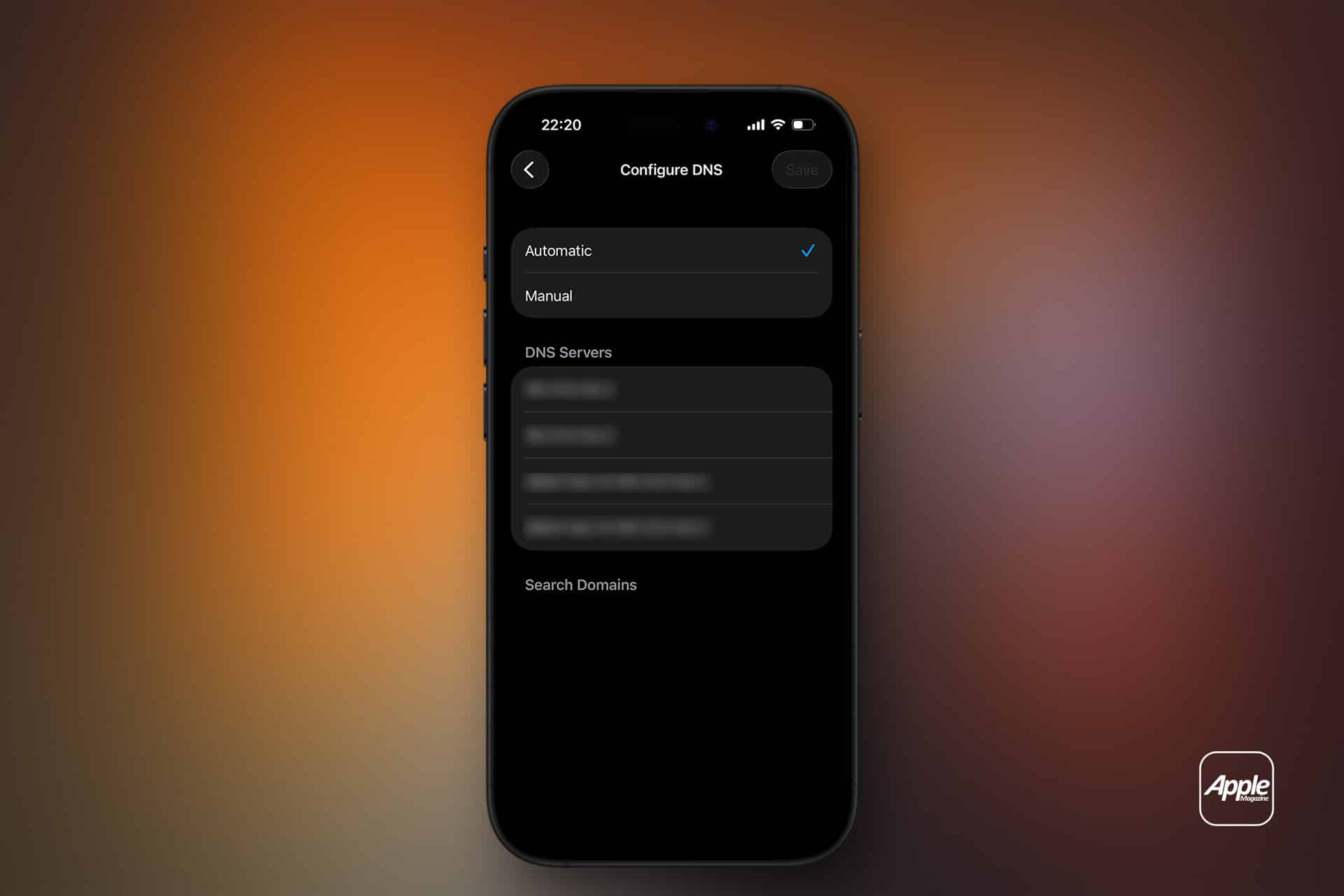
In some cases, manually setting DNS servers may improve browsing performance.
On iPhone:
Settings > Wi-Fi > Tap “i” > Configure DNS
On Mac:
System Settings > Network > Wi-Fi > Details > DNS
Using reliable public DNS servers can reduce lookup delays, though it does not increase raw bandwidth.
When the Issue Is Not the Device
If multiple devices in the same location experience instability, the router or internet service is likely the source. Testing another network, such as a mobile hotspot, can confirm whether the device performs normally elsewhere.
If connection problems persist only on one device, deeper reset steps or hardware evaluation may be necessary.
WiFi Troubleshoot steps focus on identifying whether the problem lies in signal strength, software configuration, router stability, or external network congestion.
Working methodically avoids unnecessary resets and isolates the real cause of slow or unstable connections.