

Getting an iPhone is exciting, but the real moment it becomes your iPhone usually happens the day after. That’s when the setup rush is over and you start noticing how the screen looks, how apps are arranged, and how information appears throughout the day. iOS includes powerful, built-in tools that let you personalize the experience visually without breaking Apple’s design language or relying on third-party tweaks.
This guide walks through the best official ways to personalize your new iPhone, with a few hidden gems that many users overlook.
Start With the Lock Screen You’ll See All Day
The Lock Screen is where Apple concentrated most of its recent visual customization features. It’s also the screen you glance at more than any other.
Settings > Wallpaper > Add New Wallpaper
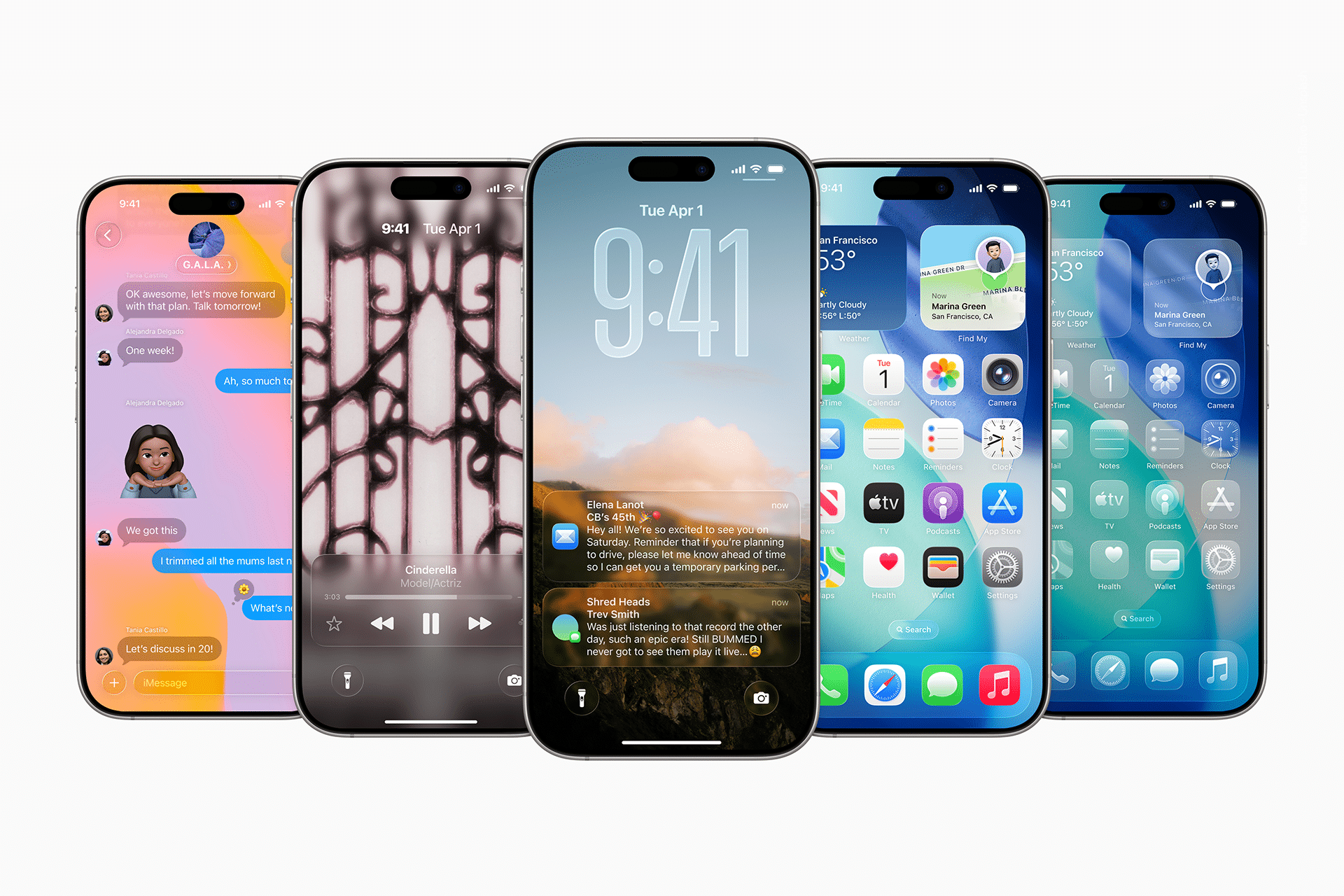
Choose an image that keeps the clock and widgets readable. Depth photos, soft gradients, and darker backgrounds tend to work best. From there, customize the clock style and add widgets that surface useful information like weather, upcoming events, or battery levels.
A hidden gem here is the ability to create multiple Lock Screens. Each one can be paired with a Focus mode, letting your iPhone automatically switch its look depending on what you’re doing.

Shape a Home Screen That Feels Calm
The Home Screen doesn’t need to show everything you own. In fact, iOS works best when it shows less.
Touch and hold the Home Screen > Edit Home Screen > Add Widgets
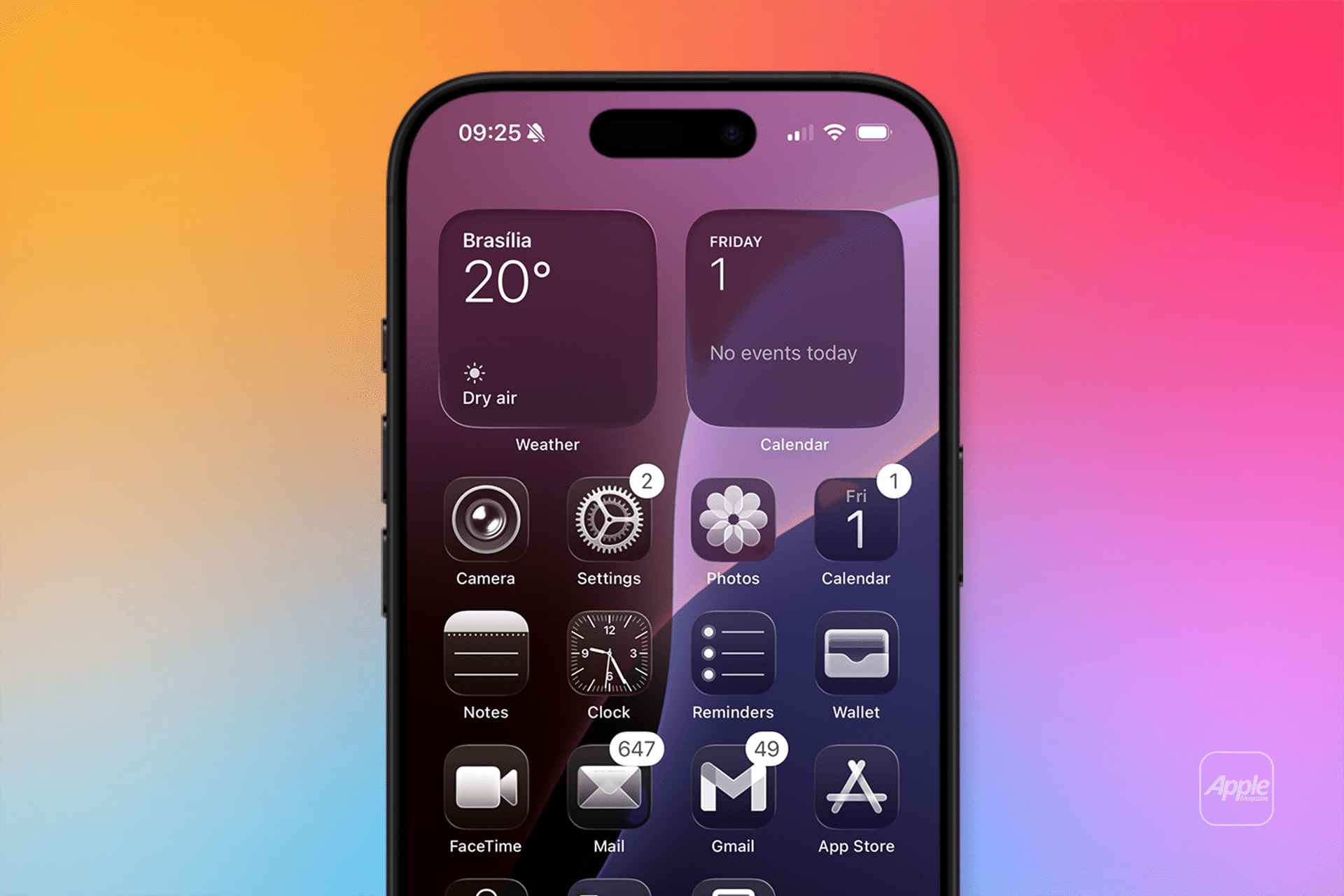
Widgets turn your Home Screen into a live dashboard. Calendar, Weather, Reminders, Music, and Photos widgets let you check information without opening apps. Smart Stacks quietly rotate widgets based on time and usage, keeping things useful without clutter.
Many users find that one thoughtfully designed Home Screen is more effective than several crowded pages, leaving the App Library to handle the rest.
Arrange Apps Around Habits, Not Lists
Instead of alphabetical order, arrange apps based on how you actually use them during the day.
Drag apps together > Create Folder > Rename Folder
Grouping apps by activity — communication, media, productivity, travel — makes navigation more intuitive. Keeping your most-used apps in the bottom row improves reachability, especially on larger screens.
Another overlooked feature is the ability to hide entire Home Screen pages, letting you keep alternative layouts without deleting anything.
Let Widgets Replace Repetitive App Openings
Widgets aren’t decorative extras. Used well, they reduce how often you dive into apps.
Large widgets work well for schedules and weather. Medium widgets balance space and utility. Small widgets shine inside Smart Stacks for quick updates. The goal is to see what matters at a glance, not to recreate an app grid.
Use Focus Modes to Change the Look Automatically
Focus modes go far beyond silencing notifications. They can completely change your Lock Screen, Home Screen, and visible widgets.
Settings > Focus > Add Focus
A Work Focus can highlight productivity tools, while a Personal Focus surfaces music, photos, and communication apps. These changes can trigger automatically based on time, location, or app usage, making your iPhone feel context-aware without constant manual adjustments.
Fine-Tune Visual Comfort
Small display adjustments can make a big difference over long days.
Settings > Display & Brightness
Settings > Accessibility > Display & Text Size
True Tone, Night Shift, text size, and contrast settings help the screen adapt to lighting conditions and reduce eye strain. These options aren’t just for accessibility — they improve everyday comfort for everyone.
Let It Evolve
The best personalization doesn’t happen in one sitting. After a few days, you’ll notice which widgets you actually use and which apps you keep searching for. iOS makes it easy to adjust layouts without starting over.
Apple’s approach to customization is quiet and intentional. When your iPhone is set up well, it fades into the background, showing you what matters and staying out of the way when it doesn’t.


