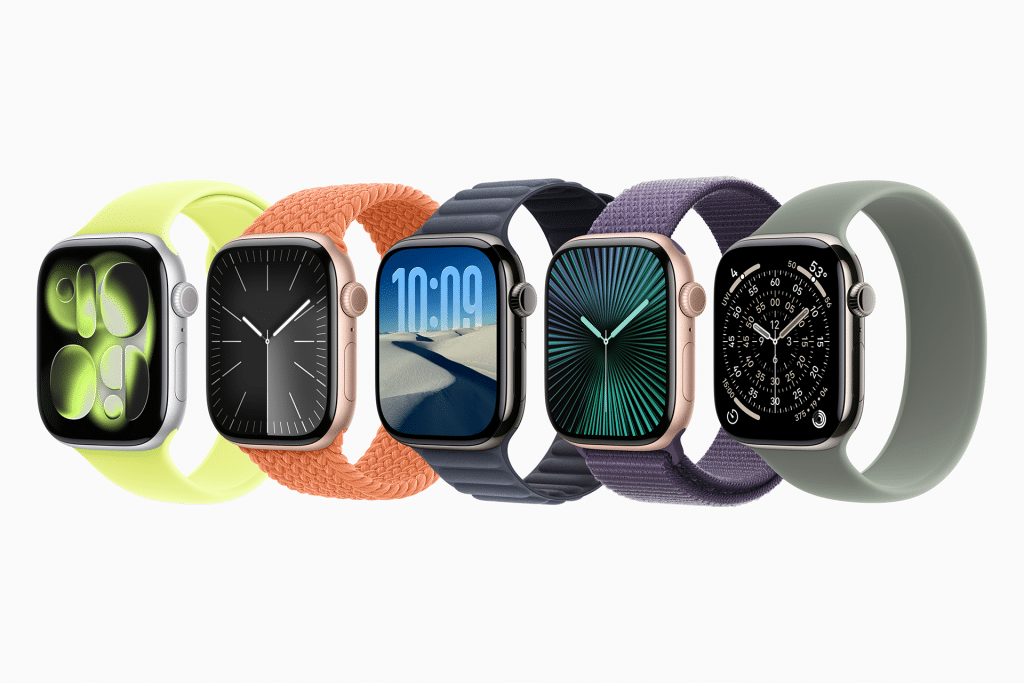
Apple Watch is designed to help you manage time without pulling out your phone. Alarms, timers, and countdowns are some of the most practical tools on the watch, whether you’re waking up, cooking, working out, or structuring your day. Once you learn how they work together, your routines become easier to maintain and harder to forget.
Getting Started With Alarms on Apple Watch
Alarms on Apple Watch are ideal for moments when you need a guaranteed alert. The watch uses haptics, sound, or both, making alarms effective even in noisy environments or when your iPhone isn’t nearby.
Workflow
Apple Watch > Alarms app > Add Alarm > Set Time > Choose Repeat > Save
You can create multiple alarms for different parts of your day, such as waking up, reminders to leave home, or evening routines. Each alarm can repeat on selected days, which is useful for work schedules or consistent habits.
Alarms set directly on Apple Watch are independent from iPhone alarms unless you choose to mirror them. This gives you flexibility to manage wrist-only alerts without cluttering your phone.
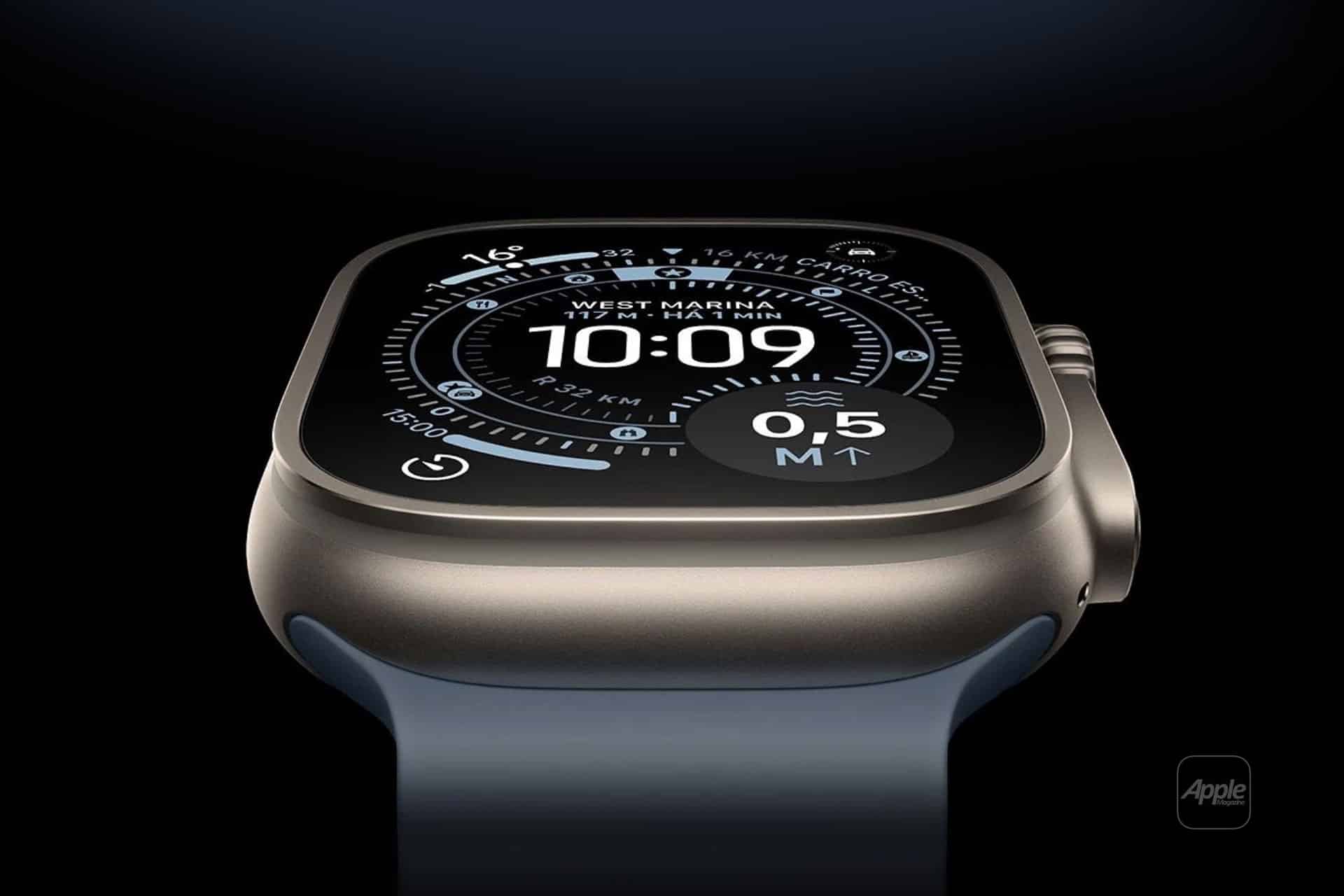

Timers are best for activities that last minutes rather than hours. Cooking, workouts, study sessions, or quick breaks all benefit from timers instead of alarms.
Workflow
Apple Watch > Timers app > Choose Duration or Custom > Start
Apple Watch allows multiple timers at once, each labeled by purpose. This is especially useful when juggling tasks, like timing rest periods during workouts while also tracking cooking time.
Timers rely heavily on haptic feedback, which makes them discreet and effective. Even if your watch is muted, you’ll feel the alert on your wrist.
Countdowns and Siri for Hands-Free Control
Countdowns are functionally similar to timers but shine when used with Siri. When your hands are busy, voice control becomes the fastest way to manage time.
Workflow
Raise Wrist > “Hey Siri, set a 10-minute timer”
Raise Wrist > “Hey Siri, set an alarm for 6:30 AM”
Siri makes Apple Watch alarms and timers accessible during workouts, driving, or cooking. This hands-free approach reinforces the watch’s role as a personal assistant rather than just a notification screen.
Countdown-style usage is especially useful for intervals, short tasks, or reminders that don’t require a specific clock time.

Customizing Alerts for Your Routine
Apple Watch alarms can be tailored to your lifestyle. You can choose sound, haptic-only alerts, or a combination of both. Silent alarms with haptics are perfect for waking up without disturbing others.
Workflow
iPhone > Watch app > Sounds & Haptics > Adjust Alert Settings
Pairing alarms with Focus modes further refines how alerts behave throughout the day. For example, work alarms can remain active while social notifications are muted.
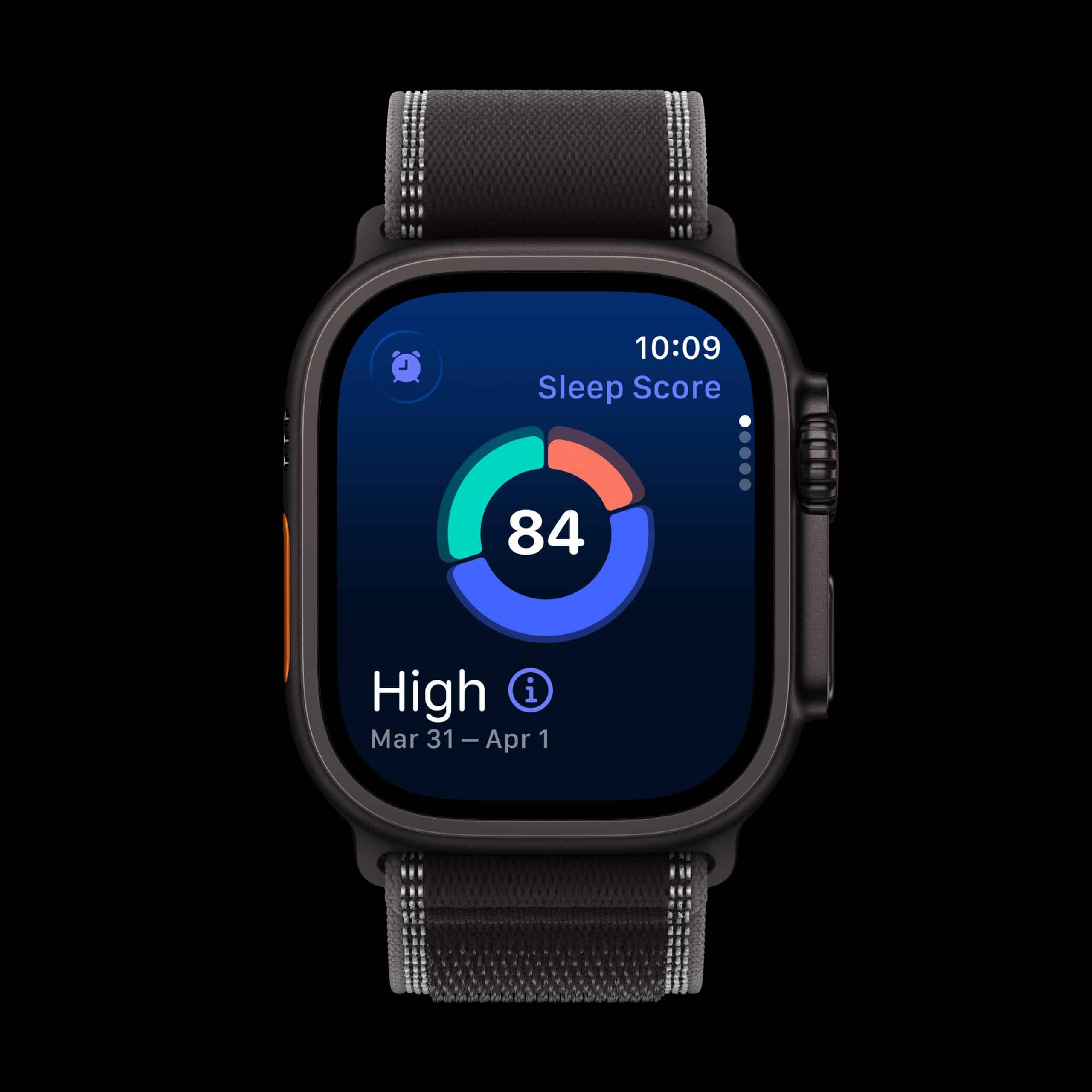
Apple Watch also integrates alarms with sleep tracking, helping maintain consistent sleep schedules while providing gentle wake-ups through haptics.
Why Apple Watch Alarms Change Daily Habits
Once alarms, timers, and countdowns are part of your routine, time management becomes more intuitive. Instead of checking the clock, your watch tells you when it’s time to act.
This shift reduces mental load. You don’t need to remember everything because your Apple Watch quietly keeps track for you. Over time, these small changes add structure to your day without adding friction.
Apple Watch alarms are not just alerts. They’re tools for building habits, staying focused, and moving through your day with intention.