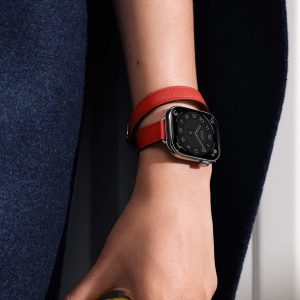
An Apple Watch becomes most useful when it shows the right information at the right time. By default, many notifications mirror your iPhone, meaning messages, emails, social media alerts, and app updates appear on your wrist almost instantly. For some users, that constant stream feels helpful. For others, it quickly becomes overwhelming.
Managing Apple Watch notifications is less about turning everything on or off and more about shaping the flow of information so it supports your day rather than interrupts it.
Understanding How Notifications Mirror
When first set up, Apple Watch mirrors notification settings from iPhone for most apps. If an app is allowed to send alerts on your phone, those alerts typically appear on your watch as well. This works well for essential apps like Messages, Calendar, or Reminders, but it can feel excessive for apps that send frequent updates.
Within the Watch app on iPhone, you can adjust how each app behaves. Some built-in apps allow customization directly on the watch, while third-party apps generally follow iPhone notification permissions.
You can choose to mirror the iPhone or set custom behavior for certain apps. This flexibility allows your watch to become a filter rather than a duplicate screen.

Silencing Frequent Notifications
Many users reach a point where certain notifications arrive too often. Social media alerts, promotional app messages, or repeated group chat notifications can make the watch vibrate constantly throughout the day.
If a particular app becomes too active, you can silence it without disabling notifications entirely on your iPhone. In the Watch app, open Notifications, scroll to the specific app, and switch it to Custom. From there, you can turn off sound and haptics, choose to send alerts silently, or disable them completely on the watch.
Another method involves swiping left on a notification directly on the watch and selecting options to mute or manage it. This quick adjustment allows you to respond in the moment when an app becomes intrusive.
For those who receive frequent messages in group chats, muting that specific conversation on the iPhone will prevent alerts from appearing on the watch as well. It is a small adjustment that significantly reduces wrist interruptions.
Using Focus Modes for Daily Balance
Focus modes provide another layer of control. When enabled on iPhone, Focus settings extend to Apple Watch automatically. You can create different Focus profiles for work, sleep, personal time, or exercise.
For example, during work hours, you might allow notifications only from selected contacts or essential apps. In the evening, you might limit alerts further to reduce distractions.
Sleep Focus automatically dims the watch and suppresses non-essential notifications overnight. This prevents the watch from lighting up or vibrating unnecessarily while resting.
By pairing Focus modes with custom notification settings, the watch becomes more intentional in what it displays.

Choosing Alerts That Match Your Routine
The value of Apple Watch notifications lies in their immediacy. A quick glance at the wrist is faster than reaching for a phone. However, if too many notifications appear, that advantage disappears.
Consider which alerts truly require instant attention. Calendar reminders, time-sensitive messages, fitness activity updates, and security alerts often belong on the watch. Promotional emails, app marketing pushes, and social media likes may not.
Adjusting haptic strength also helps manage perception. Softer haptics can make alerts less intrusive, while stronger taps can signal priority.
Over time, refining notification settings becomes part of shaping how the watch fits into your life. Some users prefer minimal alerts, using the watch mainly for health tracking and timekeeping. Others rely on it as a communication hub throughout the day.
Apple Watch notifications are not fixed. They are customizable layers of information. Silencing frequent interruptions while keeping essential alerts ensures that the watch supports your routine rather than dictating it.