

Call forwarding on iPhone is a simple feature with a specific job: it sends incoming calls from your iPhone number to another phone number. That can be useful when you are traveling, using a temporary phone, separating work and personal calls, covering a business line or making sure important calls reach someone else when you cannot answer.
The feature is built into iOS, but it depends on carrier support. Apple notes that call forwarding can be set up on iPhone if cellular service is through a GSM network. If the service uses a CDMA network, users may need to contact the carrier for setup details. That means the option may not appear for every user, every carrier or every plan.
For most supported iPhones, the path is quick:
Settings > Apps > Phone > Call Forwarding
Turn on Call Forwarding, then enter the phone number where calls should be sent. When call forwarding is active, an icon appears in the status bar so the user can see that incoming calls are being routed elsewhere.

Call Forwarding on iPhone Sends Calls Elsewhere
Call forwarding on iPhone does not move messages, FaceTime calls, app notifications or voicemail settings by itself. It only redirects standard cellular phone calls. If someone calls your iPhone number, the carrier routes that call to the number you entered.
That distinction is important. If you forward calls to another phone, text messages still arrive on the original iPhone unless other settings or services are involved. FaceTime calls may still ring on Apple devices signed into the same Apple Account. Messaging apps such as WhatsApp, Signal, Telegram or Messenger are unaffected.
Call forwarding is also different from Silence Unknown Callers, Focus modes or Do Not Disturb. Those features control how calls appear or interrupt you. Call forwarding changes where the call goes.
This makes the feature useful in a few common situations. A business owner can send calls to an office line. A traveler can forward calls to a local number. Someone with a damaged iPhone can temporarily send calls to another device. A freelancer can route calls to a partner during time off. A parent can forward calls to a spouse for a short period.
How to Turn On Call Forwarding
To turn on call forwarding:
- Settings > Apps > Phone > Call Forwarding
- Turn on Call Forwarding
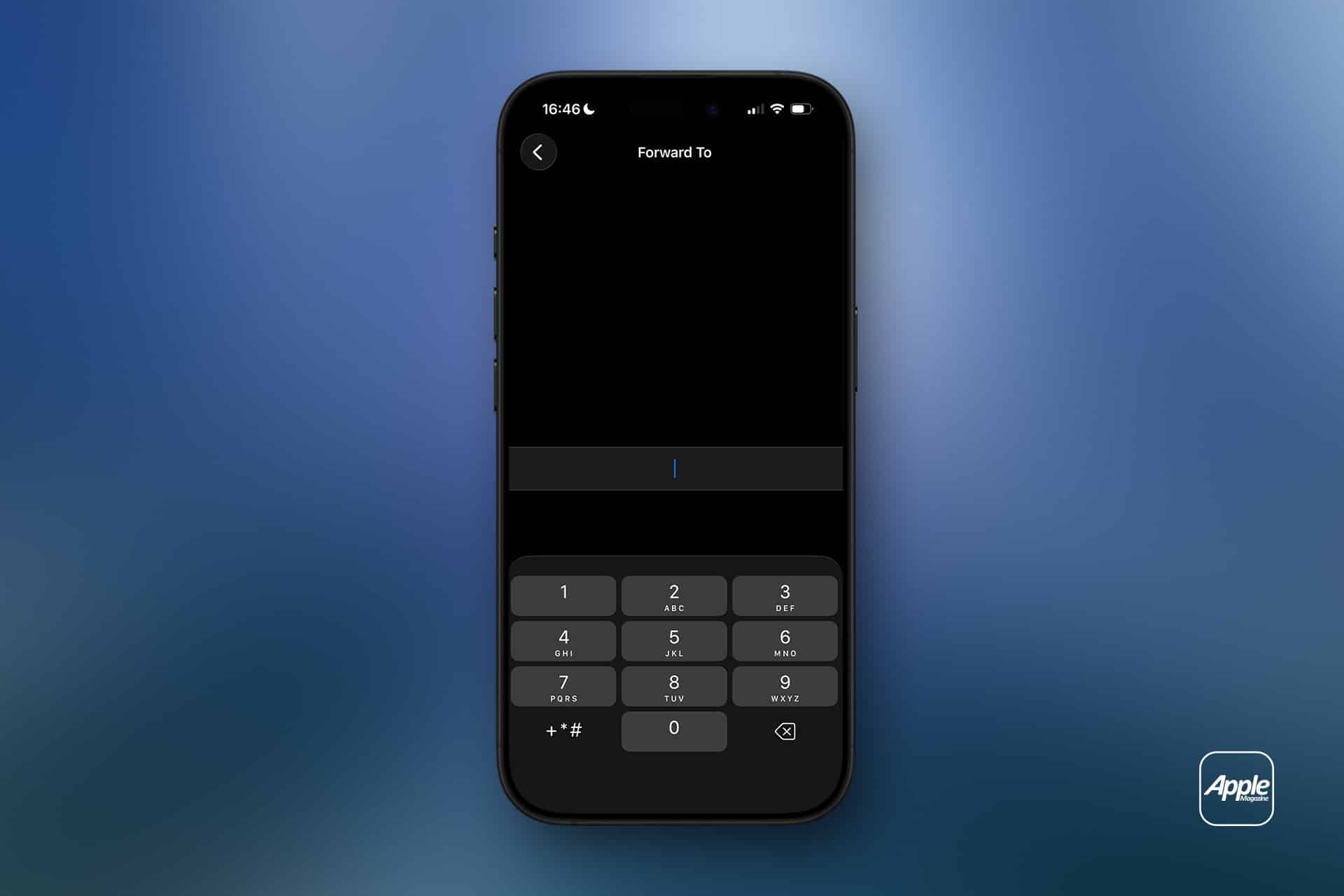
- Tap Forward To
- Enter the phone number
- Go back to save the setting
Use the full phone number, including area code. If forwarding to an international number, include the correct country code. After setting it up, test the feature from another phone. Do not assume it works until a test call rings at the forwarded number.
To turn call forwarding off:
Settings > Apps > Phone > Call Forwarding > Turn off
After turning it off, test again. A quick call from another phone confirms whether incoming calls are back to normal.
If the Call Forwarding menu spins, fails to load or does not save the number, restart the iPhone and check cellular service. If the problem continues, contact the carrier because the setting depends on the carrier network.
Why the Setting May Be Missing
Some users look for call forwarding and cannot find it. That usually means one of three things: the carrier does not expose the feature in iPhone settings, the plan does not support it, or the network requires carrier codes or account-level setup.
Apple’s guide says CDMA users should contact their carrier for call forwarding information. Some carriers also use special dialing codes for forwarding all calls, forwarding when busy, forwarding when unanswered or forwarding when unreachable. Those codes vary by carrier and country, so guessing is not a good idea.
The best path is to check the carrier’s support page or app. Many carriers let users manage forwarding from the account dashboard, especially for business lines or multi-line plans.
If the option is missing, the iPhone is not necessarily broken. The carrier may simply handle forwarding differently.
What Happens to Voicemail
Call forwarding can affect voicemail behavior depending on the carrier and destination number. If the forwarded phone does not answer, the call may go to the voicemail of the forwarded number instead of the original iPhone voicemail. In some cases, carrier rules may still send it back to the original mailbox, but users should not assume that.
This is another reason to test. Call the iPhone from another number, let it ring, and see where the missed call lands. If the goal is to preserve the original iPhone voicemail, carrier support may be needed.
For work numbers, this can be especially important. A forwarded business call going to a personal voicemail greeting can look unprofessional. A personal call going to a shared office voicemail can create privacy problems. Check before relying on it.
Call Forwarding and Dual SIM
iPhone users with Dual SIM or eSIM setups should pay attention to which line is being forwarded. A personal line and business line can have separate carrier settings. Forwarding one does not automatically forward the other.
To check lines:
Settings > Cellular > Select the line you want to manage
Then return to:
Settings > Apps > Phone > Call Forwarding
The available settings may vary by carrier and line. If one line supports call forwarding and the other does not, that is usually a carrier difference, not an iPhone problem.
Dual SIM users should also test both numbers separately. Call the personal number, then call the business number, and confirm each behaves as expected.
When Call Forwarding Is Useful
Call forwarding works best when the goal is temporary coverage. It is useful during travel, device repairs, vacations, business handoffs, office moves, event coverage or times when another person needs to answer calls.
It can also help people who use a landline or desk phone during work hours. Calls can be forwarded from the iPhone to the office line, then turned off at the end of the day. The reverse can also work if the carrier supports it.
For small businesses, call forwarding can help avoid missed calls without adding a full phone system. A company can route calls to whoever is available. For individuals, it can be a quick fix when an iPhone battery is failing, a device is being repaired, or cellular reception is better on another phone.
The feature is less ideal as a permanent business phone solution. If multiple people need to answer calls, if calls need menus, if calls need recordings, or if voicemail needs to stay organized, a dedicated phone service may be better.
Privacy and Cost Considerations
Call forwarding may create charges depending on the carrier, plan and destination number. Forwarding calls to an international number can be expensive. Forwarding to another domestic mobile number is usually simpler, but users should still check the plan.
Privacy also deserves attention. Once calls are forwarded, the person or device receiving them may hear personal, business or sensitive conversations meant for the original number. Do not forward calls to a shared phone unless that is intentional.
Before forwarding a work line to a personal number, check company policy. Some organizations do not allow business calls to be routed to unmanaged personal devices.

How to Troubleshoot Call Forwarding
If call forwarding does not work, start with the basics. Confirm the iPhone has cellular service. Restart the device. Check that the forwarding number is entered correctly. Turn call forwarding off, wait a few seconds, then turn it on again.
Then test from another phone. A test call is the fastest way to know whether the carrier accepted the setting.
If calls still do not forward, check whether the carrier supports call forwarding through iPhone settings. Some carriers require account-level activation, carrier codes or a business calling feature. If the iPhone setting is missing or stuck, carrier support is usually the right next step.
Also check Focus modes and blocked numbers if the issue is not forwarding but missed calls. A call may fail to ring because of Focus, Silence Unknown Callers, a blocked contact, poor signal or voicemail settings rather than call forwarding.
A Simple Feature Worth Testing
Call forwarding on iPhone is easy to use when the carrier supports it. Open iPhone settings, turn on Call Forwarding, enter the destination number and test it. Turn it off when the temporary need is over.
The feature is most useful when it is deliberate and short-term. It can keep calls moving during travel, repairs, work coverage or busy periods, but it should be checked carefully because voicemail, costs and privacy can change once calls are routed to another number.
The iPhone makes the setting simple. The carrier decides how far that simplicity goes.