

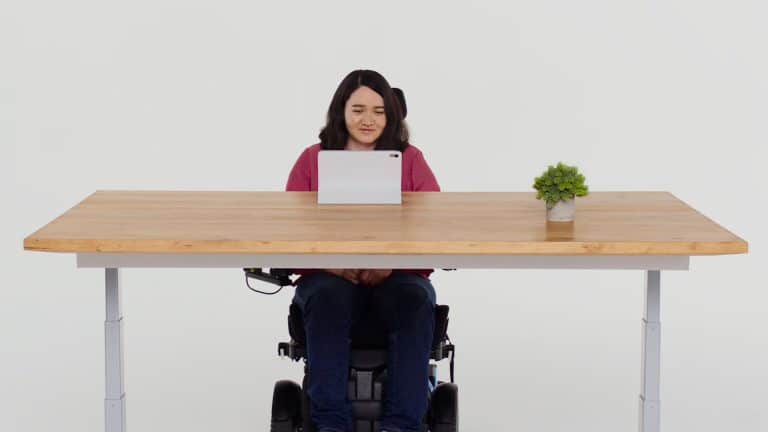
iPhone Eye Tracking is one of Apple’s most important accessibility features because it turns the front camera into a hands-free navigation tool. Instead of relying only on touch, voice, switches, or external hardware, supported iPhone users can move an onscreen pointer with their eyes and select items by holding their gaze steady.
The feature was designed for users with physical disabilities, but its value is broader because it shows how iPhone can adapt to different bodies, needs, and situations. A person with limited hand movement can use Eye Tracking to navigate apps, select buttons, open controls, scroll, and activate actions. Someone recovering from an injury may use it temporarily. A caregiver, therapist, teacher, or family member may help set it up for someone who needs a more accessible way to use iPhone.
Apple says Eye Tracking works across iOS and iPadOS apps without requiring extra hardware or accessories. It uses the front-facing camera for setup and calibration, and Apple says the data used to set up and control the feature is processed on device and not shared with Apple. That privacy point matters because eye movement can feel deeply personal. The feature has to be useful without turning gaze into cloud data.
Eye Tracking is not meant to replace touch for everyone. It is a control option for people who need or prefer hands-free navigation. Like many accessibility tools, it can feel slow at first because it depends on calibration, pointer smoothing, dwell timing, and user comfort. Once tuned properly, it can make the iPhone far more usable for someone who cannot rely on standard gestures.

How Eye Tracking Works
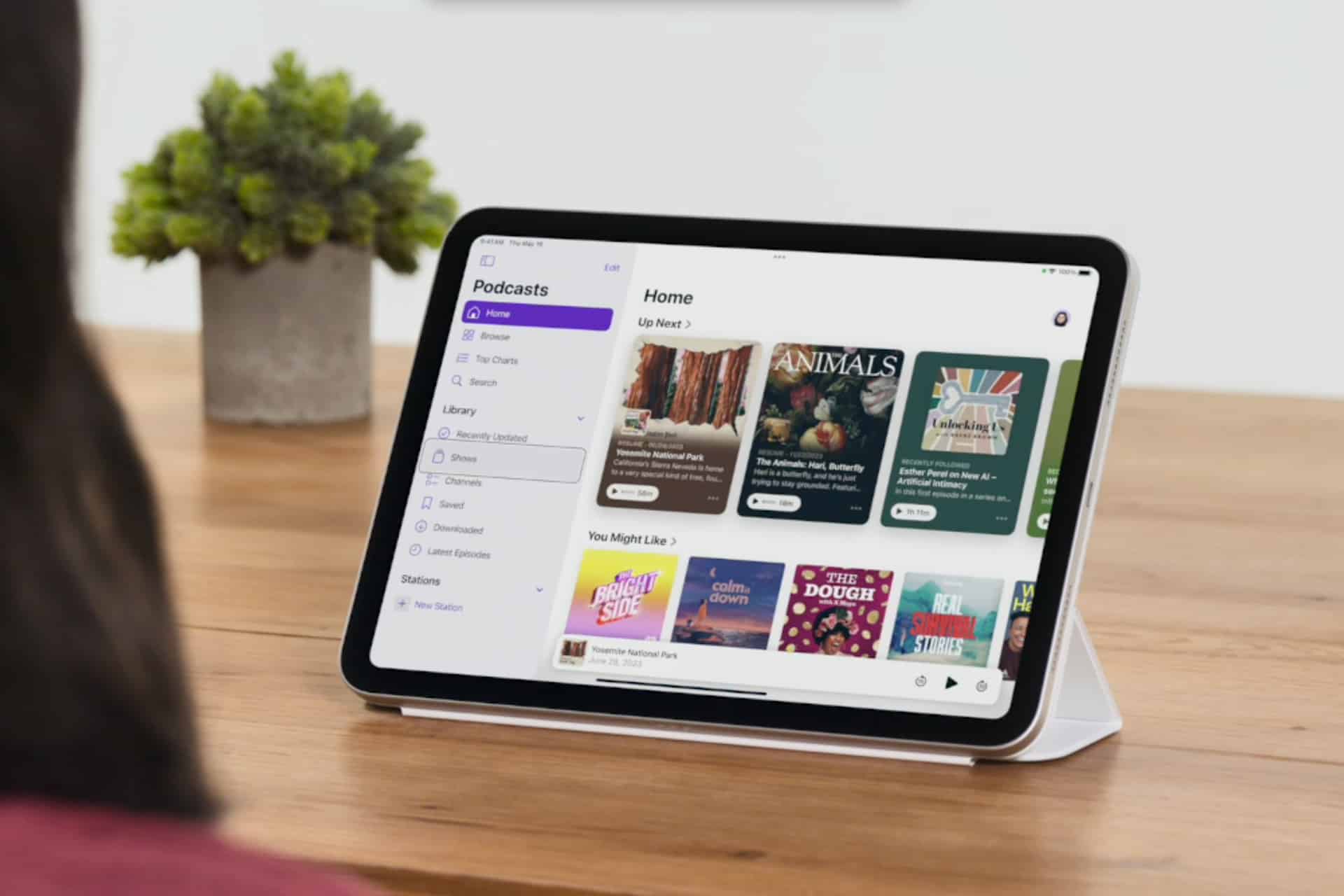
iPhone Eye Tracking follows where the user is looking and moves a pointer on screen. When the user looks at an item and holds their gaze steady, the system can perform an action such as tapping. Apple’s iPhone guide explains that Eye Tracking must be calibrated every time it is turned on. During calibration, a dot appears in different locations, and the user follows it with their eyes.
To turn on Eye Tracking:
Settings > Accessibility > Eye Tracking > Eye Tracking
After turning it on, follow the onscreen calibration dots. The setup works best when the iPhone is stable, the user’s face is clearly visible, and lighting is comfortable. If the phone moves too much or the face is not positioned well, calibration may feel less accurate.
Apple also gives users control over how the pointer behaves. Smoothing can make pointer movement steadier, while lower smoothing can make it feel more responsive. Snap to Item can move the pointer automatically to the closest onscreen item, which may help users select buttons and controls more easily.
To adjust Eye Tracking options:
Settings > Accessibility > Eye Tracking > Smoothing or Snap to Item
The best settings depend on the user. Someone who has trouble holding gaze steady may prefer more smoothing and Snap to Item. Someone who wants faster pointer movement may prefer less smoothing. Eye Tracking works best when it is adjusted patiently rather than treated as a one-size-fits-all control.
Dwell Control Turns Looking Into Tapping
iPhone Eye Tracking becomes more useful with Dwell Control. Dwell Control lets the user perform an action by holding the pointer still over an item for a set amount of time. In practice, that means looking at a button, app icon, menu item, or control and holding gaze long enough for iPhone to treat it like a tap.
Apple’s accessibility page says Eye Tracking integrates with Switch Control on iPhone and iPad, giving users the option to use a switch or dwell to make selections. Apple’s original accessibility announcement also described Dwell Control as the way users can activate elements, including functions such as physical buttons, swipes, and other gestures, using only their eyes.
To set up Dwell Control:
Settings > Accessibility > Touch > AssistiveTouch > Dwell Control
Dwell timing matters. If the dwell time is too short, accidental selections can happen. If it is too long, navigation feels tiring. The goal is to find a timing that is deliberate but not exhausting.
To adjust dwell timing:
Settings > Accessibility > Touch > AssistiveTouch > Dwell Control > Dwell Time
Hot Corners can also be used to assign actions to corners of the screen. Apple notes that users can change which corner starts recalibration or assign actions to other corners through Dwell Control. This can make common actions faster once the user learns the layout.
Eye Tracking is most successful when the user has a way to pause, recalibrate, or access AssistiveTouch controls without frustration. The setup should be tested slowly with basic tasks before depending on it for long sessions.
Everyday Uses for Hands-Free Navigation
iPhone Eye Tracking can help with many ordinary tasks. A user may open Messages, read notifications, answer a FaceTime call, browse Safari, control media, check Mail, use Notes, review Photos, interact with Home controls, or move through apps without touching the screen. The feature can also support communication apps for users who depend on iPhone as part of daily accessibility.
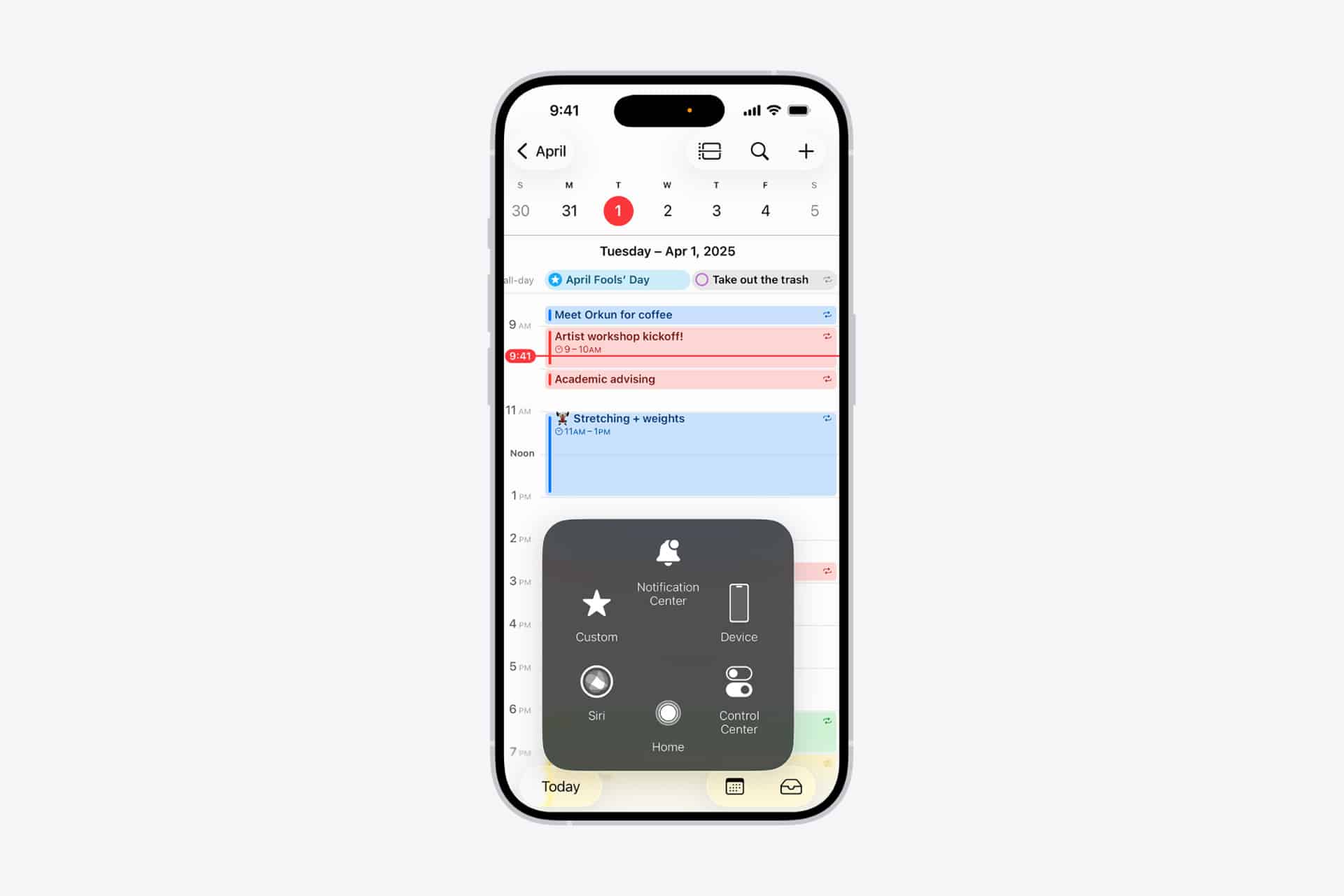
The most useful tasks are often simple but meaningful. Opening an app. Selecting a message. Tapping Play or Pause. Scrolling through a page. Choosing a button. Returning Home. Activating Control Center through AssistiveTouch. These small actions can give someone more independence when touch is difficult.
Eye Tracking can also work alongside other accessibility tools. Voice Control can handle spoken commands. AssistiveTouch can provide onscreen controls. Switch Control can support external switches. Back Tap, Sound Recognition, Spoken Content, Live Speech, and display adjustments can all help depending on the person’s needs.
To explore accessibility controls:
Settings > Accessibility
This is important because Eye Tracking may not be the only or best tool for every user. Someone may prefer Voice Control for text-heavy tasks, Switch Control for consistent scanning, or AssistiveTouch for physical-motor support. Eye Tracking is strongest when it becomes part of a personalized accessibility setup.
Setup Conditions Matter
iPhone Eye Tracking depends on the front-facing camera, so setup conditions affect performance. The iPhone should be positioned at a comfortable distance, the face should be visible, and lighting should not be too dark or too harsh. Reflections, sunglasses, strong backlight, camera obstruction, or unstable phone placement can make tracking harder.
A stand can help. Eye Tracking becomes easier when the iPhone stays in one position. Holding the device in hand may create movement that makes the pointer harder to control. For longer sessions, a desk stand, wheelchair mount, bedside stand, or stable surface can improve the experience.
The user should also take breaks. Eye-based control can be tiring because it asks the eyes to do work they do not normally do in the same way. Reading, scanning, and choosing are different from using gaze as a pointer. Short sessions are better while learning.
Recalibration should be expected. Apple says Eye Tracking needs calibration every time it is turned on. That may feel inconvenient, but it helps the system understand the current position, lighting, and face alignment. If tracking starts to feel inaccurate, recalibrating is usually the first fix.
A Feature Built Around Privacy
iPhone Eye Tracking would feel much more sensitive if it sent gaze data to Apple. Apple says the data used to set up and control Eye Tracking is kept securely on device and is not shared with Apple. That fits the company’s broader accessibility and privacy approach: make the feature powerful without turning personal control signals into a remote service.
This matters because gaze can reveal attention, intention, fatigue, and behavior. For accessibility, eye movement is a control method. It should not become an advertising or analytics signal. Apple’s on-device processing helps make Eye Tracking feel safer for users who depend on it.
Users should still be thoughtful about apps. Eye Tracking controls the iPhone interface, but apps may still have their own privacy practices, permissions, and data collection. The accessibility feature does not make every app private by default. It simply provides a hands-free way to interact with the device.
To review app privacy permissions:
Settings > Privacy & Security
Privacy and accessibility should work together. A user should not have to give up control over personal data just to gain control over the device.
Limits and Realistic Expectations
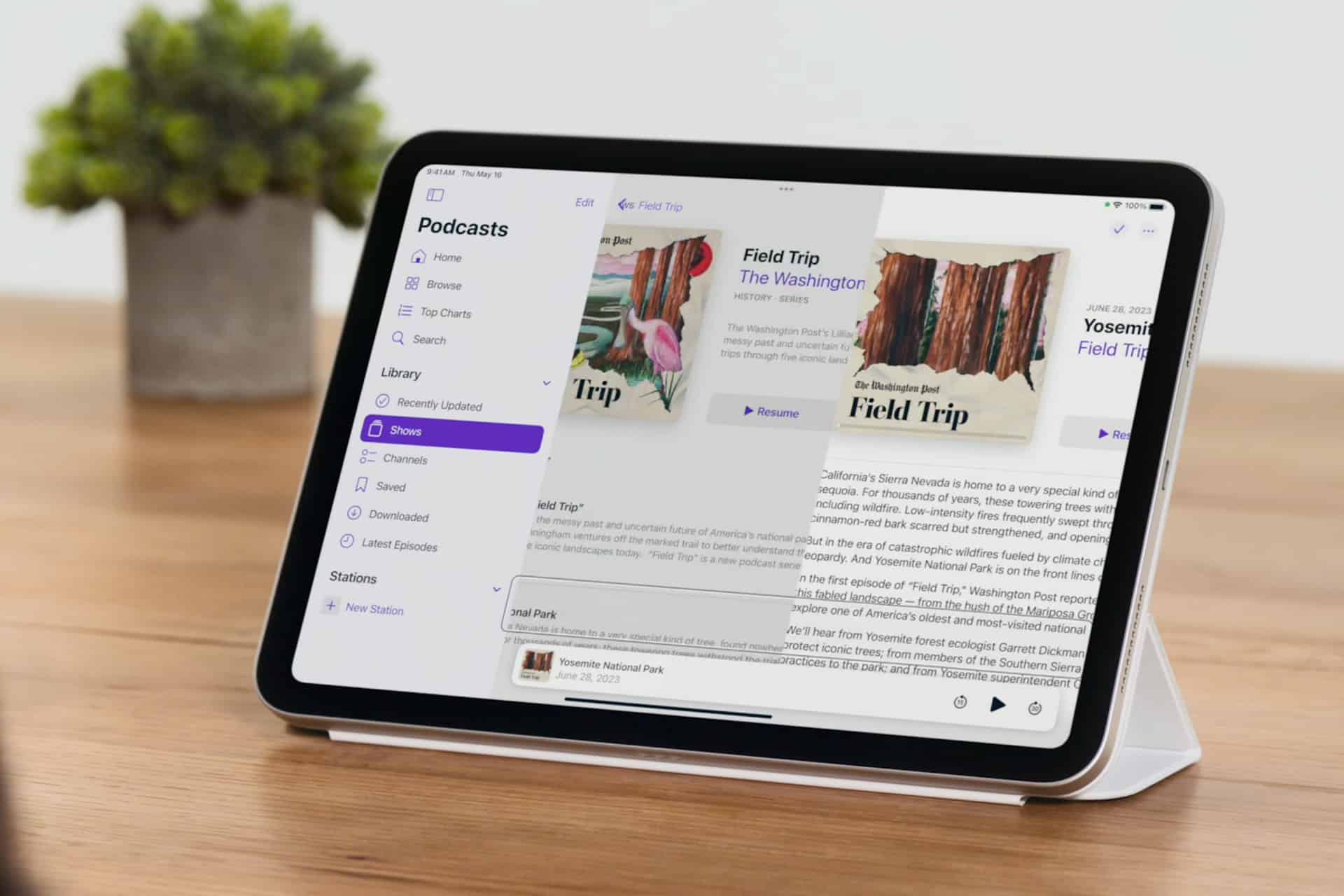
iPhone Eye Tracking is powerful, but it is not magic. It may feel slower than touch. It may require tuning. Some small interface elements may be harder to select. Long sessions may cause eye fatigue. Fast games, complex editing, dense menus, and precision tasks may not work as comfortably as basic navigation.
That does not make the feature weak. It means the goal is accessibility, not replacing every input method in every situation. The best use cases are app navigation, communication, basic controls, reading, media control, and tasks where steady selection is enough.
Developers also matter. Apps with clear buttons, strong spacing, readable labels, and accessible controls will be easier to use with Eye Tracking. Dense interfaces, tiny tap targets, unclear icons, and custom controls can make hands-free navigation harder. Apple’s accessibility tools work best when app design respects accessibility from the beginning.
This is why Eye Tracking should be understood as part of a larger accessibility ecosystem. Apple provides the control method. Developers and users shape how effective it feels in daily life.
Hands-Free Control Changes What iPhone Can Be
iPhone Eye Tracking is one of those features that may not be used by every iPhone owner, but it changes what the device can represent. For someone who cannot comfortably tap, swipe, or hold the phone, hands-free navigation can make iPhone more independent, more personal, and more usable.
The feature also shows why accessibility work often benefits the whole platform. Eye Tracking pushes Apple to think about larger tap targets, clearer focus states, better pointer behavior, dwell actions, on-device intelligence, and flexible input. Those improvements make the iPhone more adaptable for everyone, even if the original purpose is assistive.
The best setup is patient. Turn on Eye Tracking, calibrate carefully, adjust smoothing, test Snap to Item, enable Dwell Control, tune the dwell time, and try basic tasks before relying on it for longer use. A stable position and good lighting can make the feature feel much better.
Eye Tracking makes the iPhone less dependent on hands and more responsive to the person using it. That is the real value. It turns accessibility from an extra setting into a different way of navigating the device.