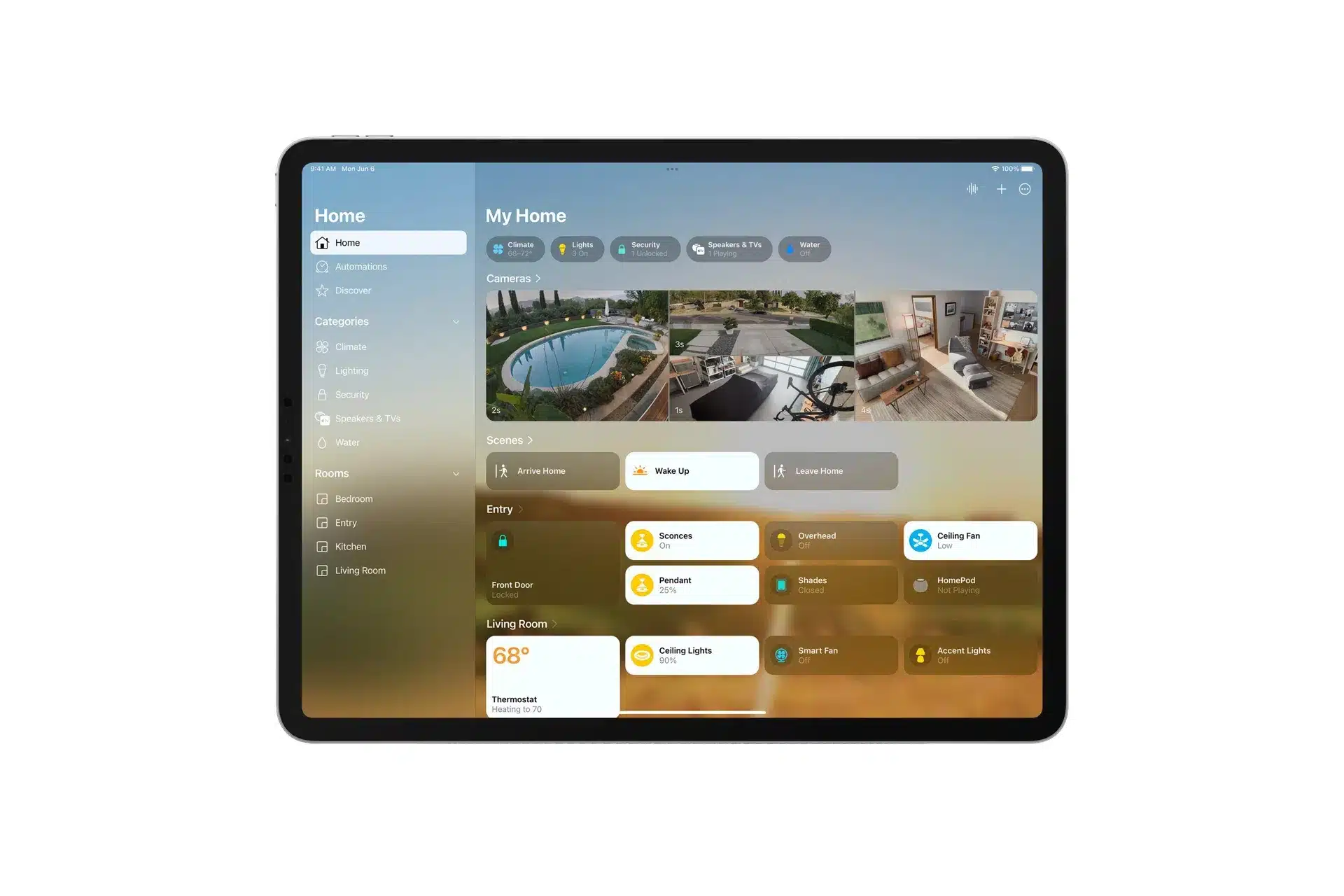
HomeKit Guest Access is one of the most useful additions to Apple’s smart home system because it solves a very real problem: not everyone who needs access to a home should become a full resident inside the Home app.
A family member staying for the weekend, a neighbor checking on a pet, a cleaner arriving every Thursday, or a contractor visiting during a short repair window may need access to a door lock or security-related accessory. They do not need full control over lights, cameras, automations, scenes, speakers, thermostats, or every connected device in the house.
That distinction is important. For years, sharing a smart home was often too broad. Inviting someone to control a home usually meant granting access that felt larger than the actual need. Apple’s guest model makes the relationship more precise.
A guest can be given local-only access to specific doors, locks, and other security-related accessories on a defined schedule. That makes the feature better suited for temporary access, limited visits, and controlled entry without turning every invited person into a full participant in the home.
Apple’s current Home app guidance separates people into roles. Residents can have access to all accessories in the home, with optional remote access depending on permissions. Guests are more limited. Apple says guests have local-only access to specific doors, locks, and other security-related accessories on a set schedule.
The feature requires iOS 18, iPadOS 18, or later, and Apple also notes that remote access and guest access require a home hub, such as HomePod or Apple TV 4K. That means the setup is not only about the person being invited. The home itself needs the right Apple infrastructure behind it.
HomeKit Guest Access for Safer Temporary Control
HomeKit Guest Access works best when the purpose is clear. It is not designed as a universal way to share every smart accessory in the house. It is specifically useful for controlled access to security-related devices, especially smart locks and doors. If the home does not include supported security-related accessories inside the Home app, Apple says the Guest role may not be available.
This keeps the feature focused. A guest who needs to unlock a front door during a scheduled window can receive that limited access. A cleaner can be allowed entry during work hours. A friend feeding a pet can be given access for the days they are helping. A family member visiting for a holiday can receive temporary access without gaining long-term control over the whole smart home.
That structure also reduces the anxiety that can come with smart home sharing. Home devices now manage sensitive parts of daily life. A smart lock controls entry. A security system protects the house. Cameras and sensors reveal private routines. Giving someone full access when they only need one door is unnecessary. Guest access narrows the permission to the specific function.
The schedule is just as valuable as the accessory restriction. Temporary access should not require remembering to remove someone manually after the visit ends. A scheduled access window helps prevent forgotten permissions from lingering for weeks or months. This is especially useful for recurring services, short-term guests, and shared family homes where people may need entry only during certain times.

Setting Up a Guest in the Home App
Before using HomeKit Guest Access, make sure the Home app is updated, the home uses a supported home hub, and the relevant door, lock, or security accessory already appears in Apple Home. A HomePod or Apple TV 4K can serve as the hub, and the person being invited needs an Apple Account.
To add a guest:
Home app > Add Button > Add People > Guest > Choose Person > Select Accessories > Set Schedule > Send Invite
The setup flow may vary slightly by device and software version, but the main idea stays the same. The guest is invited through the Home app, assigned the Guest role, given access to supported security-related accessories, and limited by schedule. This should be treated differently from adding a resident, since residents can receive much broader control.
To invite a resident instead of a guest:
Home app > Add Button > Add People > Resident > Choose Person > Send Invite
This difference matters. A resident is appropriate for someone who lives in the home or needs ongoing control over accessories. A guest is better for temporary or limited access. Choosing the right role at the start prevents later cleanup.
If multiple homes are set up in the Home app, confirm the correct home before sending the invitation. This is especially important for people managing a main home, an office, a rental, or a family property.
Reviewing Access and Removing Guests
Guest access should be reviewed regularly, especially in homes with many service visits or recurring helpers. Even when schedules are used, it is a good habit to check who still appears under Home settings. Temporary access should remain temporary.
To review people in the Home app:
Home app > More Button > Home Settings > People
To edit a guest:
Home app > More Button > Home Settings > People > Select Guest > Edit Access
To remove a person:
Home app > More Button > Home Settings > People > Select Person > Remove Person
This review is useful after a guest leaves, a cleaner changes schedule, a contractor finishes a project, or a smart lock is replaced. It also helps keep the household aware of who has access to security-related parts of the home.
For stronger control, pair guest access with good smart lock habits. Use unique access assignments when supported, avoid sharing personal passcodes casually, and check lock activity inside the accessory’s app if the manufacturer provides detailed history. Apple Home creates the permission layer, while some locks may still offer additional access logs or device-specific controls through their own apps.

Tips for Using HomeKit Guest Access Well
The best HomeKit Guest Access setup is narrow. Give access only to the accessories the person needs. If a guest only needs the front door, do not create a broader home-sharing arrangement. If a contractor only needs weekday access during a repair window, use that time frame rather than open-ended permission.
It also helps to communicate the basics before the visit. A guest should know which door they can use, when access begins, when it ends, and whether they need to be physically near the home for local-only control. Since Apple describes guest access as local-only, it should not be treated like full remote management.
For households with frequent visitors, naming accessories clearly makes a difference. “Front Door,” “Garage Entry,” “Side Gate,” and “Office Lock” are easier to understand than vague names like “Lock 1” or “Door.” Clear names reduce mistakes when selecting accessories during setup and help guests understand what they are allowed to control.
To rename an accessory:
Home app > Select Accessory > Accessory Settings > Name
A reliable home hub is also essential. Apple says guest access requires a home hub, and Apple TV 4K or HomePod can fill that role. Keeping the hub powered, connected, and updated improves the overall Home app experience. If guest access is not appearing or invitations do not behave as expected, the home hub should be one of the first things checked.
To check home hubs and bridges:
Home app > More Button > Home Settings > Home Hubs & Bridges
HomeKit Guest Access gives Apple’s smart home system a more practical permission model for real households. It recognizes that access is not all-or-nothing. Some people need the whole home. Others only need one lock for one afternoon. That controlled approach makes Apple Home more useful for daily life, especially as smart locks, doors, garages, and security accessories become more common in homes, offices, and shared spaces.