
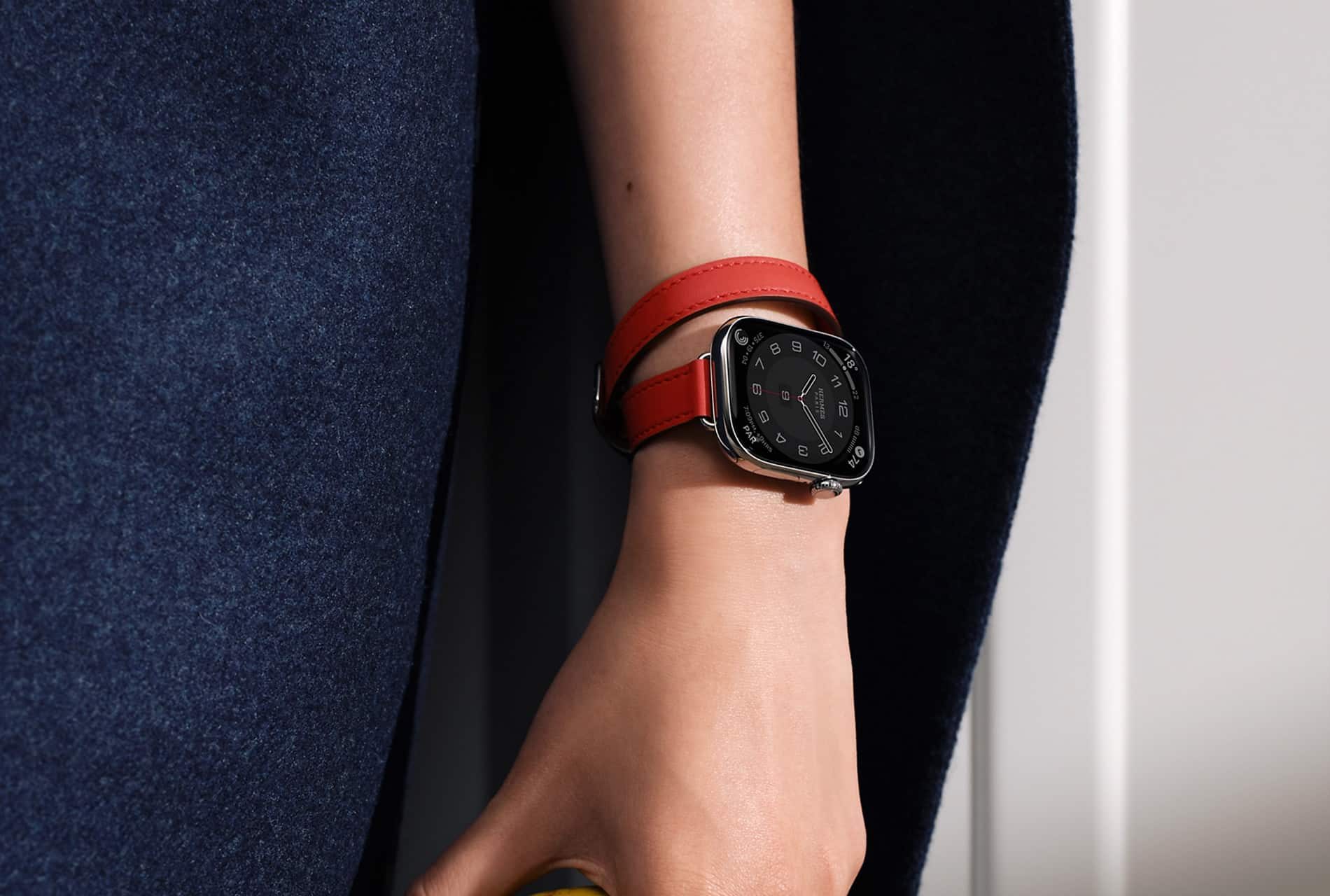
Apple Watch always-on display is one of those features that makes the watch feel more like a real watch and less like a tiny computer waiting to wake up. Instead of going completely dark when the wrist is lowered, supported models keep a dimmed version of the watch face visible, allowing users to glance at the time, complications, workout data, timers, and other information without making an obvious wrist-raise gesture.
That small difference changes the personality of Apple Watch. A traditional watch is always readable. Early smartwatches often felt less natural because the screen disappeared until the user moved. Apple’s always-on display helps close that gap, especially during workouts, meetings, cooking, travel, commuting, and everyday moments when raising the wrist is inconvenient or too noticeable.
The feature is not perfect. Always-on display can reduce battery life, make notifications feel more present, create privacy concerns in certain settings, and make the watch feel harder to ignore. For many users, it is worth keeping on. For others, turning it off can make Apple Watch calmer, more discreet, and longer-lasting between charges.
Apple Watch Always-On Display Feels More Natural
Apple Watch always-on display works because it removes friction from the most basic watch function: checking the time. Without it, the user has to raise the wrist, tap the screen, or turn the Digital Crown. Those actions are small, but they can feel awkward during a meeting, conversation, workout, movie, class, or quiet moment.
With always-on display, the time remains visible. The screen dims when the wrist is down, and watchOS reduces motion, brightness, and certain visual details to preserve power. When the user raises the wrist, the full watch face becomes active again.
To adjust the feature:
Settings > Display & Brightness > Always On
On iPhone:
Watch App > Display & Brightness > Always On
The feature is especially useful with complications. A user can glance at weather, activity rings, timers, calendar events, heart rate, workout progress, battery level, or other small pieces of information without fully waking the watch. That makes Apple Watch better as a passive dashboard.
For workouts, always-on display is even more practical. During a run, walk, bike ride, strength session, or swim, the user can see time, pace, distance, heart rate, or workout progress without exaggerated wrist movement. Apple Watch Ultra models benefit from this most because they are often used in outdoor, endurance, and fitness situations where quick visibility matters.

The Good: Time, Workouts, and Everyday Glances
The best part of always-on display is convenience. It makes Apple Watch feel ready. A timer on the wrist remains visible while cooking. A workout screen stays readable while moving. A meeting time can be checked without tapping. A watch face still looks alive instead of becoming a black rectangle.
That also helps the watch feel more premium. Apple spends a lot of effort designing watch faces, complications, colors, and materials. When the display is always off, much of that design disappears most of the day. Always-on display lets the watch remain part of the user’s style, especially with analog faces, modular faces, photo faces, or carefully chosen complications.
The feature also helps users who rely on Apple Watch for health and routine. A visible activity complication can encourage movement. A visible timer can prevent forgotten tasks. A visible calendar complication can keep the next appointment in mind. A visible sleep or Focus indicator can make the watch feel more connected to the day’s rhythm.
Always-on display can also reduce unnecessary gestures. Instead of repeatedly raising the wrist to check the time, the user can glance naturally. That can feel more polite in social situations because the movement is less obvious. It can also be helpful for people with limited mobility or anyone who finds repeated wrist gestures uncomfortable.
The Bad: Battery Life Still Matters
The biggest downside is battery life. Apple designs always-on display to be efficient, using lower refresh rates, dimmed brightness, and simplified visuals when the wrist is down. Even so, keeping the screen active uses more power than turning it off completely.
For many users, the difference may be manageable. Apple Watch is already designed around daily charging for most models. But the trade-off becomes more noticeable when using workouts, GPS, cellular, sleep tracking, bright outdoor conditions, or older batteries. A watch that comfortably lasts through the day with always-on display may feel tighter after years of use or during heavy activity.
To turn off always-on display:
Settings > Display & Brightness > Always On > Off
Low Power Mode can also disable or limit features to extend battery life.
To turn on Low Power Mode:
Control Center > Battery Percentage > Low Power Mode
The battery trade-off depends heavily on the user. Someone who charges every night may never care. Someone who tracks sleep, runs with GPS, uses cellular, and wants the watch to last into the next day may prefer turning always-on display off.
Apple Watch Ultra models have more battery headroom, so the feature is easier to keep enabled. Smaller Apple Watch models or older batteries may benefit more from disabling it.
Privacy Can Be a Real Concern
Always-on display can also make information more visible than some users expect. Apple dims the screen and hides some sensitive complications when the wrist is down, but the watch face is still visible. Depending on the settings, nearby people may be able to see the time, certain complications, app states, or a general sense of what is happening on the watch.
This matters in offices, schools, public transit, shared homes, gyms, and meetings. A watch face with calendar details, health complications, reminders, activity, or personal information may reveal more than the user wants. Even when notifications are hidden, the presence of active information can feel too exposed.
Apple includes settings to control what appears when the wrist is down. Users can hide sensitive complications and choose which apps can show live information while the display is dimmed.
To manage always-on privacy:
Watch App > Display & Brightness > Always On > Show Complication Data
Users can also manage which apps show information:
Watch App > Display & Brightness > Always On > Show Apps
This is worth checking. A cleaner always-on watch face can keep the feature useful without showing too much. Some users may prefer a simple time-only face for work or public settings and a more detailed face for home or workouts.

The Feature Can Add More Distraction
Apple Watch is already a notification device. Always-on display can make it feel even more present. A screen that never fully disappears can subtly pull attention, especially when the watch face includes activity rings, calendar pressure, timers, weather changes, or colorful complications.
For some users, that is the point. They want the watch to keep information visible. For others, the constant presence can make the device feel less restful. A black screen can feel like a boundary. A dimmed screen can feel like the watch is always asking to be noticed.
This matters during sleep, quiet work, reading, meals, or time away from screens. Sleep Focus and Theater Mode can help. Theater Mode turns off the always-on display temporarily and keeps the screen dark until tapped or the Digital Crown is pressed.
To use Theater Mode:
Control Center > Theater Mode
This is one of the best compromises. Users can keep always-on display enabled most of the time, then turn on Theater Mode at movies, performances, bedtime, meetings, or anywhere the glowing screen would be distracting.
Raise to Wake Still Works Well Without It
Always-on display is useful, but it is not essential for every user. Apple Watch still works well with Raise to Wake. When always-on display is disabled, the watch wakes when the user raises the wrist, taps the display, or presses a button.
To adjust Wake on Wrist Raise:
Settings > Display & Brightness > Wake on Wrist Raise
On iPhone:
Watch App > Display & Brightness > Wake on Wrist Raise
Some users may prefer this because it creates a clearer separation between active and inactive moments. The watch is dark when not in use, then wakes fully when needed. This can save battery and reduce visual noise.
The downside is that Raise to Wake does not work perfectly in every position. If the wrist movement is too subtle, if the user is lying down, if the arm is on a desk, or if the watch is being viewed from an angle, the screen may not wake when expected. In those moments, always-on display feels better.
The best setup depends on how the user checks the watch. People who glance often without moving their wrist may love always-on display. People who check intentionally may prefer Raise to Wake alone.
Best Uses for Always-On Display
Always-on display is most useful for workouts, timers, travel, meetings, and watch faces with essential complications. It is also useful for users who want Apple Watch to feel like a traditional watch.
A runner can see pace without exaggerated movement. A cook can monitor a timer without touching the watch. A traveler can check boarding time or local time discreetly. A worker can see the next meeting at a glance. A parent can check the time while holding something. A presenter can keep track of timing without obviously waking the screen.
The feature is less necessary during sleep, movies, quiet evenings, long battery days, or situations where privacy matters more than quick glances. In those moments, Theater Mode, Sleep Focus, or turning always-on display off can make the watch feel better.
A practical setup is to keep always-on display enabled, simplify the watch face, hide sensitive complication data, and use Theater Mode when the screen should stay dark.

A Balanced Apple Watch Feature
Apple Watch always-on display is a good feature because it makes the watch feel more immediate, more traditional, and more useful in daily life. It improves quick glances, workout visibility, timers, complications, and the overall sense that Apple Watch is always ready.
The trade-offs are real. Battery life can suffer. Privacy needs attention. The screen can feel distracting. Some users may prefer a darker, calmer watch that wakes only when needed.
The best answer is not universal. Users who value convenience and visibility should keep always-on display enabled and tune privacy settings. Users who want longer battery life, less distraction, or more discretion should turn it off or use Theater Mode more often.
Apple Watch works either way. Always-on display simply changes the balance. With it, the watch feels more alive. Without it, the watch feels quieter. The right choice depends on whether the user wants Apple Watch to be constantly glanceable or only present when called.


